First day: your first sale in 15 minutes
You received your shop's address (for example dokoningiz.kassapos.online), a login and a password. Follow the steps on this page in order: in 15 minutes you will make your first sale and see its receipt.
The plan
Section titled “The plan”| Step | Time |
|---|---|
| 1. Sign in | 2 minutes |
| 2. Install the app | 2 minutes |
| 3. Shop name and receipt | 2 minutes |
| 4. Add 3 products | 5 minutes |
| 5. First sale | 2 minutes |
| 6. See the receipt | 1 minute |
| 7. Add a cashier | 2 minutes |
1. Sign in
Section titled “1. Sign in”-
Open the shop's address. If the link came in Telegram, first open it in Safari or Chrome: how to do it.
-
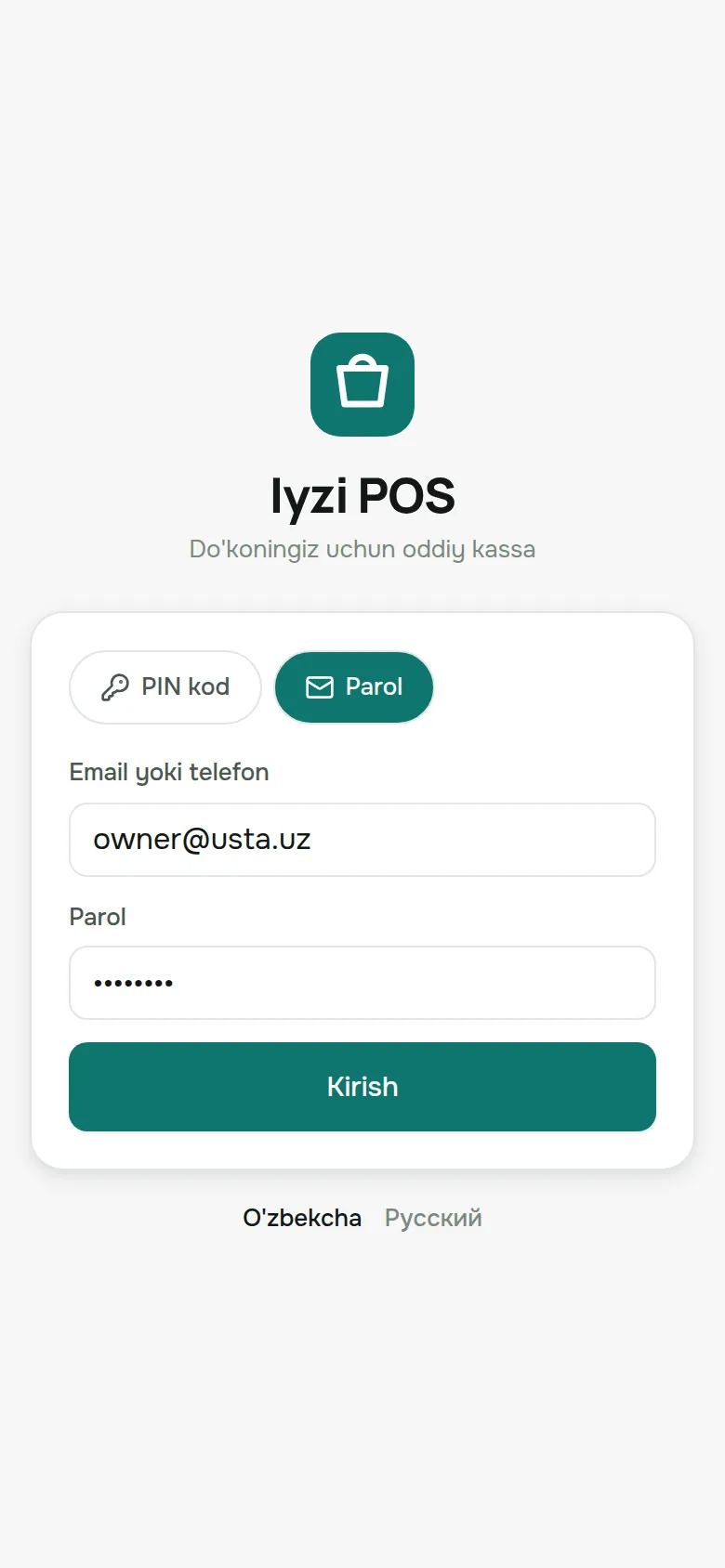
Type Email yoki telefon (e-mail or phone) and Parol (password).
-
Tap Kirish (Sign in).
Bosh panel (Dashboard) opens. It is empty for now, because there are no sales yet. More: Signing in.
2. Install the app on your phone
Section titled “2. Install the app on your phone”You do this once. After that the app opens from its icon like any other app, and the till keeps selling even when the internet drops.
- iPhone (Safari): the three dots or the share button → На экран «Домой» (Add to Home Screen) → Добавить (Add).
- Android (Chrome): the three dots at the top right → Установить приложение (Install app) → Установить (Install).
With pictures: Installing the app.
3. Check the shop name and the receipt
Section titled “3. Check the shop name and the receipt”-
Open Sozlamalar (Settings) in the menu (on a phone it is under Yana, More). The Do'kon (Shop) section opens.
-
Check Do'kon nomi (shop name), Telefon (phone) and Manzil (address). Add a Logotip (logo) if you like. Tap Saqlash (Save).
-
Open Sozlamalar → Chek (Receipt). If you have a receipt printer, pick its size in Qog'oz kengligi (paper width): 58 mm or 80 mm (80 mm is usually already chosen). No printer? Change nothing.
-
Check Chek oxiridagi matn (text at the end of the receipt), usually "Xaridingiz uchun rahmat!" (thank you for your purchase). Tap Saqlash.
The shop name shows on the receipt and at the top of the app. More: Shop settings, Receipts.
4. Add 3 products
Section titled “4. Add 3 products”-
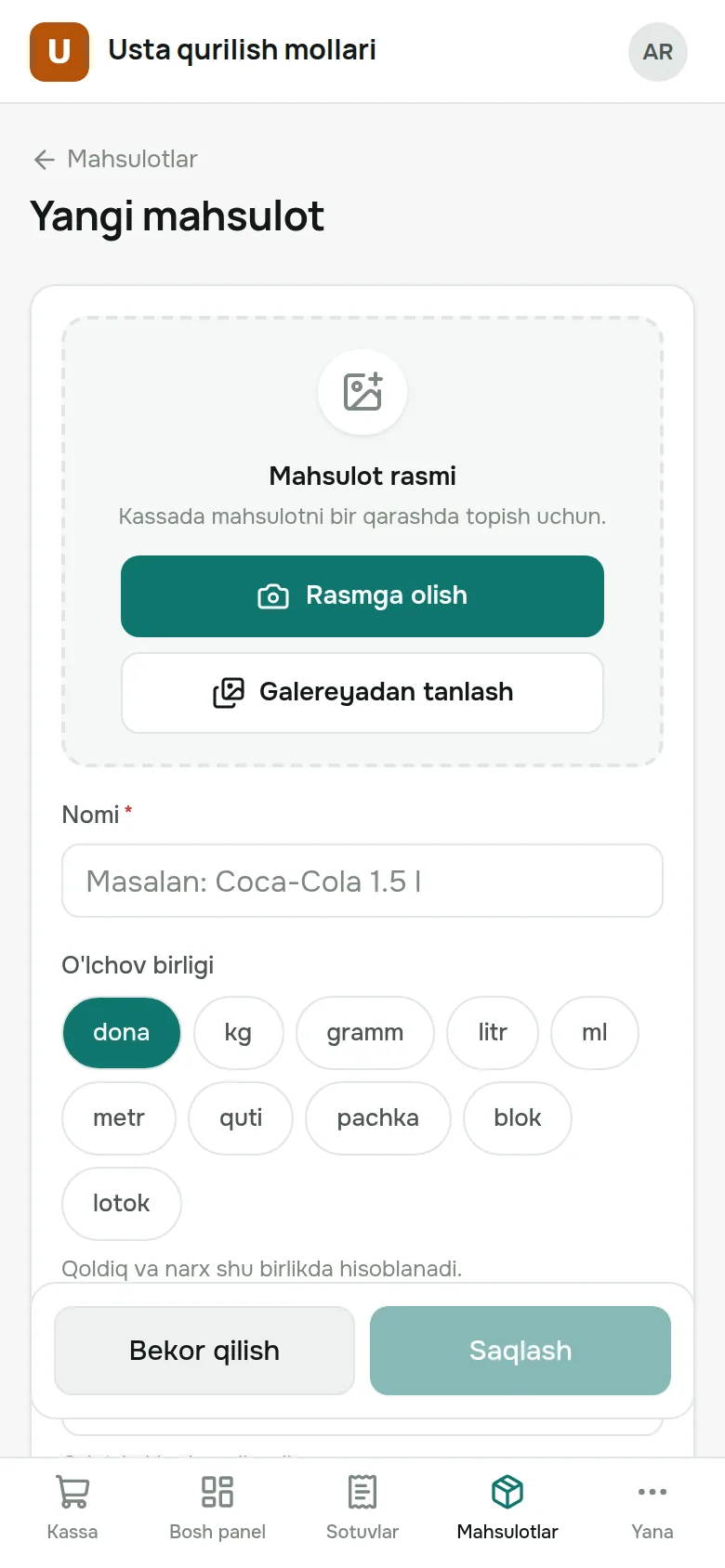
Open Mahsulotlar (Products) in the menu and tap Yangi mahsulot (New product).
-
Nomi (name): for example "Coca-Cola 1.5 l".
-
O'lchov birligi (unit): usually dona (piece), which is already chosen. For goods weighed on a scale pick kg, for fabric or cable metr (metre).
-
Tannarx (cost): what you paid for the item, for example
12 000. Sotuv narxi (sale price): what you sell it for, for example15 000. The cost is needed to work out profit. The app shows the markup by itself: in this example Ustama: 25% (markup 25 %). -
Shtrix kod (barcode): scan it or type its digits. No barcode? Leave it empty.
-
Hozirgi qoldiq (current stock): how many you have in the shop now, for example
24. -
Tap Saqlash (Save). Add 2 more products the same way.
Many products? You do not have to type them one by one: the Mahsulotlar page has Import (load from a CSV file). More: Adding a product.
Ready-made advice for your kind of shop:
5. Make the first sale
Section titled “5. Make the first sale”-
Open Kassa (Till) in the menu.
-
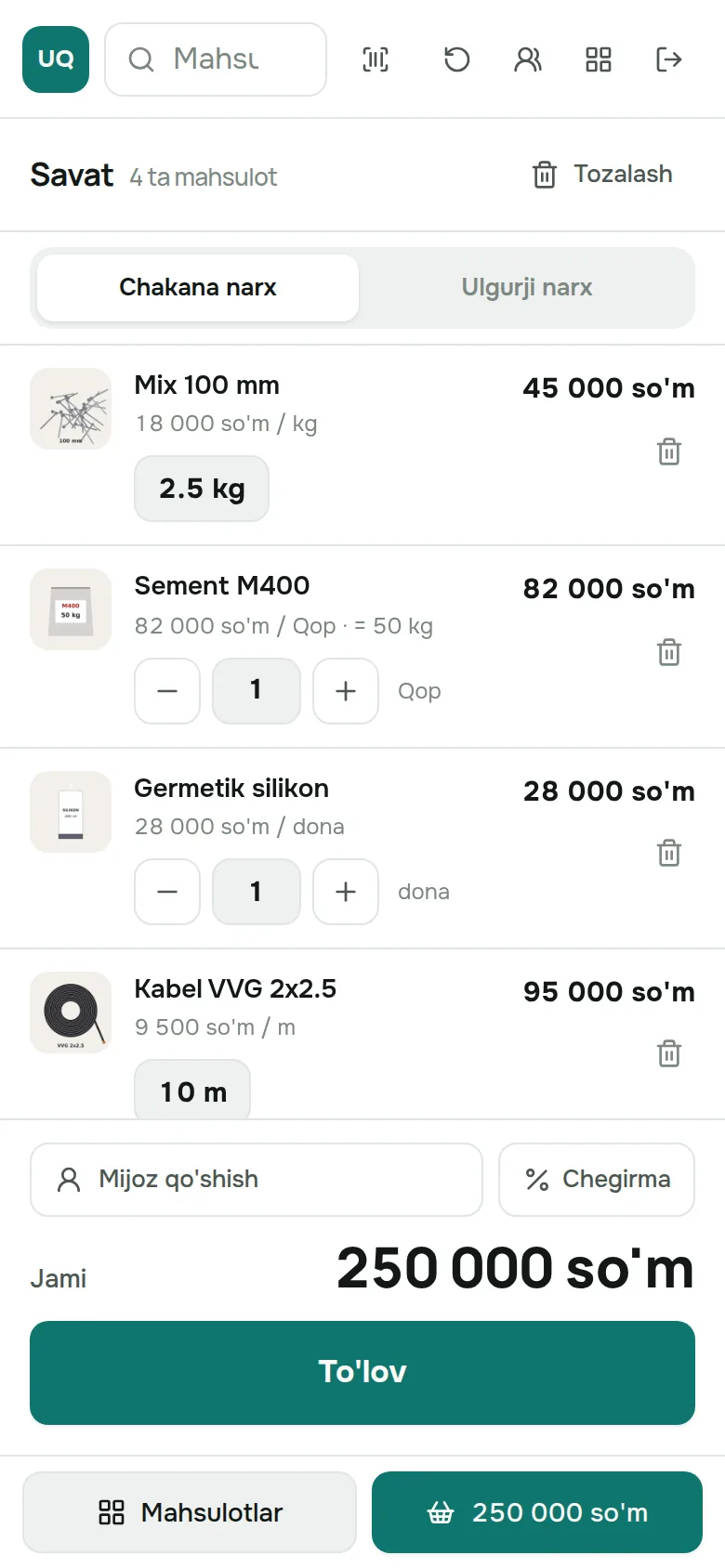
Tap a product or scan its barcode: it goes into the Savat (basket). On a phone, the button with the total at the bottom of the screen opens the basket.
-
Tap To'lov (Payment).
-
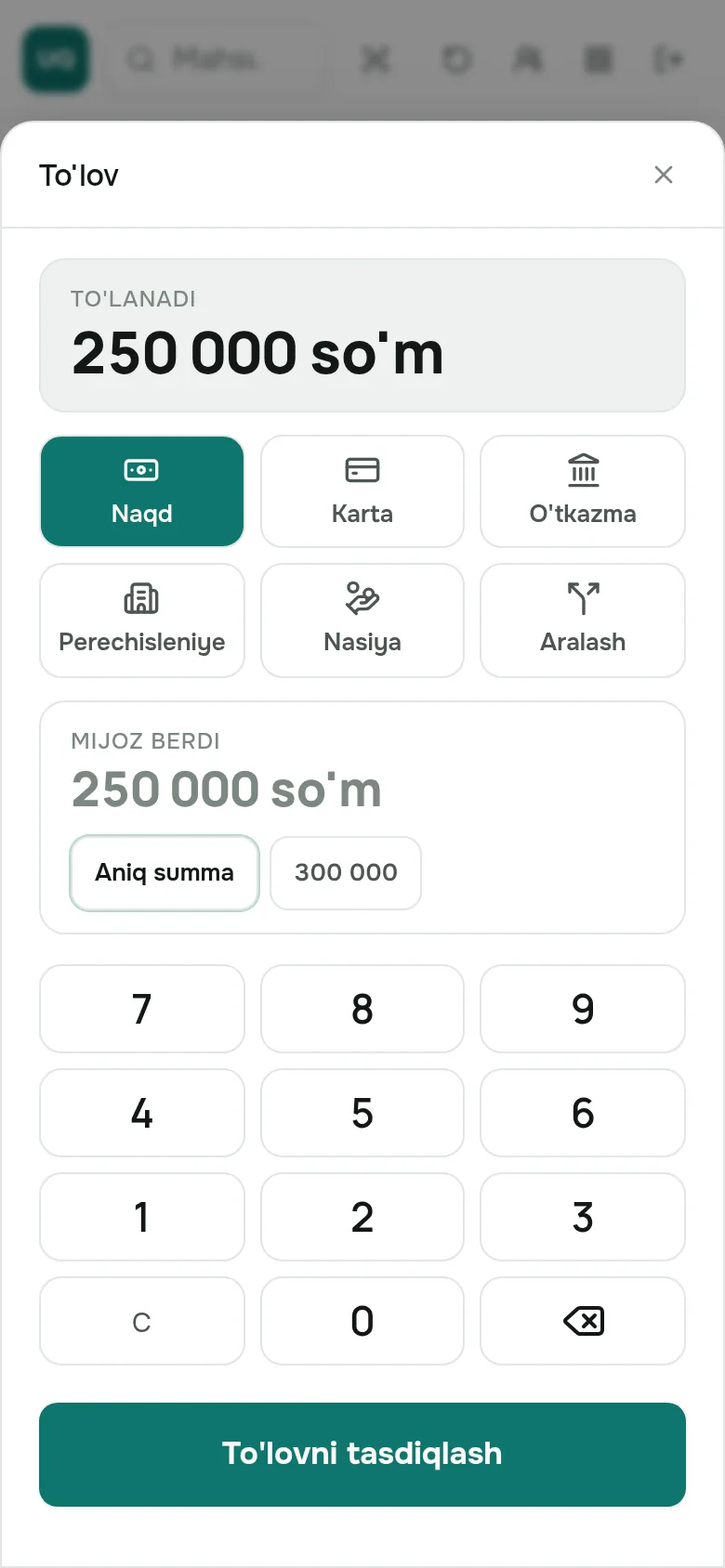
Naqd (cash) is already chosen. Type the money the customer gave you, for example
20 000. If the customer paid the exact amount, type nothing: Aniq summa (exact amount) stays selected. The app works out the Qaytim (change) by itself. -
Tap To'lovni tasdiqlash (Confirm payment).
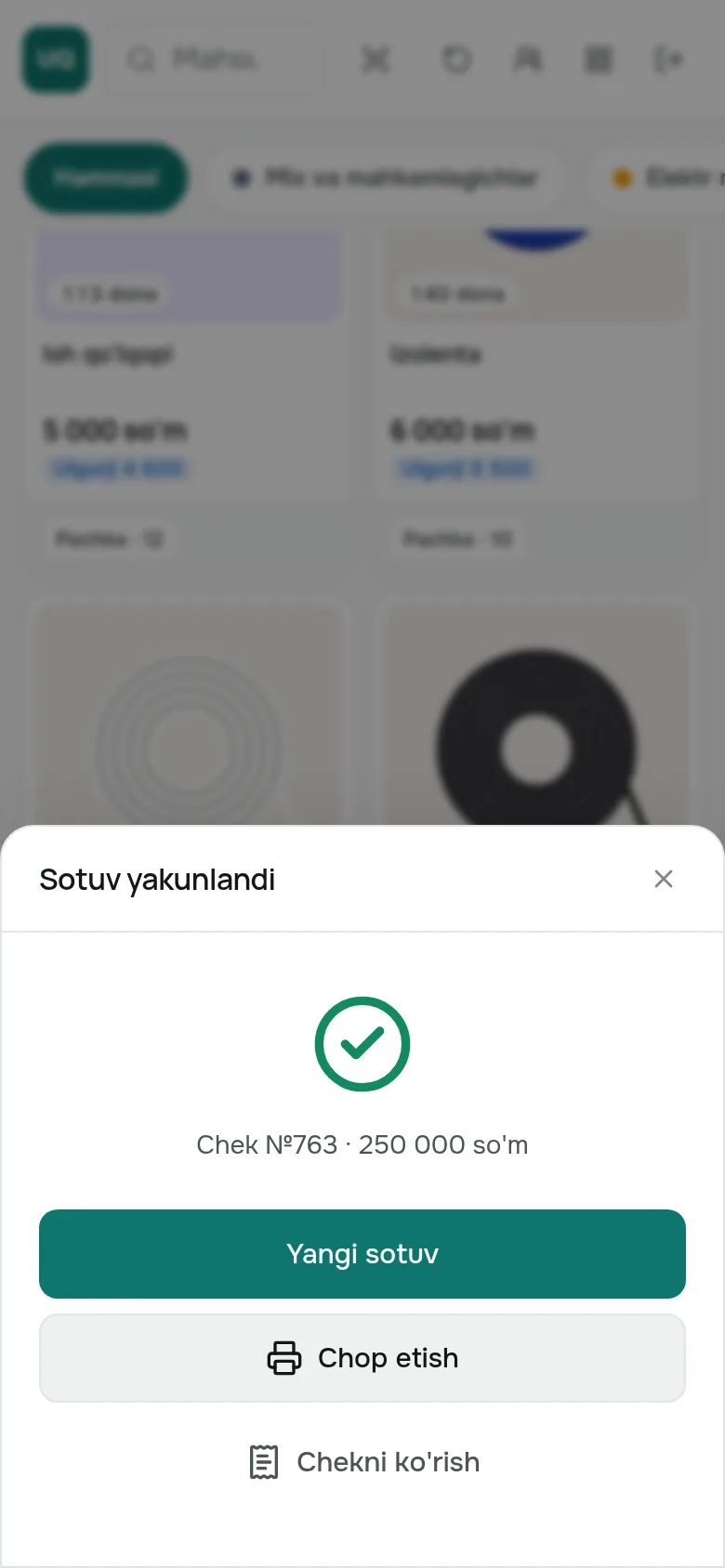
The Sotuv yakunlandi (sale complete) window appears. If there is change to give, the amount is shown in large figures under Qaytim bering (give change). More: Selling at the till, Payment.
6. See the receipt
Section titled “6. See the receipt”The Sotuv yakunlandi window has three buttons:
- Yangi sotuv (new sale): you go on to the next customer.
- Chop etish (print): the receipt comes out of the printer.
- Chekni ko'rish (view receipt): the receipt opens on screen. There you can Rasm qilib saqlash (save as a picture), and on a phone also Ulashish (share), for example to send it to the customer in Telegram.
A sale made without the internet has no Chekni ko'rish button, but Chop etish works.
You can work without a printer: send the receipt as a picture or skip it. Connect a printer later: Receipt printer.
7. Add a cashier
Section titled “7. Add a cashier”-
Open Sozlamalar → Xodimlar (Settings → Staff) and tap Qo'shish (Add).
-
Type Nomi (name), Email and Telefon (phone). The e-mail is required. The cashier signs in with the e-mail or the phone number.
-
Rol (role): Kassir (cashier), which is already chosen.
-
Type a Parol (password): at least 8 characters, and not digits only. If several people share one till, also give a PIN kod (4 digits, not starting with 0).
-
Tap Saqlash (Save).
Give the cashier the shop's address, login and password. They sign in on their own phone, or work on a shared till with the Xodimni almashtirish (switch staff) button and their PIN. A cashier does not see costs or profit and sees only their own sales. More: Adding staff, Roles.
Done! What next
Section titled “Done! What next”Questions
Section titled “Questions”Do I need a computer? No. You can do everything on a phone: add products, sell, see reports. A computer is handy as the till in a bigger shop.
Do I need a receipt printer? No. You can show the receipt on screen or send it as a picture.
Do I need a barcode scanner? No. Search for a product by name or tap it in the list. On a phone you can also scan with the camera: Scanner and camera.
The sale did not go through and it said "Not enough stock". That product does not have enough stock. Add stock through Goods receiving (or with Qoldiqni tuzatish, stock adjustment, on the Ombor page). Then make the sale again.
Do I need to open a shift? No. The app has no shifts: you sign in and sell. Every sale records who sold it. To keep track of the cash in the drawer: Cash control.
I made a sale by mistake. What do I do? The owner or a manager opens that receipt in Sotuvlar (Sales) and taps Bekor qilish (Cancel). If the customer brings the goods back, make a return.