Receipt printer
The app runs in the browser, so any printer that works on your computer can print receipts. Shops usually use these printers:
| Printer | Paper | Examples |
|---|---|---|
| Receipt printer (thermal) | 58 mm or 80 mm roll | Xprinter, Rongta, Sunmi, HPRT, Epson TM |
| Ordinary printer | A4 sheet (a goods receipt like 1C's) or A5 (half an A4) | Canon PIXMA G2411, HP, Epson L series, Brother |
| Label printer | Label roll (for example 58×40 mm) | Xprinter XP-365B / XP-370B, TSC, Godex, Zebra |
About label printers: Price labels.
The app itself also has a short guide for connecting printers: Sozlamalar → Qurilmalar → Printerlar (Settings → Devices → Printers).
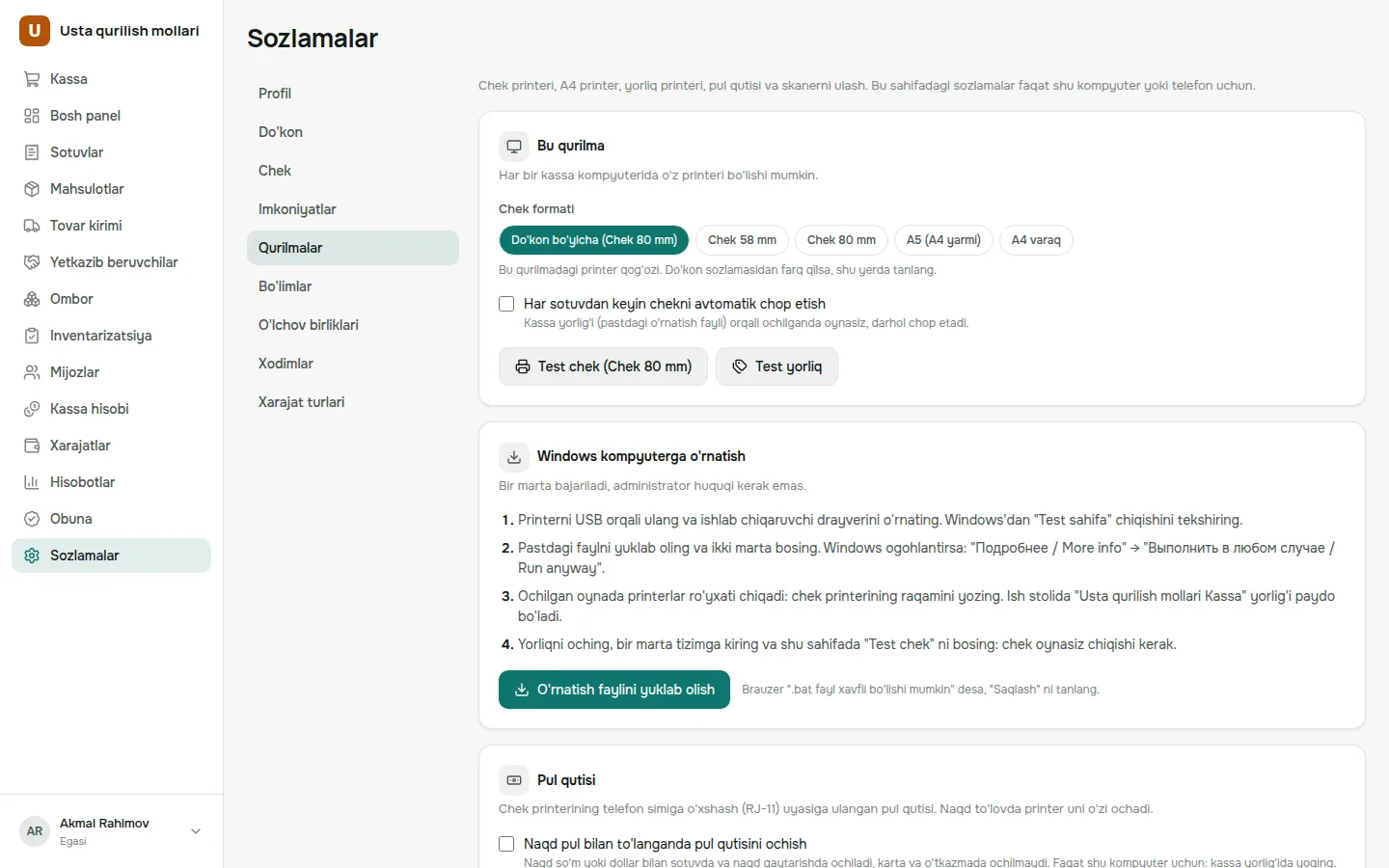
Two kinds of setting: shop and device
Section titled “Two kinds of setting: shop and device”- For the shop (Sozlamalar → Chek → Qog'oz kengligi, Settings → Receipt → Paper width): the usual receipt for every till of the shop: Chek 58 mm, Chek 80 mm (the default in a new shop), A5 (A4 yarmi) (A5, half an A4) or A4 varaq (A4 sheet). The owner or the manager picks it. More: Receipts.
- For this device (Sozlamalar → Qurilmalar → Bu qurilma → Chek formati, Settings → Devices → This device → Receipt format): if one till computer has a different printer, pick its format here. With Do'kon bo'yicha (As the shop) selected, the shop setting applies.
A cashier can open the Qurilmalar section too. Its settings are kept on this computer or phone only, so they are made on each till separately.
Connecting a receipt printer on a Windows computer
Section titled “Connecting a receipt printer on a Windows computer”-
Connect the printer by USB and install the maker's Windows driver (from the disc that came with it or the maker's website).
-
Check that Windows can print a "Test page" (Пробная страница / Print test page) on the printer.
-
In the Windows printer settings (Printing preferences / Настройка печати), set the paper size to a roll: 80 mm or 58 mm.
-
In the app, pick the same width in Sozlamalar → Chek: Chek 80 mm or Chek 58 mm.
-
Download the Windows setup file from Sozlamalar → Qurilmalar and run it: it makes this printer the default and creates the till shortcut. More: Setting up a Windows computer.
-
Open the app with the till shortcut and press the Test chek (Test receipt) button in Sozlamalar → Qurilmalar. The receipt should print at once, with no window at all.
An A4 or A5 printer
Section titled “An A4 or A5 printer”-
Install the printer driver. For example, for a Canon G2411 download and install "G2010 series MP Drivers" from the Canon website and connect the printer by USB.
-
Pick A4 varaq or A5 (A4 yarmi) in Sozlamalar → Chek. Or, for this computer only, in Sozlamalar → Qurilmalar → Chek formati.
-
In the setup file, pick this printer as the default.
-
Press the Test chek button: a goods receipt like 1C's, with signature lines, prints on the sheet.
For A5, cut an A4 sheet in half and put it upright in the printer. A long receipt continues on the next sheet. Two half pages can also go on one A4 sheet: Sozlamalar → Chek → Bir varaqqa → 2 sahifa (Per sheet → 2 pages).
Printing automatically after every sale
Section titled “Printing automatically after every sale”In Sozlamalar → Qurilmalar → Bu qurilma, switch on Har sotuvdan keyin chekni avtomatik chop etish (Print the receipt automatically after every sale). From then on the receipt prints by itself after each sale. This setting, too, is for this device only.
When it is off, you press Chop etish (Print) after the sale (on a computer the P key works too).
Without the setup file: the browser's print window
Section titled “Without the setup file: the browser's print window”Without the till shortcut, or in another browser, a print window appears every time. Set that window up once so the receipt prints right.
In Google Chrome or Microsoft Edge (the window is usually in Russian or English):
-
Принтер / Destination: pick your receipt printer.
-
Open Дополнительные настройки / More settings.
-
Размер бумаги / Paper size: the printer's roll size (for example 80 mm). For an A4 receipt, A4.
-
Поля / Margins: Нет / None.
-
Масштаб / Scale: 100 or По умолчанию / Default.
-
Колонтитулы / Headers and footers: untick.
-
Press Печать / Print.
The browser usually remembers the last printer chosen.
From a phone or tablet
Section titled “From a phone or tablet”When you press Chop etish on a phone, the phone's own print window opens. For the printer to show there, the phone must know it: for example, a Wi-Fi printer, or one whose maker's print app is installed. This depends on the printer model.
Without a printer, you can send the receipt to the customer as a picture: the receipt page has Rasm qilib saqlash (Save as image) and Ulashish (Share) buttons (Ulashish does not show on every phone). More: Receipts.
When the receipt does not print or prints wrong
Section titled “When the receipt does not print or prints wrong”| Sign | Cause and fix |
|---|---|
| Nothing prints | Check that the printer is on, has paper and the cover is closed. Does Windows print a "Test page"? If not, the problem is in the printer or the driver. |
| The receipt comes out of another printer | The default printer is wrong. Run the setup file again and pick the receipt printer's number. |
| Printing asks for a file name | The default printer has become "Microsoft Print to PDF" or "XPS Document Writer". Run the setup file again and pick the receipt printer. |
| A new printer is missing from the list in the print window | Press Ещё… / See more… at the end of the list. If it is not there either, quit Chrome fully (from the icon next to the clock too) and open it again. |
| The receipt is tiny or shifted to one side | In the print window set Масштаб / Scale: 100 and Поля / Margins: Нет / None. Check the paper size in the Windows printer settings. |
| Lots of blank paper after the receipt | The paper length in the printer settings is long, like A4. Pick the roll size. |
| The date and site address print at the top | Untick Колонтитулы / Headers and footers. |
| The receipt is too wide, text is cut off | On a 58 mm printer check that Chek 58 mm is selected (not 80 mm). |
More fixes: Problems and fixes.
Questions
Section titled “Questions”Which printer should I buy? Any 58 or 80 mm thermal printer with a Windows driver. An 80 mm receipt is easier to read. If you want to connect a cash drawer, check that the printer has a DK (Cash drawer) port at the back.
Can one computer have two printers (for example a receipt printer and a label printer)? Yes. But the till shortcut prints everything without a window, on the default printer. To print on the second printer (for example labels), open the app in an ordinary Chrome window: there you pick the printer yourself in the print window.
Can I reprint a receipt? Yes. Open the sale in Sotuvlar (Sales), press Chekni ko'rish (View receipt), then Chop etish. More: Receipts.