Dashboard
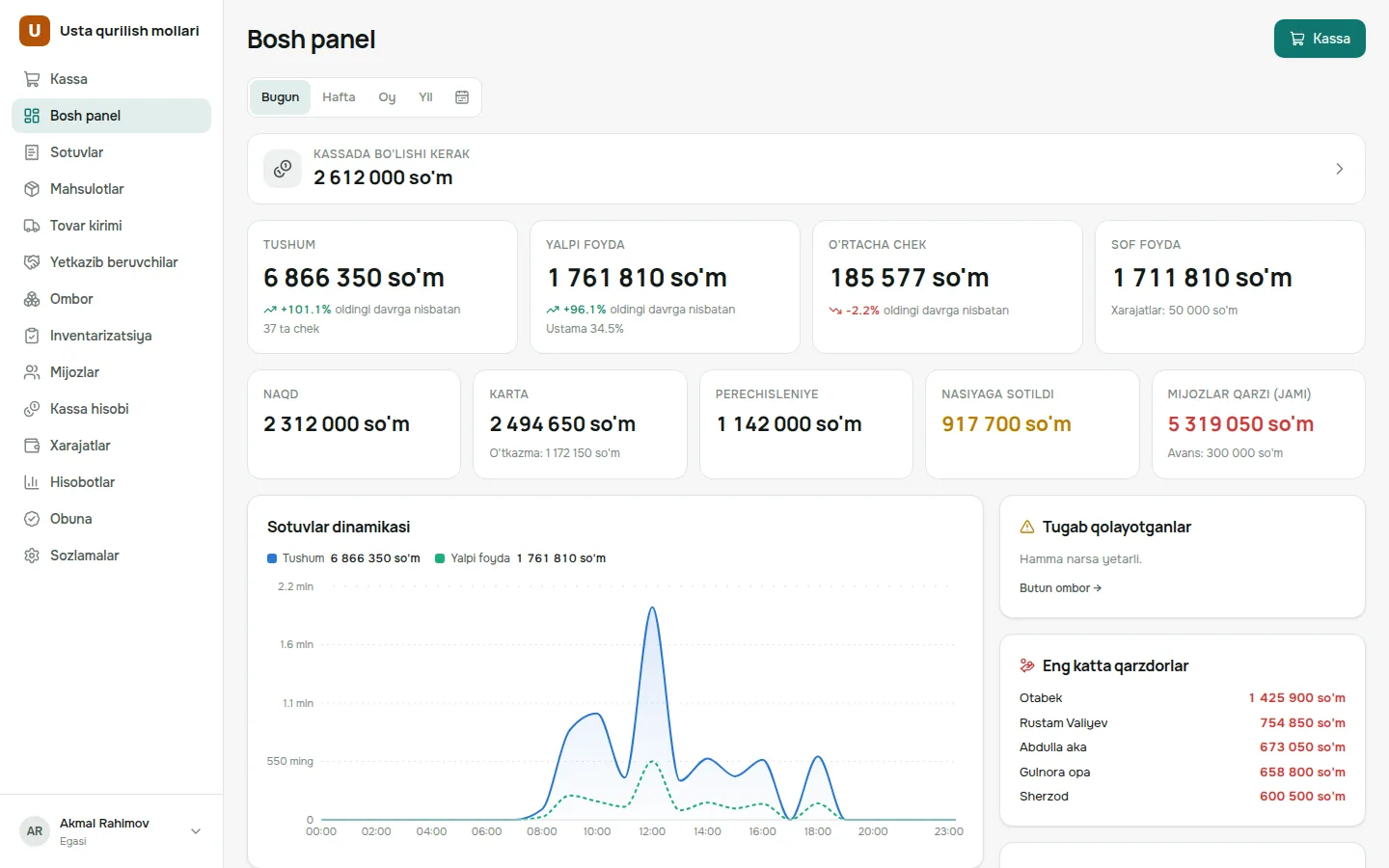
The Bosh panel (Dashboard) shows how the shop is doing at a glance: how much was sold, how much profit is left, how the money came in, who owes you and what is running low.
The owner and the manager see the dashboard. A cashier does not: when a cashier signs in, the Kassa (Till) opens straight away.
Choosing the period
Section titled “Choosing the period”The page opens on Bugun (Today). Pick another period with the buttons at the top:
- Bugun (Today): today.
- Hafta (Week): from this week's Monday to today.
- Oy (Month): from the 1st of this month to today.
- Yil (Year): from 1 January to today.
- The calendar icon: you pick the Dan (From) and Gacha (To) dates yourself.
The figures refresh by themselves every minute; there is no need to reopen the page.
The figures at the top
Section titled “The figures at the top”| Figure | What it means |
|---|---|
| Tushum (Revenue) | The total of the period's sales, after discounts. Credit sales count too; cancelled sales do not. Under it, the number of receipts. |
| Yalpi foyda (Gross profit) | What is left after the refunded goods and the cost of the goods sold are taken off revenue. Under it, Ustama (Markup): how many percent above cost the goods were sold. |
| O'rtacha chek (Average receipt) | Revenue divided by the number of receipts: what one purchase came to on average. |
| Sof foyda (Net profit) | Gross profit less Xarajatlar (Expenses). Under it, the period's expenses. |
The green or red percentage next to Tushum, Yalpi foyda and O'rtacha chek is the change against the same length of time just before. For example, with Hafta selected it compares with the same number of days before it.
Payment types and debts
Section titled “Payment types and debts”The second row shows how the money came in:
- Naqd (Cash): cash taken, less the change given. If dollars were taken, the dollar amount is shown under it.
- Karta (Card): card and transfer together. Transfers, if any, are shown separately under it.
- Perechisleniye (Bank transfer): payment through the bank. Shown when this feature is on, or when there was such a payment in the period.
- Nasiyaga sotildi (Sold on credit): goods given on credit in the period. The part a customer's advance paid is not included.
- Mijozlar qarzi (jami) (Customers' debt, total): how much all customers owe the shop right now. If some customers have paid ahead, their Avans (Advance) total is shown under it.
The blocks below
Section titled “The blocks below”- Sotuvlar dinamikasi (Sales over time): a chart by hour, day or month, with revenue and a profit line.
- Eng ko'p sotilganlar (Best sellers): the 8 products that brought in the most money in the period.
- Bo'limlar bo'yicha (By category): how much each category sold.
- Kassirlar bo'yicha (By cashier): how much each seller sold, how many receipts and how much cash they took.
- Tugab qolayotganlar (Running low): products whose stock is at or below their Minimal qoldiq (Minimum stock). Tap a product name to open its page. The Butun ombor → (All stock) link opens the Ombor (Stock) page.
- Eng katta qarzdorlar (Biggest debtors): the 5 customers who owe the most.
- Oxirgi sotuvlar (Latest sales): the last 8 receipts, whatever period is picked. Tap one to open the sale.
With cash control switched on
Section titled “With cash control switched on”If Kassa nazorati (Cash control) is on in Sozlamalar → Imkoniyatlar (Settings → Features), a Kassada bo'lishi kerak (Should be in the drawer) strip shows above the figures: how much cash should be in the drawer now. If the owner took money from the drawer in the period, Egasi oldi is shown under it. Tap the strip to open Cash control.
Sales made without the internet
Section titled “Sales made without the internet”If a till sold without the internet and its sales have not reached the server yet, a warning shows at the top of the dashboard: whose till, how many sales and what amount are waiting. They are sent by themselves once the internet is back. More: Working offline.
Choosing what the dashboard shows
Section titled “Choosing what the dashboard shows”Some owners would rather not show profit on a screen staff can see. You decide.
-
Open Sozlamalar → Do'kon (Settings → Shop).
-
In the Bosh panel block, switch off what you do not want: Yalpi foyda, O'rtacha chek or Sof foydani ko'rsatish (Show net profit).
-
Press Saqlash (Save).
With Yalpi foyda off, the chart's profit line disappears too. With net profit off, Xarajatlar is shown in its place. The Reports page still shows gross profit and the average receipt, but net profit is hidden there as well.
Questions
Section titled “Questions”Why are revenue and profit different? Revenue is the total of the goods sold. Gross profit is what is left after their cost. For example, with 1 000 000 so'm revenue and 800 000 so'm cost, gross profit is 200 000 so'm.
Why does profit look wrong? Usually the products have no cost price. With a cost of 0, the whole price shows as profit. Receive the goods through Goods receiving or type the cost on the product card. Each sale remembers the cost at the moment it was made, so a corrected cost only affects later sales.
Does the manager see profit? Yes. The manager sees cost and profit; a cashier does not. More: Roles.
How do I see what I sold yesterday? Press the calendar icon and pick yesterday's date in both fields. Or press Kecha (Yesterday) on the Sotuvlar (Sales) page.