Scanner and camera
A barcode can be read two ways: with a scanner (for a computer or a phone) or with the phone camera.
USB scanner
Section titled “USB scanner”A USB scanner works like a keyboard, so it needs no driver. Plug it into the computer and it works at once.
-
Plug the scanner into a USB port of the computer.
-
Open Sozlamalar → Qurilmalar (Settings → Devices) and scroll down to the Shtrix kod skaneri (Barcode scanner) block.
-
Scan any product's barcode. The result shows in the block.
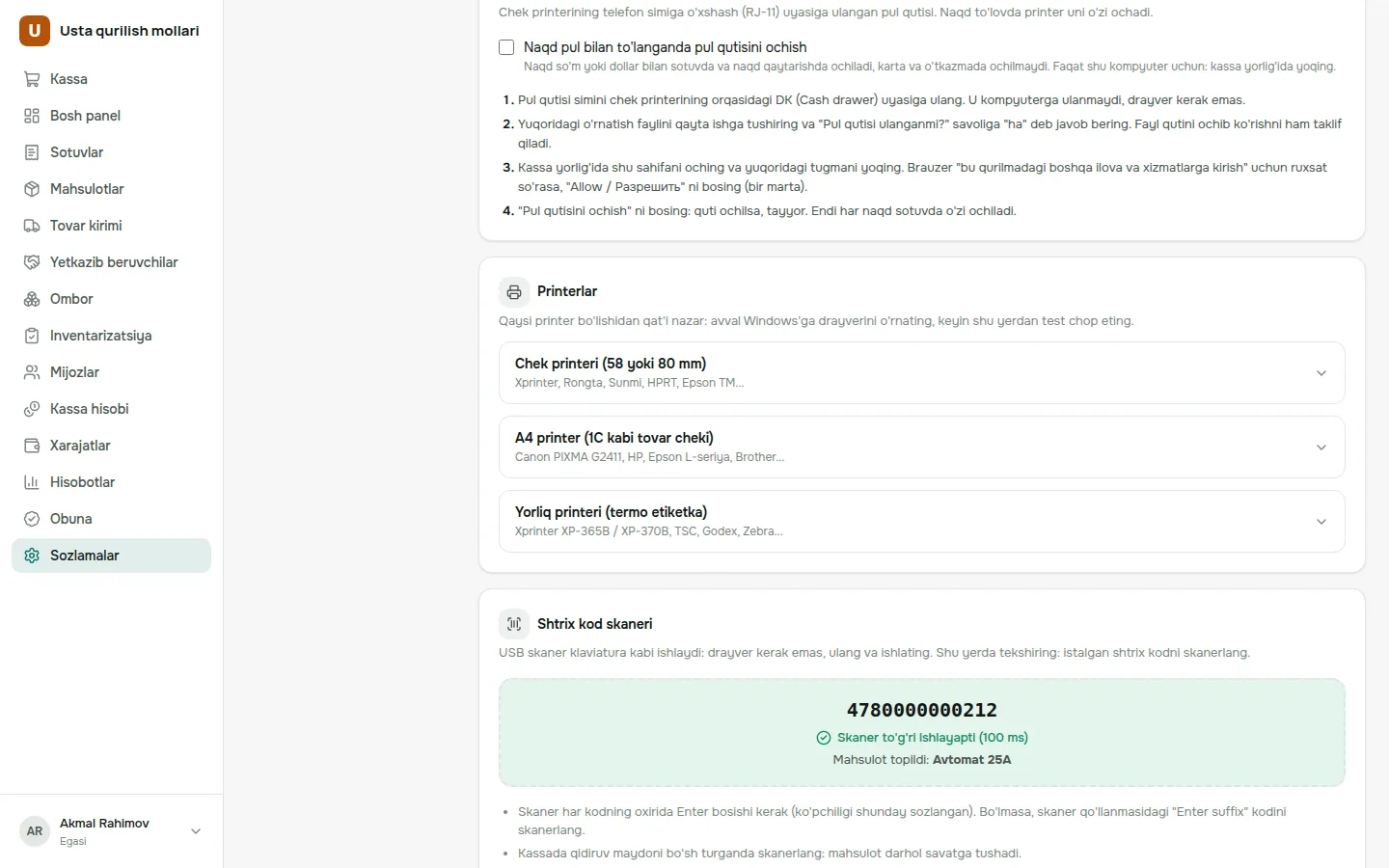
Results:
| Message | Meaning |
|---|---|
| Skaner to'g'ri ishlayapti (The scanner works correctly) | All good. |
| Juda sekin (Too slow) | The code looks typed by hand, or the scanner is in a slow mode. Raise the speed using the scanner's manual. |
| Klaviatura boshqa tilda (masalan rus) edi, lekin tizim kodni to'g'ri o'qidi. (The keyboard was in another language, e.g. Russian, but the code was read correctly.) | All good: the Russian layout does not get in the way. |
| Mahsulot topildi (Product found) | This code belongs to a product in your shop. |
| Bunday shtrix kodli mahsulot hali yo'q. (No product with this barcode yet.) | The scanner works, but no product has this code. |
If nothing shows, see When the scanner does not work below.
Scanning at the till
Section titled “Scanning at the till”Scan while the till's search field is empty: the product goes straight into the basket.
The app looks the code up in this order: product barcode, box barcode, extra barcodes, SKU (internal code), scale barcode.
If the code is not found, the till says "Bunday shtrix kodli mahsulot yo'q" (No product with this barcode). For staff who can add products, a new product page opens with that code filled in.
More: Barcodes, Scales, Selling at the till.
The Russian keyboard layout
Section titled “The Russian keyboard layout”The scanner reads correctly even with the computer's keyboard set to Russian: the app reads the key itself and turns the code back into Latin letters. No need to switch the language.
Wireless and Bluetooth scanners
Section titled “Wireless and Bluetooth scanners”A wireless scanner must also work like a keyboard:
- If the scanner came with a small USB receiver (2.4G), plug it into the computer: the easiest way.
- Over Bluetooth (phone, tablet or computer), the scanner must be in HID (keyboard) mode. Many cheap scanners pair in another mode (SPP, serial) by default: they pair but type nothing. Scan the "Bluetooth HID" code in the scanner's manual.
- Many scanners work only through the cable while it is plugged in. Unplug the cable to use them wirelessly.
- If codes arrive cut short, set the transmission speed to the fastest in the manual.
Scanning with the phone camera
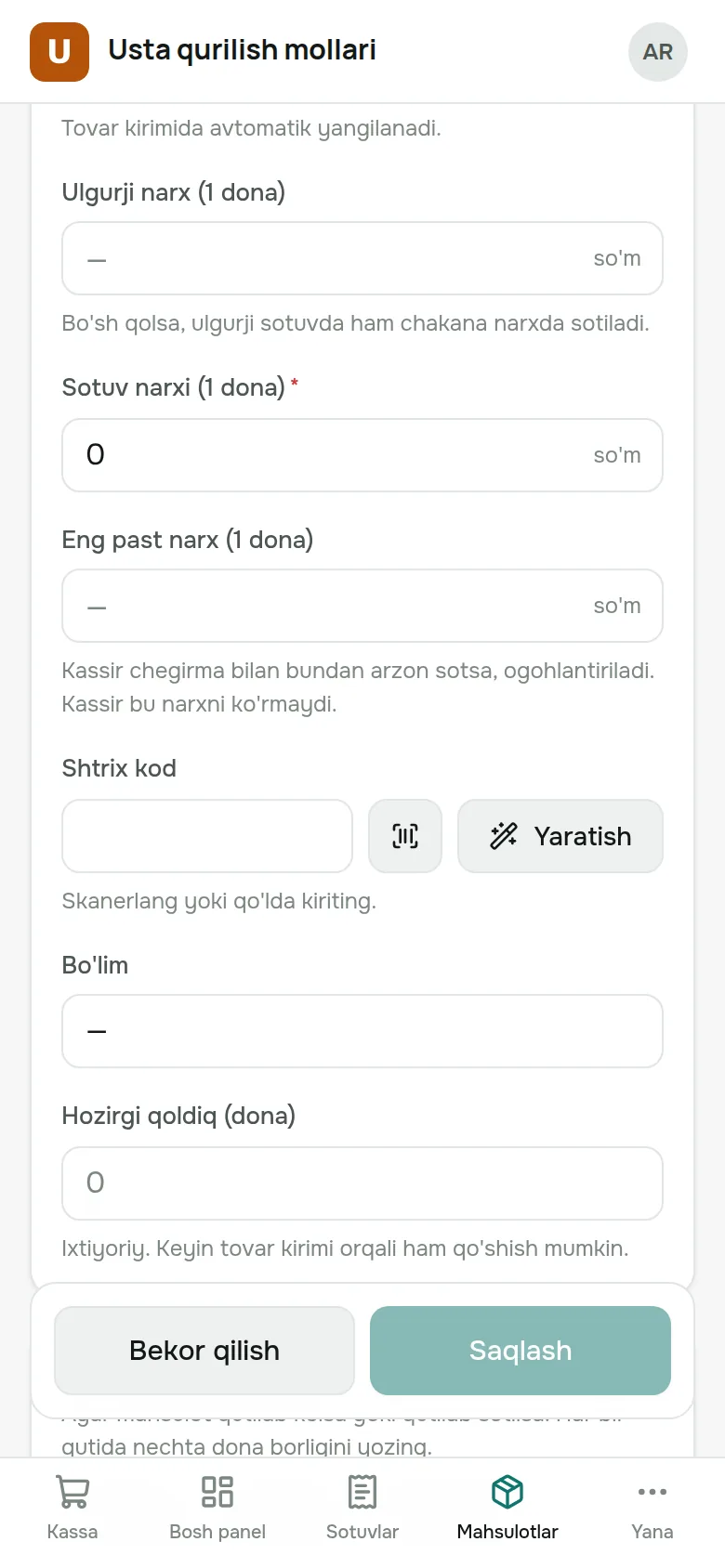
Section titled “Scanning with the phone camera”On phones and tablets you can use the camera instead of a scanner. A button with a barcode icon shows in these places:
- on the Kassa (Till), next to the search;
- on Mahsulotlar (Products), next to the search;
- in Tovar kirimi (Goods receiving), next to the search;
- on the product and model cards, next to every barcode field.
-
Press the barcode button (Kamera bilan skanerlash, Scan with camera).
-
The first time, the phone asks for camera access: press Разрешить / Allow.
-
Bring the barcode inside the frame. When the code is read, the phone beeps (many phones vibrate too).
The camera works just like a scanner: at the till the product goes into the basket, on the product card the code fills the field.
- In a dark place, the Chiroq (Torch) button turns on the light.
- With several cameras, the Boshqa kamera (Other camera) button switches to another.
- A code is accepted only when the same code is read twice in a row, so a stray wrong code does not slip in.
When the scanner does not work
Section titled “When the scanner does not work”| Sign | What to do |
|---|---|
| Nothing happens when scanning | Does the scanner light up and beep? Plug the USB cable into another port. Open Notepad (Блокнот) and scan: if no code is typed, the scanner or the cable is faulty. |
| A Bluetooth scanner is paired but types nothing | The scanner is not in HID mode. Scan the "Bluetooth HID" code in the manual, or use the USB receiver. |
| The iPhone's on-screen keyboard does not show | A Bluetooth scanner is connected. Press the scanner's keyboard button or disconnect the scanner. |
| The code is typed but the product does not go into the basket | The scanner does not press Enter. Scan the "Enter suffix" code in the manual. |
| The code gets added to old text in the search | Text was left in the search field. Clear it and scan again. |
| "Bunday shtrix kodli mahsulot yo'q" | No product has this code. Type the barcode on the product card. |
| The scanner is slow, types letter by letter | Test it in Sozlamalar → Qurilmalar. If it says "Juda sekin", raise the speed using the scanner's manual. |
If the camera does not open:
| Message | What to do |
|---|---|
| Kameraga ruxsat berilmagan. (Camera access not allowed.) | Allow the camera for this site in the browser settings and press Qayta urinish (Try again). In Chrome: the lock icon in the address bar → Камера / Camera → Разрешить / Allow. |
| Kamera topilmadi. (No camera found.) | The device has no camera or it does not work. |
| Kamerani ochib bo'lmadi. (Could not open the camera.) | Another app may be using the camera. Close it and press Qayta urinish. |
| No camera button at all | A computer used with a mouse never shows it. If a phone does not, check that the shop address opened with https://. |
Questions
Section titled “Questions”Which scanner should I buy? Any USB scanner (keyboard mode). The common cheap scanners work like that. For a phone, get a Bluetooth scanner that has HID mode.
Does a scanner need a driver? No. A scanner connects like a keyboard.
Is the phone camera as fast as a scanner? With many goods, a scanner is faster. The camera is handy for a small shop or for receiving goods.