Barcodes
A barcode finds a product at the till in a second. Scan it and the product goes into the basket by itself: no searching, no tapping.
Which codes a product can have
Section titled “Which codes a product can have”| Code | Where it is entered | When scanned |
|---|---|---|
| Shtrix kod (Barcode) | The product page | 1 piece (or the quantity sheet) |
| Qutining shtrix kodi (Box barcode) | Quti va pachkalar (Boxes and packs) | 1 box (Box and piece) |
| Qo'shimcha shtrix kodlar (Extra barcodes) | Qo'shimcha sozlamalar (More settings) | 1 piece, just like the main code |
SKU (P00012) |
Given automatically | Printed on labels of products without a code; the till reads it too |
| Scale code | Printed by the scale | With its weight (Scales) |
The till looks a code up in this order: product code, box code, extra code, SKU, scale code.
Putting a code on a product
Section titled “Putting a code on a product”-
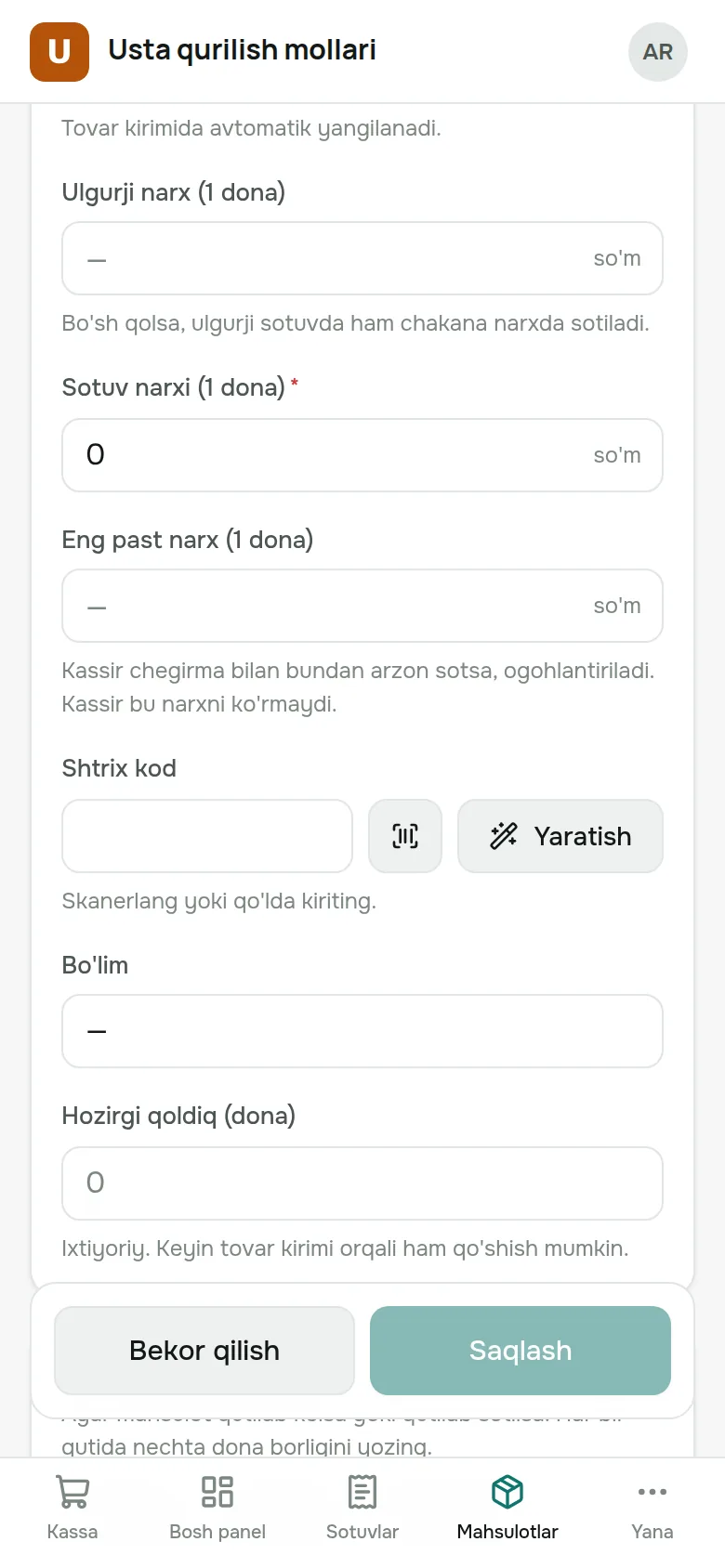
Open the product and tap the Shtrix kod field.
-
Scan the code on the goods. It goes into the field. Even if the scanner presses Enter at the end, the page does not save by itself.
-
Without a scanner, type the digits or, on a phone, tap the camera button next to the field.
-
Saqlash (Save).
USB scanner
Section titled “USB scanner”A USB scanner works like a keyboard: no driver, plug it in and use it.
- At the till, scan while the search field is empty: the product goes into the basket at once.
- The scanner must press Enter after every code. Most are set up that way. If yours is not, scan the "Enter suffix" code in the scanner's booklet.
- Connect a Bluetooth scanner to a phone or tablet in HID / keyboard mode; it then works the same way.
You can test the scanner in Sozlamalar (Settings) → Qurilmalar (Devices): scan any code and the app says whether the scanner works properly. More: Scanner.
With the phone camera
Section titled “With the phone camera”On phones and tablets the camera replaces the scanner. The camera button sits next to every barcode field of a product and next to the search of Mahsulotlar (Products), Kassa (Till) and Tovar kirimi (Goods receiving).
-
Tap the camera button. The first time, the browser asks for camera access: allow it (Allow / Разрешить).
-
Bring the barcode inside the frame. The phone beeps when the code is read.
-
In the dark turn on Chiroq (Torch). If the front camera opens, tap Boshqa kamera (Other camera).
The camera is not shown on computers: use a USB scanner there. The camera reads only ordinary linear product barcodes.
If the camera does not open and you see Kameraga ruxsat berilmagan (Camera access not allowed), turn the camera on for this site in the browser settings and try again.
No barcode: a shop code
Section titled “No barcode: a shop code”For market goods, things you pack yourself or goods with a torn code, the shop gives its own code.
-
Open the product. The Shtrix kod field must be empty.
-
Tap Yaratish (Create). A 13-digit code like
2000000000121fills the field. -
Saqlash, then tap Yorliq (Label), print a label and stick it on the goods (the Yorliq button appears when label printing is switched on: Labels).
Shop codes start with 20: they never clash with factory codes and are never read as a scale code. With sizes and colours, every variant gets one automatically (Sizes and colours).
You can print a label for a product without a code too: its SKU (P00012) is printed as the barcode, and the till scans it. But Yaratish is better for a permanent code.
The same code on two products
Section titled “The same code on two products”A code can be on only one product that is on sale. If you type a code another product has, saving fails and the message names the product it belongs to. What to do:
- It is one item added twice. Archive the extra one with Arxivga (Product list).
- The code was left on an old product. Open that product and remove the code, or archive it.
- The factory put the same code on two different items. Give one a shop code (Yaratish) and stick a label on it.
An archived product's code blocks no one: when a new product takes the code, the archived one gives it up by itself. That is why deleting a product and adding it again just works.
Within one product a code cannot appear twice either: for example, a box code equal to the piece code is not saved.
Questions
Section titled “Questions”Nothing happens when I scan. At the till, the cursor must not be in another field (for example the discount window). Test the scanner in Sozlamalar → Qurilmalar: if characters arrive very slowly, the scanner is in slow mode or is not pressing Enter.
It says "Bunday shtrix kodli mahsulot yo'q" (No product with this barcode). The code is not on any product yet. If you may add products, a new product page opens with that code. If the product exists, find it and add the code under Qo'shimcha shtrix kodlar.
The goods came in a new pack with a different code. Do not remove the old code: add the new one under Qo'shimcha shtrix kodlar. Both packs sell.
If I change the barcode, does stock change? No. The code is only for finding the product. Stock, price and history stay where they are.
Can I search the Products page by code? Yes. Type the code in the search and the product shows in the list. Scan an item while the page is open and the product itself opens. Box and extra codes are found too.
The wireless scanner works on its cable but not without it. The scanner must be in keyboard (HID) mode: plug its small USB receiver into the computer, or pair it over Bluetooth after scanning the "Bluetooth HID" code from its booklet. Then test it in Sozlamalar → Qurilmalar.
With a Bluetooth scanner connected, the iPhone's on-screen keyboard is gone. That is the iPhone itself: it treats the scanner as an external keyboard and hides the on-screen one. Many scanners can toggle this (often a double press of the trigger or a special code from the booklet). Or use the phone camera instead.