Adding a product
To sell at the till you first add products: the name, what they are sold in (pieces, kg, metres...), the price and the barcode. One product takes about a minute.
The app's screens are in Uzbek (or Russian). Below, every label is written in Uzbek as it appears, with its meaning in brackets the first time.
Who adds products: the owner and the manager. If the owner gives a cashier Mahsulotlar bilan ishlash (Work with products), the cashier can add and edit products too, but never sees the cost, cannot enter opening stock and cannot archive a product (Roles).
-
Open Mahsulotlar (Products) in the menu and tap Yangi mahsulot (New product).
-
Nomi (Name): the name the customer sees on the receipt. For example:
Coca-Cola 1.5 l,Mix sement 50 kg,Guruch Lazer. -
O'lchov birligi (Unit of measure): what the product is counted in. dona (piece) is selected by default. Weighed goods: kg; sold by length: metr; poured: litr or ml. Stock and price are kept in this unit. More: Units of measure.
-
Tannarx (1 dona) (Cost, per piece): what one unit cost you. Only the owner and the manager see it. If you do not know it, leave it empty: goods receiving fills it in.
-
Sotuv narxi (1 dona) (Sale price, per piece): the price of one unit in so'm. If the unit is kg, the field reads Sotuv narxi (1 kg) and you type the price of 1 kg. With both prices typed, the Ustama (markup) percentage shows underneath.
-
Shtrix kod (Barcode): scan the code on the pack with a scanner or type it. On a phone, the camera button next to it scans too. If the product has no code, tap Yaratish (Create): the shop gives it its own code (Barcodes).
-
Bo'lim (Category): the group the product belongs to (drinks, clothes, electrical...). Categories are buttons on the till (Categories).
-
Hozirgi qoldiq (dona) (Current stock): how many you have now. Optional: stock can also come in later through goods receiving.
-
Tap Saqlash (Save). The app goes back to the page you came from (usually the list), ready for the next product.
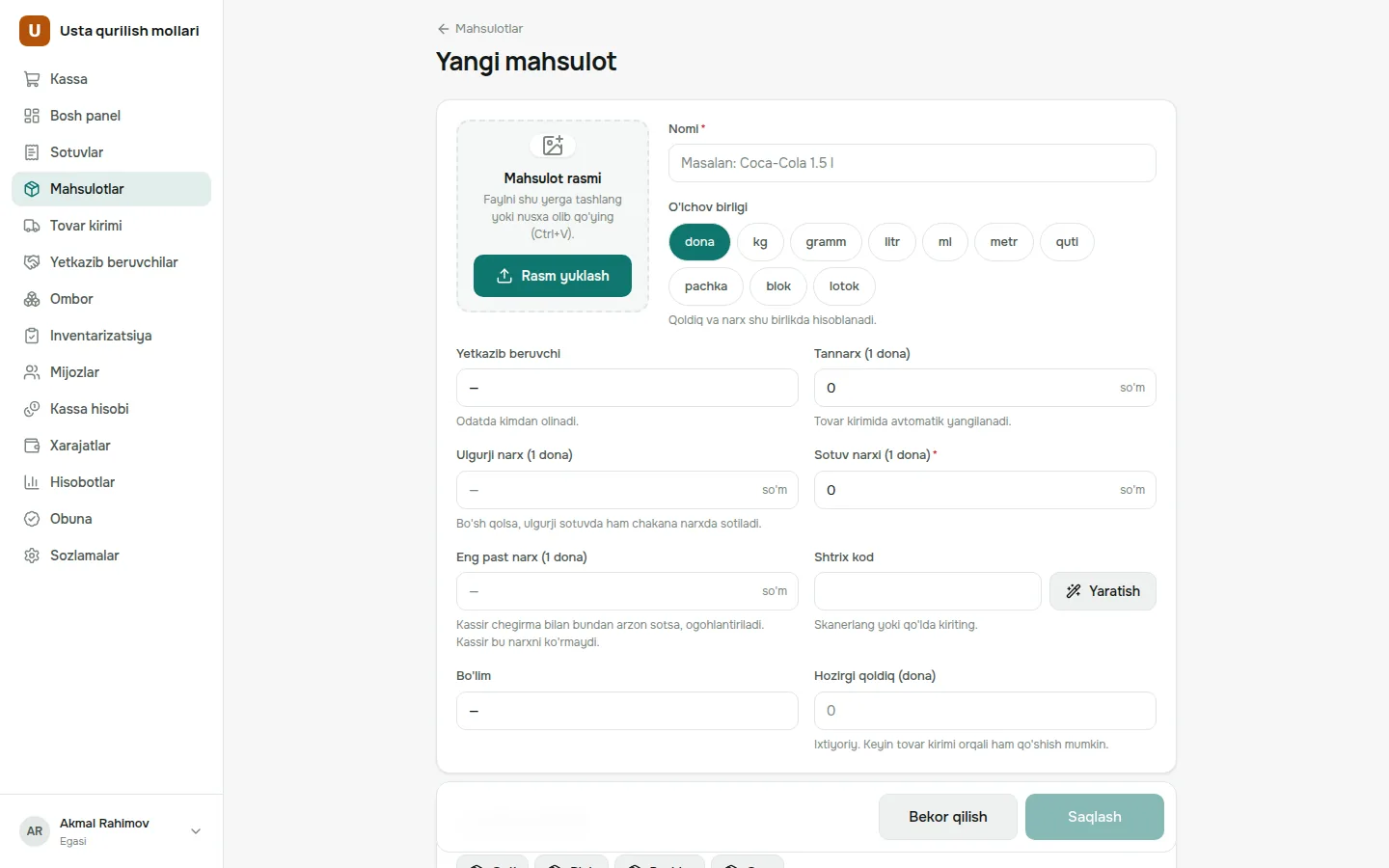
On a phone the fields are in one column, with Bekor qilish (Cancel) and Saqlash at the bottom.
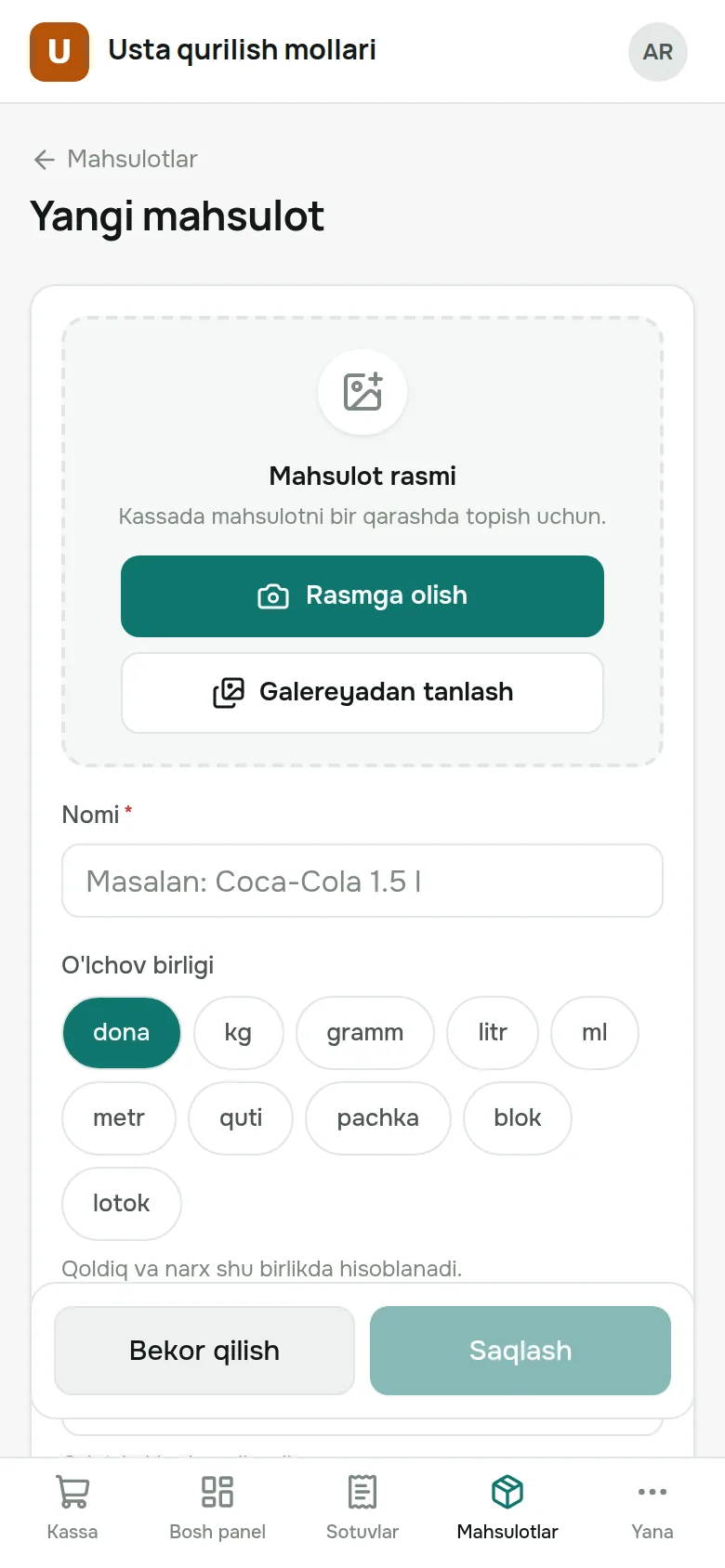
Adding a photo
Section titled “Adding a photo”A photo helps the cashier find a product at a glance. It shows in the product list and on the till buttons.
- On a phone: Rasmga olish (Take photo, opens the camera) or Galereyadan tanlash (Choose from gallery).
- On a computer: tap Rasm yuklash (Upload photo), drop a file onto the photo box, or copy an image and paste it with Ctrl+V.
Large photos are shrunk automatically; you do nothing. A new product's photo uploads after Saqlash. Use the buttons on the photo to replace or remove it.
Boxes and packs
Section titled “Boxes and packs”If a product comes in boxes or is also sold by the box (1 box = 24 pieces), tap Quti (Box), Blok, Pachka (Pack) or Qop (Sack) under Quti va pachkalar (Boxes and packs) and type how many are inside. Stock is still kept in pieces. Full guide: Box and piece.
More settings
Section titled “More settings”Rarely needed fields are hidden under Qo'shimcha sozlamalar (More settings). Tap the heading to open it.
| Field | What it is for |
|---|---|
| Nomi (ruscha) (Name in Russian) | A name for staff who use the app in Russian. |
| SKU (ichki kod) (SKU, internal code) | The shop's own code. Left empty, one like P00012 is given. |
| Minimal qoldiq (dona) (Minimum stock) | Below this the product appears under Kam qolgan (Running low). |
| Tarozida tortiladi (Weighed on a scale) | Opens the quantity sheet at the till. When on, the Tarozi PLU kodi (Scale PLU code) field appears (Scales). |
| Qoldiqni hisoblash (Track stock) | When off, the product sells without stock. For services (ironing, delivery). |
| Sotuvda (On sale) | When off, the product disappears from the till. Only on saved products. |
| Qo'shimcha shtrix kodlar (Extra barcodes) | Other codes of the same product: another supplier's pack, an old label. Type the code and press Enter. |
An unknown code at the till
Section titled “An unknown code at the till”When the till scans a code that is not in the list, it says Bunday shtrix kodli mahsulot yo'q (No product with this barcode). If you may add products, a new product page opens with that code filled in: type the name and price, save, and you are back at the till.
The Mahsulotlar page works the same way: scan a code and the product opens if it exists, or a new product with that code if it does not.
Many products at once: a CSV file
Section titled “Many products at once: a CSV file”To avoid typing hundreds of products one by one, prepare them in Excel and upload them as a CSV file. The owner and the manager do this.
-
In Excel, type exactly these column names in the first row, one per cell:
name_uz,name_ru,barcode,unit,category,sale_price,cost_price,quantity -
Then one product per row: name, Russian name, barcode, unit (
dona,kg,g,l,ml,m), category, sale price, cost, stock. The name and the sale price are required. In the CSV file such a row reads:Guruch Lazer,Рис Лазер,,kg,Yormalar,14000,11000,25.5 -
Save the file as CSV UTF-8.
-
Mahsulotlar → Import → choose the file → Yuklash (Upload).
- A category that does not exist yet is created.
- A product whose barcode is already in the shop is updated (name, sale price, unit, category, and the cost when the file has one); the others are added as new.
- If one row has an error, nothing is loaded and the bad rows are listed by number. Fix them and upload again.
After saving
Section titled “After saving”Open a saved product and more buttons appear at the top:
- Yorliq (Label): print a price label (when label printing is switched on, Labels).
- Harakatlar tarixi (Movement history): when how much came in, was sold or corrected (Stock).
- Arxivga (Archive): take the product off the till; its history is kept (Product list).
Questions
Section titled “Questions”I do not know the cost. What do I do? Leave it empty. On the first goods receipt you type the price and the cost fills in. But if a product already has stock and no cost, profit in the reports will be wrong.
I picked the wrong unit of measure. If the product has no movements yet (no stock, sales or receipts), change the unit and save. If it has, the app refuses the change: what to do.
The barcode "belongs to another product". A code can be on only one product that is on sale. The message names that product: open it and check (Barcodes).
One product has two codes (old and new pack). Put one in Shtrix kod and the other in Qo'shimcha sozlamalar → Qo'shimcha shtrix kodlar. Both find this product at the till.
Can a cashier add products? Yes, if the owner gives the cashier Mahsulotlar bilan ishlash in Sozlamalar (Settings) → Xodimlar (Staff). The cashier does not see costs and does not type Hozirgi qoldiq (Current stock): stock comes in through goods receiving.
When I scan a barcode, does the name fill in by itself? No. The app has no shared database of goods: you type the name and price yourself, once. A product without a code gets a shop code with Yaratish.
I want a cashier to enter stock and archive products. A cashier cannot: stock comes in through receiving. For full rights give that person the Boshqaruvchi (Manager) role. A manager also sees costs, settings and supplier debts; everything except reports, exports and managing staff (Roles).