Goods receiving
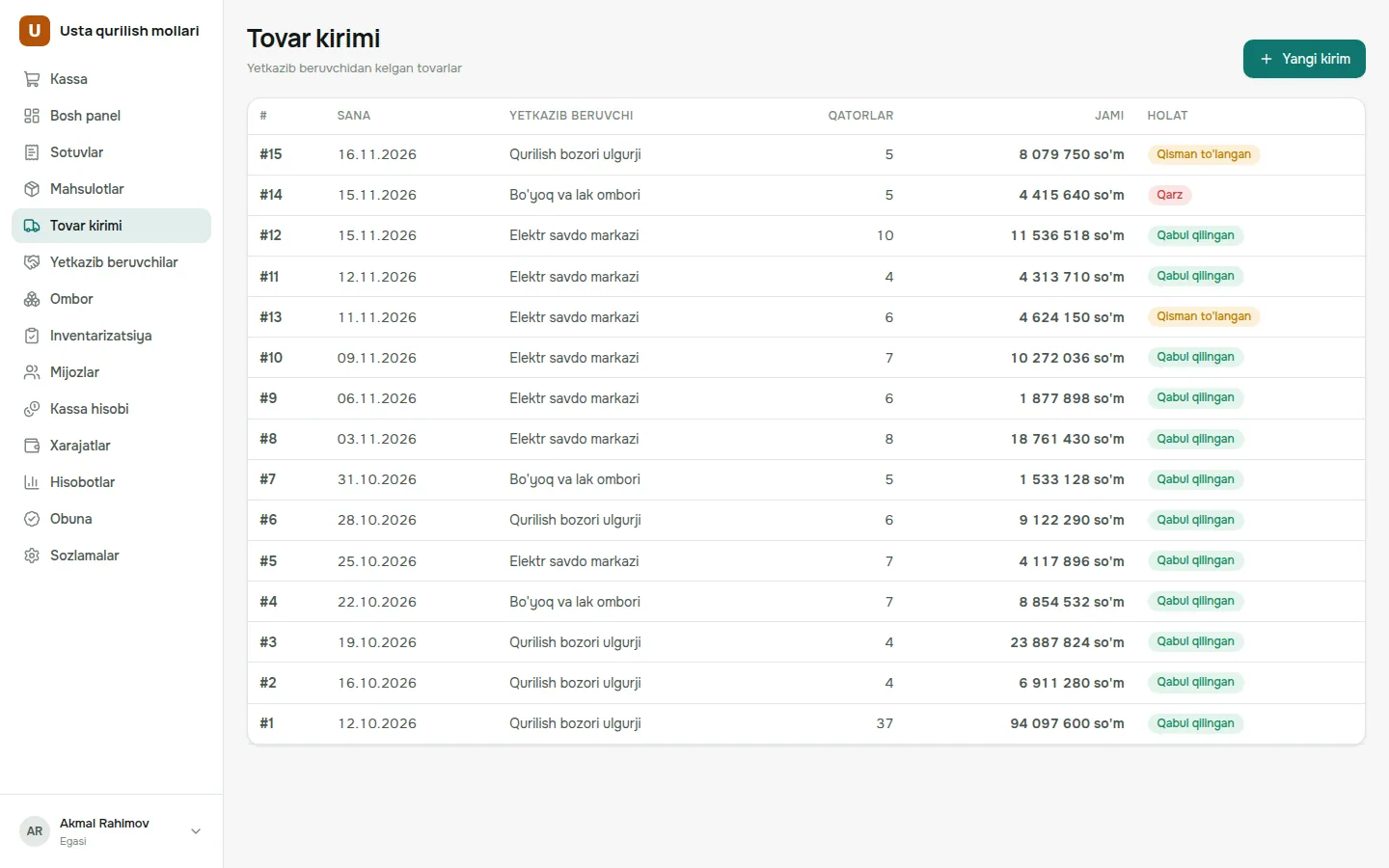
When goods arrive you record them in Tovar kirimi (Goods receiving). Once received, every product's stock goes up and its cost is updated. Which goods came from whom, when and at what price stays in the history.
Who does it: the owner, the manager and the cashier.
Receipt statuses
Section titled “Receipt statuses”| Status | Meaning |
|---|---|
| Qoralama (Draft) | Saved, but stock has not changed yet. Can be edited and deleted. |
| Qabul qilingan (Received) | The goods are in stock and the cost is updated. It can no longer be changed. |
A new receipt
Section titled “A new receipt”-
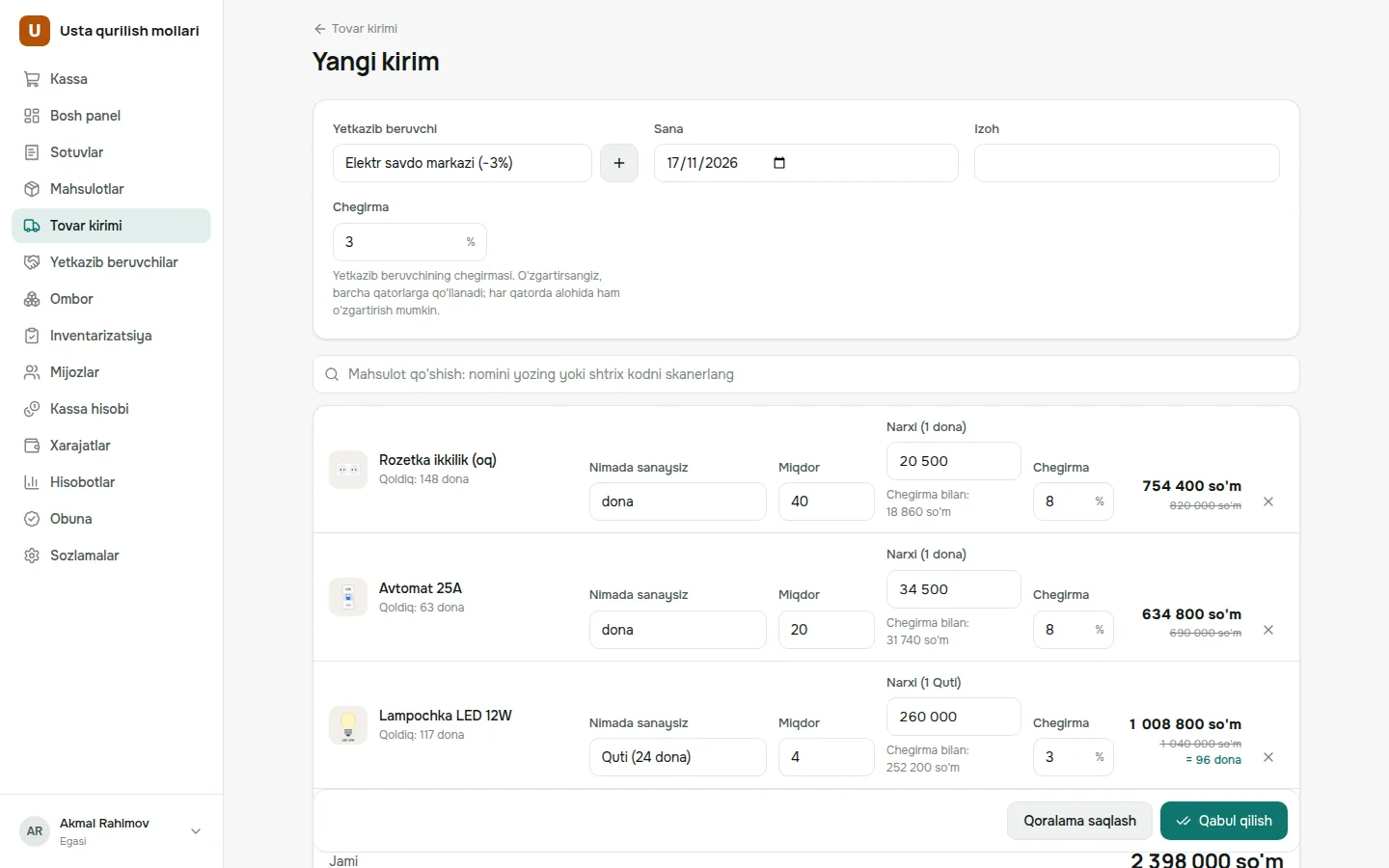
In the menu: Tovar kirimi → Yangi kirim (New receipt).
-
Pick the Yetkazib beruvchi (Supplier). If it is not in the list, add it with the + next to it. Sana (Date, today by default) and, if needed, Izoh (Note, such as the invoice number).
-
Add products: type a name (or a barcode) in the search and pick it from the list, or scan the goods. The product is added as a new line and the cursor sits in its Miqdor (Quantity) field. Scanning a box code counts that line in boxes.
-
On each line:
- Nimada sanaysiz (What do you count in): dona (piece) or the product's box, for example Quti (24 dona);
- Miqdor (Quantity): how many arrived;
- Narxi (1 dona) or Narxi (1 Quti) (Price per piece / per box): the supplier's price. The previous cost fills in; correct it if the price changed.
When counting in boxes, the total shows under the line, like = 240 dona.
-
Compare the Jami (Total) at the bottom with the invoice.
-
If you have not finished, Qoralama saqlash (Save draft). If everything is right, tap Qabul qilish (Receive) and confirm Qabul qilish in the window.
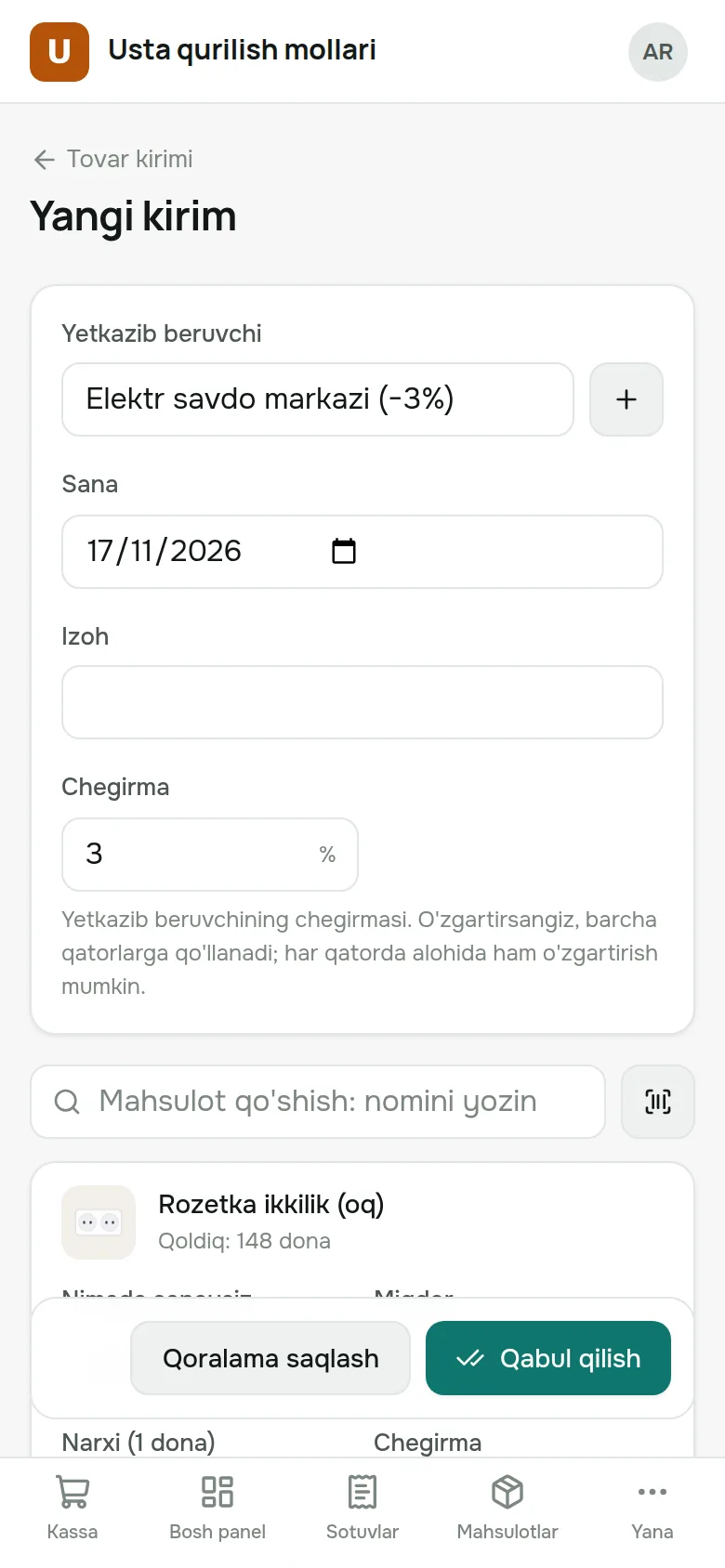
On a phone it is the same: add goods by scanning with the camera button next to the search.
If you scan an item the shop does not have, it says Bunday shtrix kodli mahsulot yo'q (No product with this barcode). If the search finds nothing, those who may add products get a Yangi mahsulot (New product) button: add the product first, then come back to the receipt. Tap Qoralama saqlash first so you do not lose the receipt.
What receiving does
Section titled “What receiving does”- Each product's stock goes up by the quantity received (boxes turned into pieces).
- The cost is recalculated as an average: old stock at the old price, new stock at the new price (Prices).
- The receipt becomes Qabul qilingan (Received).
- With label printing switched on, a Yorliq (Label) button appears on the receipt: as many labels as pieces received, one for a weighed product (Labels).
Goods in sizes and colours
Section titled “Goods in sizes and colours”Pick a clothing or shoe model in the search and the o'lchamlar jadvali (size grid) opens: type how many of each size and colour arrived in one window; +1 seriya (+1 run) adds one of every size. More: Sizes and colours.
Receipts in dollars
Section titled “Receipts in dollars”In a shop with Dollar (USD) on, the receipt has Narxlar valyutasi (Price currency): so'm or $.
- With $, every line's price is typed in dollars:
3.40. On receipts a dollar price takes 2 decimals (to the cent). Receive very cheap goods (for example a $0.042 bolt) in boxes rather than pieces: a Quti (100 dona) at4.20. - The total shows in dollars with today's so'm under it.
- The goods convert to so'm at the shop's rate at the moment they are received, and the cost is worked out at that rate. So type today's rate before receiving (Dollar rate).
- A product whose cost is in $ on its product page averages its cost in dollars, and its so'm cost is worked out again at every new rate.
If no dollar rate has ever been typed, $ cannot be picked.
Supplier discount
Section titled “Supplier discount”With Yetkazib beruvchi chegirmasi (Supplier discount) on, picking a supplier writes its discount (for example 10%) into the receipt's Chegirma (Discount) at the top and into every line. Under the price you see Chegirma bilan: 9 000 so'm (With discount), and the totals show Chegirmasiz (Before discount), Chegirma 10% and Jami. If this time the discount differs, change the percent at the top: it applies to every line. One line can be changed on its own too. More: Suppliers.
Owing the supplier
Section titled “Owing the supplier”With Yetkazib beruvchilar bilan hisob-kitob (Supplier accounts) on, the owner or the manager picks how it was paid in the Qabul qilish window:
- Qarzga (On credit): the whole amount is owed to the supplier;
- To'liq to'landi (Paid in full): nothing owed;
- Qisman (Part): type the Hozir to'langan (Paid now) amount; the rest is owed.
If paid, pick how: Naqd (Cash), Karta (Card), O'tkazma (Transfer). With Kassa nazorati (Cash control) on and the money taken from the drawer, leave Kassadan berildi (Paid from the drawer) on. The choice starts the way it was on this supplier's last delivery.
When a cashier receives, the window does not ask about payment: the whole receipt is owed, and the owner or the manager records the payment later on the supplier's page. More: Suppliers.
Shortcuts
Section titled “Shortcuts”- Yangi kirim on a supplier's page opens with that supplier picked.
- Kirim (Receive) on a model's page opens that model's size grid.
- When adding a new product, if you type Hozirgi qoldiq (Current stock) and pick a supplier, that stock is recorded as a delivery from that supplier (when supplier features are on).
Questions
Section titled “Questions”I found a mistake after receiving. A received receipt can be neither changed nor deleted. If a quantity is wrong, fix the stock with Qoldiqni tuzatish (Correct stock) (Stock). If a price is wrong, the owner or the manager fixes the Tannarx (Cost) on the product page.
Can a draft be deleted? Yes, a draft has an O'chirish (Delete) button (for the owner and the manager). A received receipt is not deleted.
Only part of the goods arrived. Enter what arrived and receive it. When the rest arrives, make a new receipt.
Can I receive without a supplier? Yes, leave Yetkazib beruvchi empty. But then you cannot see what you bought from whom.
Are transport and unloading costs added to the cost? No, the cost comes only from the receipt's prices. Record such payments under Expenses.