Sizes and colours
In a clothing shop one dress comes in sizes 98, 104, 110 and in three colours. Adding each one as a separate product takes too long. Instead you create one model, tick its sizes and colours, and the app makes every combination a product by itself.
How it works
Section titled “How it works”Model Ko'ylak Malika (Malika dress), sizes 98, 104, 110, 116, colours Pushti, Binafsha, Oq (pink, purple, white): 4 × 3 = 12 variants. Each variant is an ordinary product:
- its own name, such as Ko'ylak Malika (98, Pushti): that is how it reads on receipts and in reports;
- its own barcode, its own stock, its own cost;
- the model's price, or a different price per size if you want.
Stock is counted separately for every size and colour: "two 104 pink left, no 110 white".
Set up once
Section titled “Set up once”-
In Sozlamalar (Settings) → Imkoniyatlar (Features) → O'lcham va ranglar (Sizes and colours), switch on Mahsulotlar o'lcham va rangga bo'linadi (Products come in sizes and colours). The owner or manager does this.
-
Tap O'lcham va ranglarni sozlash (Set up sizes and colours), or go to Sozlamalar → O'lcham va ranglar. The first time, ready-made lists appear:
List Values Bo'y (sm) (height, cm) 50, 56, 62, 68 ... 98, 104, 110 ... 164 Yosh (age) 0-3 oy (months), 3-6 oy ... 1 yosh (year), 2 yosh ... 13-14 yosh O'lcham (S-XL) XXS, XS, S, M, L, XL, XXL, 3XL Poyabzal (shoes) 16, 17 ... 45 Rang (colour) Oq, Qora, Kulrang, Ko'k, To'q ko'k, Havorang, Qizil, Pushti ... (15 colours) -
If needed, edit a list: Tahrirlash (Edit) → type new values separated by spaces (
122 128 134) → Qo'shish (Add) → Saqlash (Save). A new value goes to the end of the list: move it into place with the arrows. Because spaces separate values, a single value must not contain one (50ml, not50 ml). When adding a colour, pick its swatch.
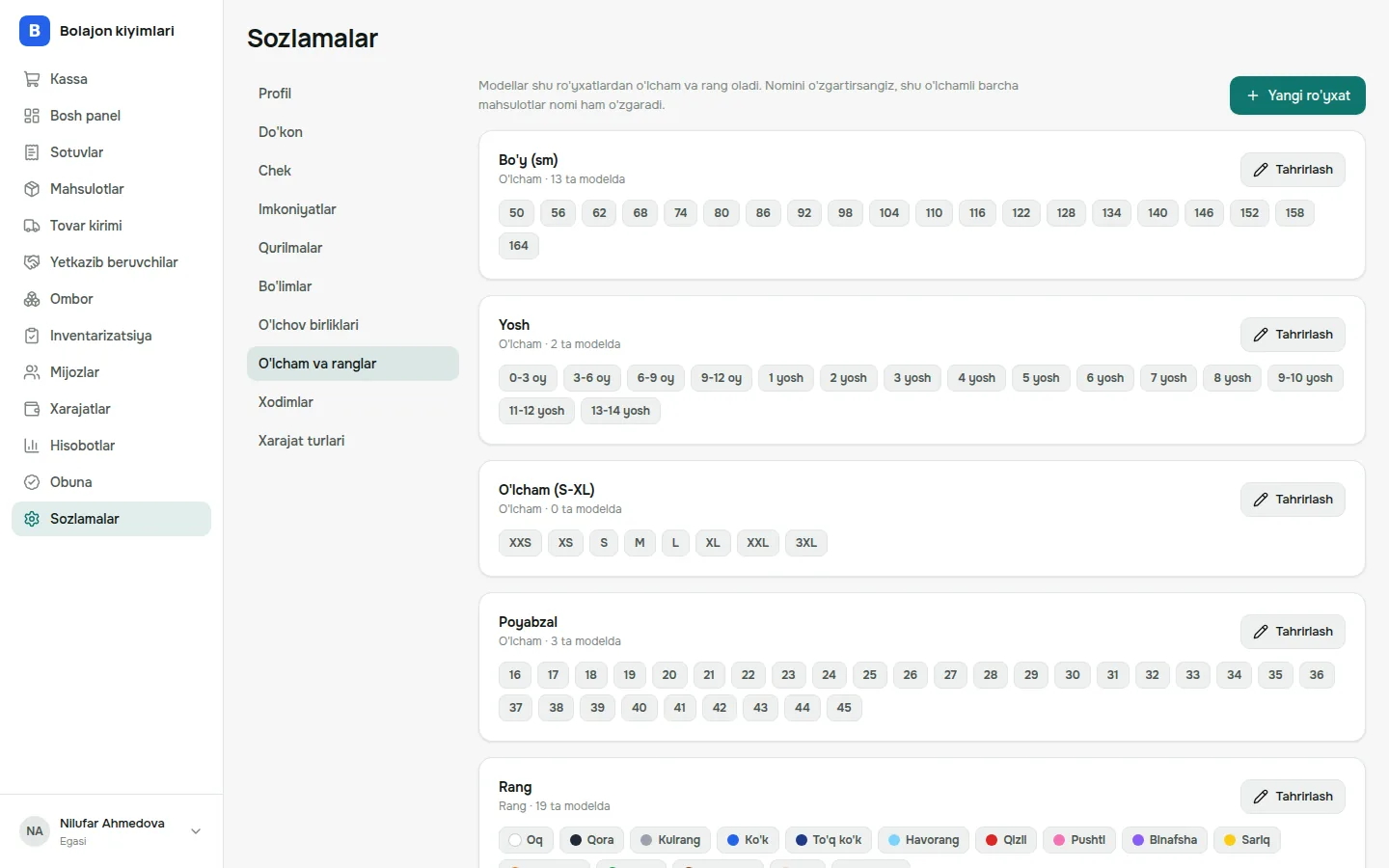
You can add a new list too: Yangi ro'yxat (New list) → a name (for example Hajm, volume) → Turi (Type): O'lcham (size), Rang (colour) or Boshqa (hajm, material...) (other: volume, material...).
Creating a model
Section titled “Creating a model”-
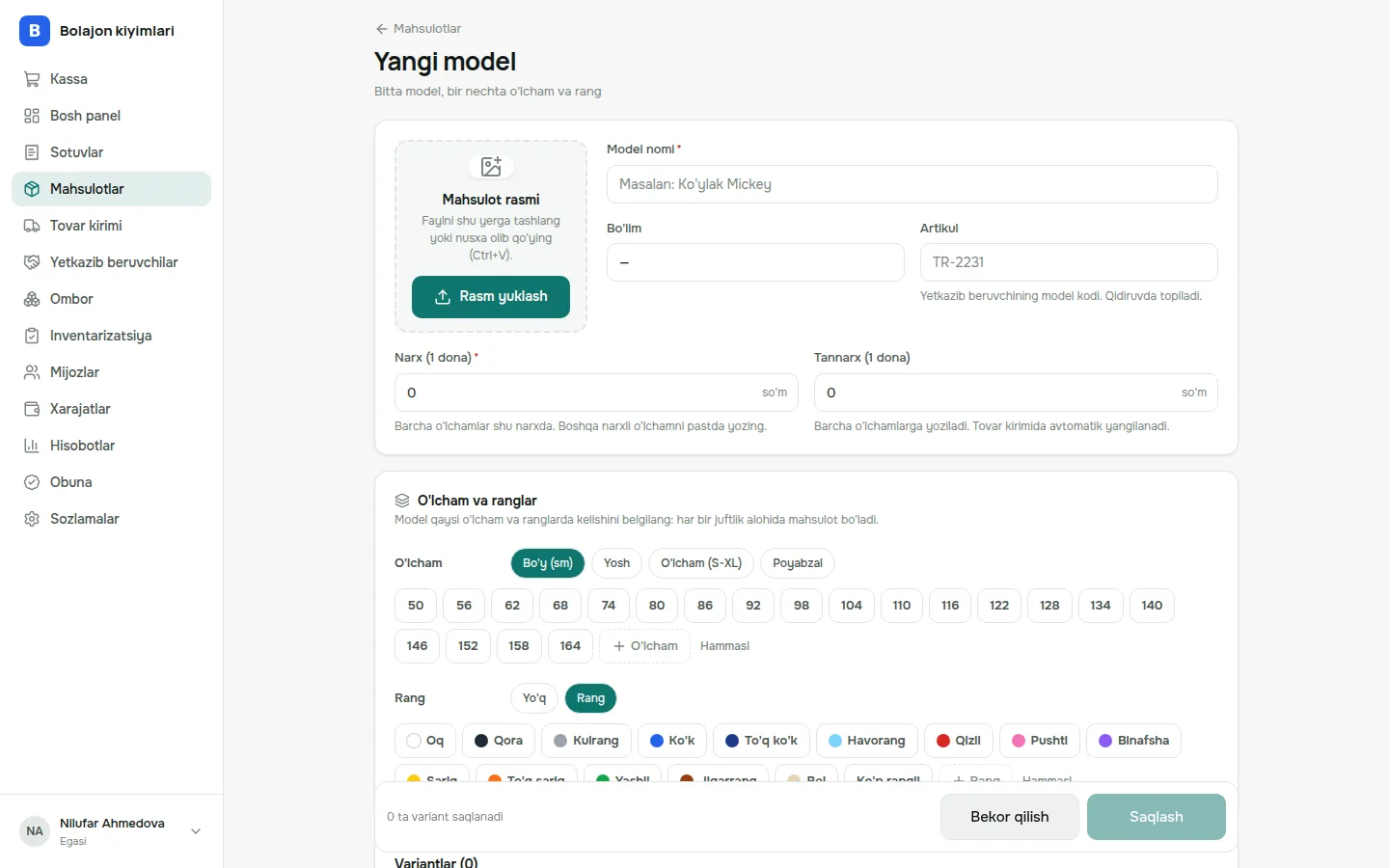
Mahsulotlar (Products) → Yangi model (New model). (The O'lcham va ranglari bormi? (Does it have sizes and colours?) button on the Yangi mahsulot page leads here too.)
-
Add a photo (optional) and type the Model nomi (Model name):
Ko'ylak Malika. Pick the Bo'lim (Category). Artikul (Article): the supplier's model code, for exampleTR-2231. Typing it in a search finds the model. -
Narx (1 dona) (Price, per piece):
145 000. All sizes sell at this price. Also type the Tannarx (1 dona) (Cost; only the owner and the manager see this field): it is written to every size. -
In the O'lcham va ranglar section:
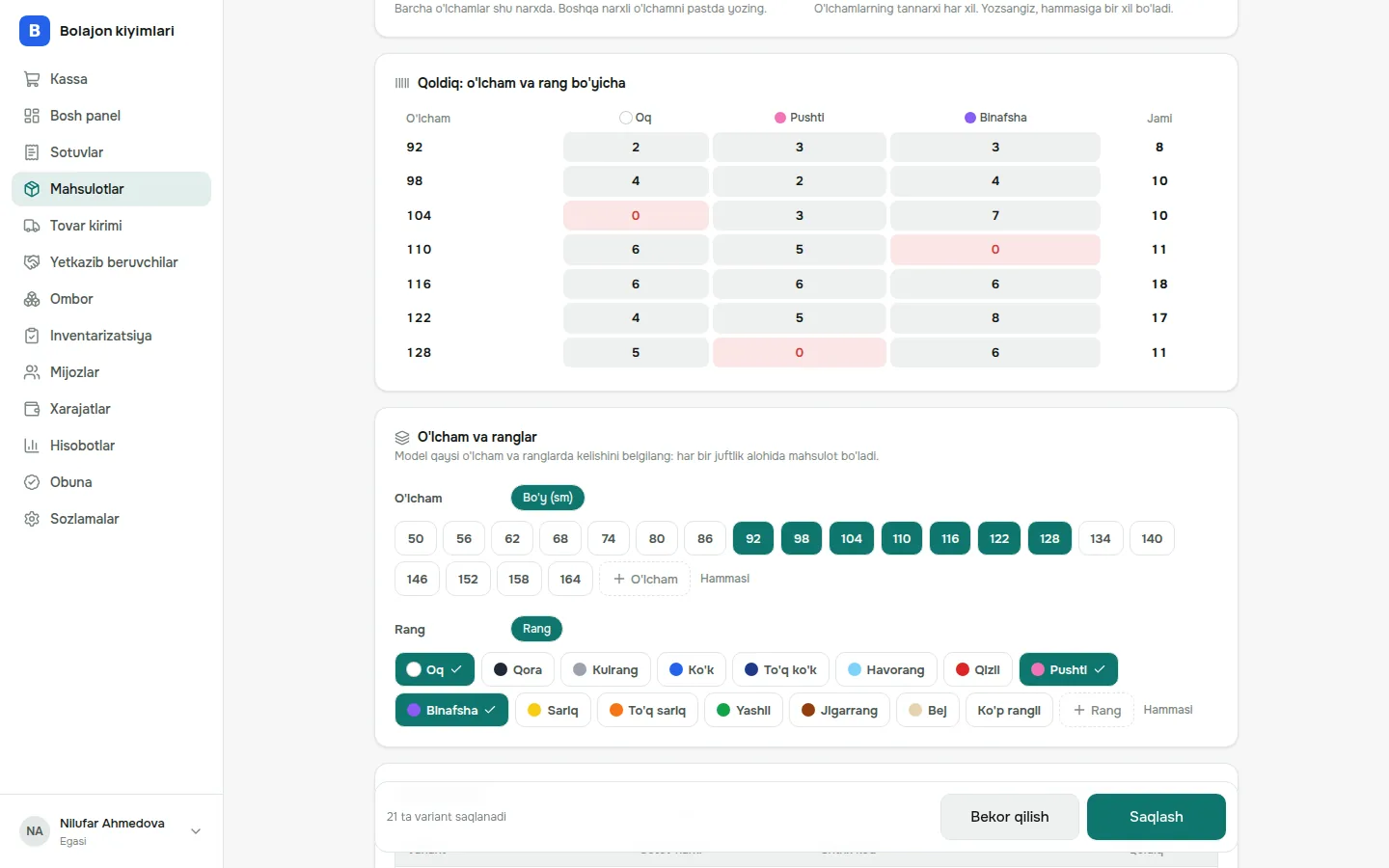
- In the O'lcham (Size) row pick the list (Bo'y (sm)) and tap the sizes that came: 98, 104, 110, 116. For a size not in the list, tap + O'lcham.
- In the Rang (Colour) row pick the Rang list and tap the colours: Pushti, Binafsha, Oq. If there are no colours, pick Yo'q (None): otherwise the variant list stays empty.
-
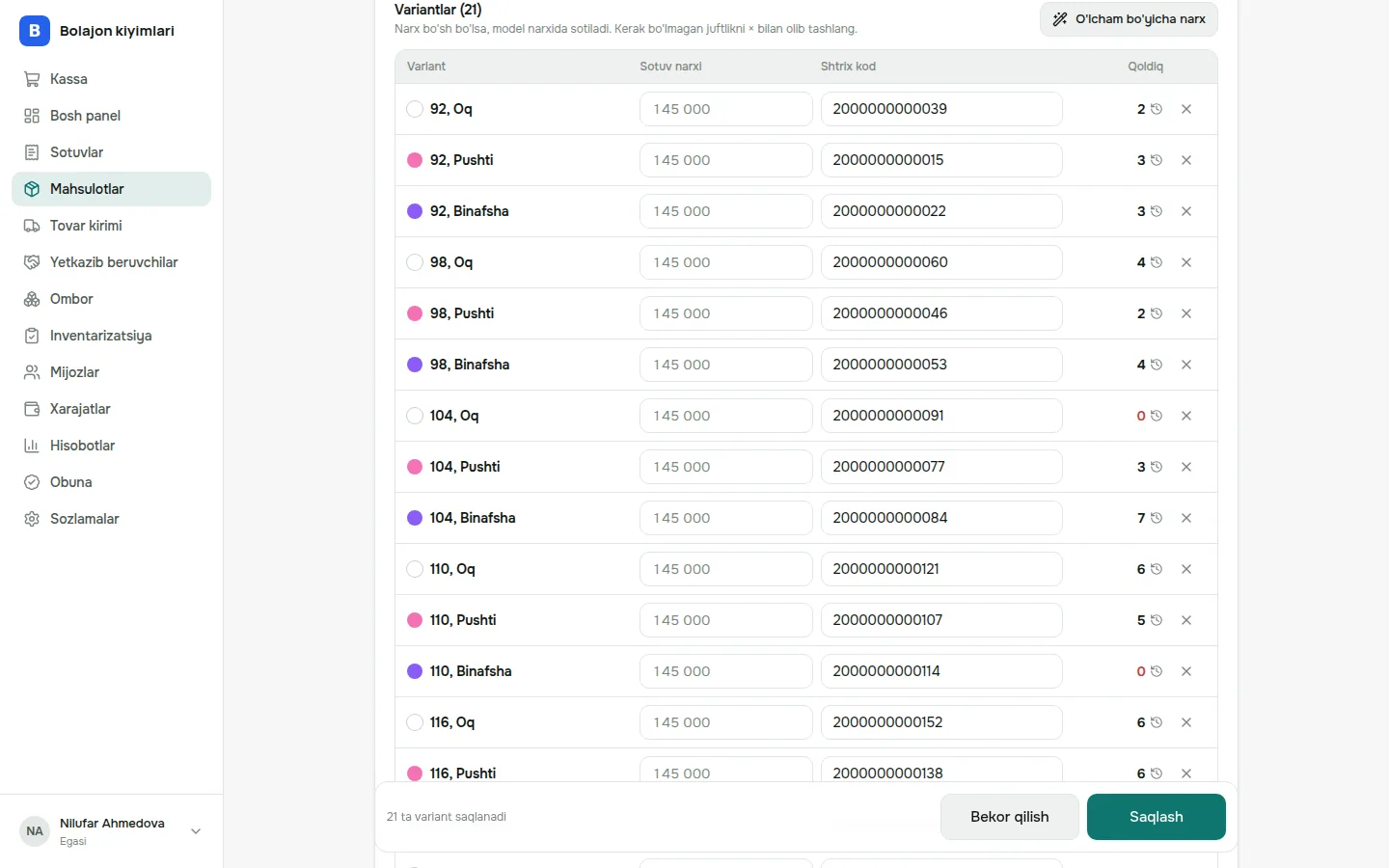
Below, the Variantlar (12) (Variants) list appears: one row per size and colour. In each row:
- price: empty means it sells at the model's price;
- barcode: if the goods have a code, scan it (on a phone, tap the row to open the barcode field);
- opening stock: how many you have now (typed by the owner or the manager);
- ×: remove a combination that never came (for example no 116 in white).
-
Leave Shtrix kodsizlarga do'kon kodi berilsin (Give shop codes to those without a barcode) on: every variant without a code gets one starting with
20.... This code goes on the label, and the till sells exactly that size. -
Tap Saqlash (Save). On a computer, the bar next to the button says how many variants will be saved: 12 ta variant saqlanadi (12 variants will be saved).
When bigger sizes cost more
Section titled “When bigger sizes cost more”Bigger sizes often cost more. Tap O'lcham bo'yicha narx (Price by size), tick the sizes (110, 116), type the price (155 000) and tap 2 ta o'lchamga qo'yish (Apply to 2 sizes). The price goes to every colour of those sizes. Then remember to Saqlash (Save) the model. Applying an empty price returns a size to the model's price.
If you later change the model's price, sizes without their own price follow it; sizes with their own price do not change.
After saving
Section titled “After saving”The model page shows more sections:
- Qoldiq: o'lcham va rang bo'yicha (Stock by size and colour): sizes down, colours across, stock in every cell. Red cell: none left; yellow: one left.
- Rang bo'yicha rasmlar (Photos by colour): add a photo per colour. It goes to every size of that colour, and the till shows it when that colour is picked.
- Yorliq (Label), Kirim (Receive) and Arxivga (Archive) buttons at the top.
In the Mahsulotlar list a model is one row: 12 variant · TR-2231, the price range (145 000 – 155 000) and total stock. Tap the row to open the model.
At the till
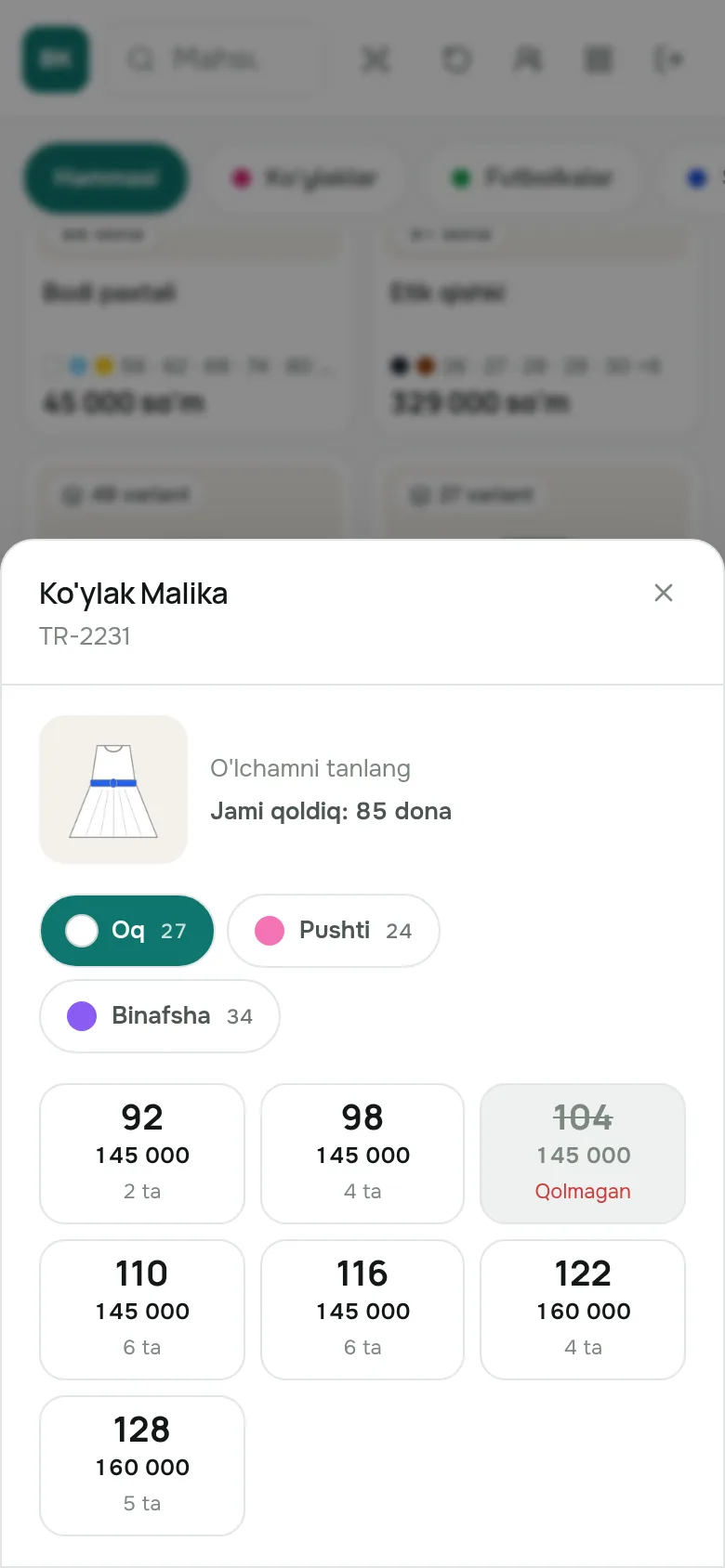
Section titled “At the till”The model is one button at the till. Tapping it opens O'lchamni tanlang (Pick a size):
- colours at the top, each with how many are left;
- sizes below, each with its price and 3 ta (3 left) or Qolmagan (Out of stock);
- tap a size and it goes into the basket and the window closes.
Scanning the barcode on the label opens no window: exactly that size and colour goes straight into the basket.
Receiving: the size grid
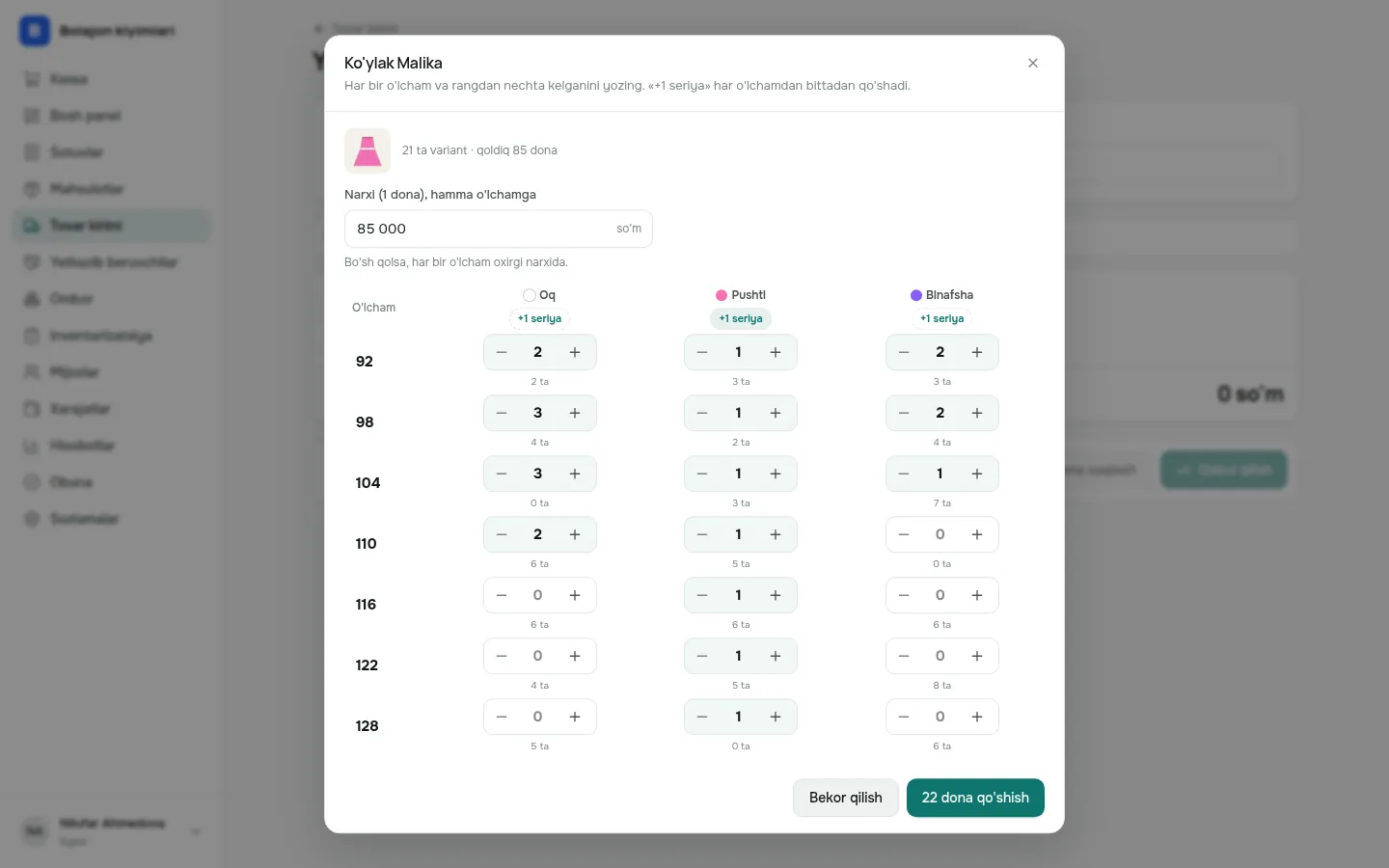
Section titled “Receiving: the size grid”Suppliers deliver a model in runs of sizes. In goods receiving search the model and tap it (or tap Kirim on the model page): the o'lchamlar jadvali (size grid) opens.
-
Type how many of each size and colour arrived, or count with − / +. Each cell shows current stock underneath.
-
+1 seriya (+1 run): adds one of every size in that colour. If 2 runs came, tap it twice.
-
Narxi (1 dona), hamma o'lchamga (Price per piece, for all sizes): if the supplier charges one price for every size, type it. Left empty, each size keeps its last price.
-
Tap 24 dona qo'shish (Add 24 pieces): the lines go into the receipt. Then Qabul qilish (Receive) as usual.
Labels
Section titled “Labels”Tap Yorliq on the model page. Every variant opens with as many labels as it has in stock (one per piece; one for a variant with no stock). Change the numbers with − / +. The label shows the model's name, the size in a black box, the colour beside it, the price and the barcode. More: Labels.
Changing it later
Section titled “Changing it later”- A new size arrived: open the model, tap the size, Saqlash. The new size starts at its siblings' cost.
- A size no longer comes: untick the size (if only one colour of it stops coming, tap × on that row) and save. The size is archived; its sales history stays. Tick it again later and it comes back with its history.
- Renaming a value (Sozlamalar → O'lcham va ranglar): every product with that value is renamed too.
- Once a model is saved, its lists cannot be swapped (for example Bo'y (sm) for Yosh). If you picked the wrong one, create a new model and archive the old one.
Questions
Section titled “Questions”Can I add each size as a separate product instead? You can, but the till then has 12 buttons and a receipt has 12 lines. With a model there is one button and a size picker at the till, and one grid when receiving.
How is stock counted? Separately for every size and colour: selling a 104 pink lowers only its stock. The stock on the model's row is the total.
What if there are no colours, only sizes? Pick Yo'q in the Rang row. Variants are then by size only.
The size I need is not in the list (for example 37.5).
Tap + O'lcham on the model page or add it in Sozlamalar → O'lcham va ranglar. A value cannot contain a comma: type 37.5 with a dot. A new value goes to the end of the list; to put it in order, move it with the arrows in Sozlamalar.
The supplier has its own barcodes. Scan them into each row's barcode field in the variant list. Variants without a code get a shop code.
How do I keep the cashier from mixing up sizes and colours? Put a label on every piece and scan it at the till: the scanner adds exactly that size, nothing to pick.