Product list
The Mahsulotlar (Products) page lists all the shop's goods: name, category, price, cost and stock. Products are added, found and edited here.
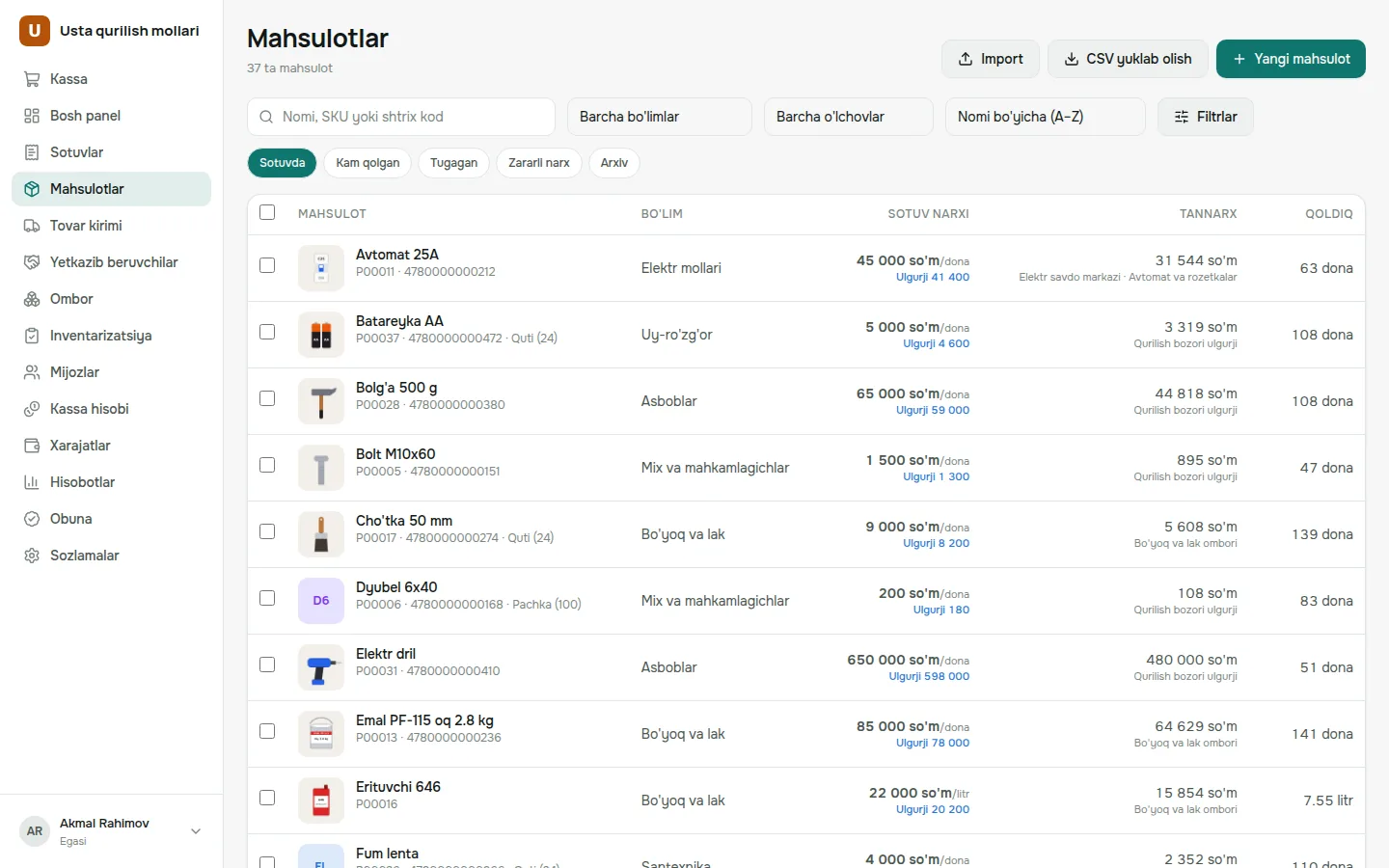
Finding a product
Section titled “Finding a product”- Search: type the name, SKU or barcode. Box and extra codes and a model's article are found too.
- Scanner: scan an item while the page is open: the product opens. If it is not found, a new product with that code opens.
- Camera: on a phone, the camera button next to the search.
Status buttons
Section titled “Status buttons”The buttons under the search:
| Button | What it shows |
|---|---|
| Sotuvda (On sale) | Every product sold at the till |
| Kam qolgan (Running low) | Stock at or below the Minimal qoldiq (Minimum stock) |
| Tugagan (Out of stock) | No stock left |
| Zararli narx (Loss price) | Sale or wholesale price below cost (owner and manager only) |
| Arxiv (Archive) | Archived products |
For Kam qolgan to work, the product needs a Minimal qoldiq under Qo'shimcha sozlamalar (More settings).
Filters and sorting
Section titled “Filters and sorting”Tap Filtrlar (Filters):
- Bo'lim (Category), O'lchov birligi (Unit of measure);
- Yetkazib beruvchi (Supplier) and its discount group (when supplier features are on);
- Rasm (Photo): Rasmli (with photo) or Rasmsiz (without photo), to find those still needing a photo;
- Shtrix kod (Barcode): Shtrix kodli (with) or Shtrix kodsiz (without), to find those needing a label;
- Saralash (Sort): by name, newest first, last changed, cheapest or most expensive first, lowest or highest stock first.
The list changes as soon as you pick a filter. Tap Ko'rsatish (N) (Show N) to close the window. Chosen filters sit above the list: drop one with ×, all of them with Filtrlarni tozalash (Clear filters).
On a wide screen the Bo'lim, O'lchov birligi and Saralash choices sit right next to the search.
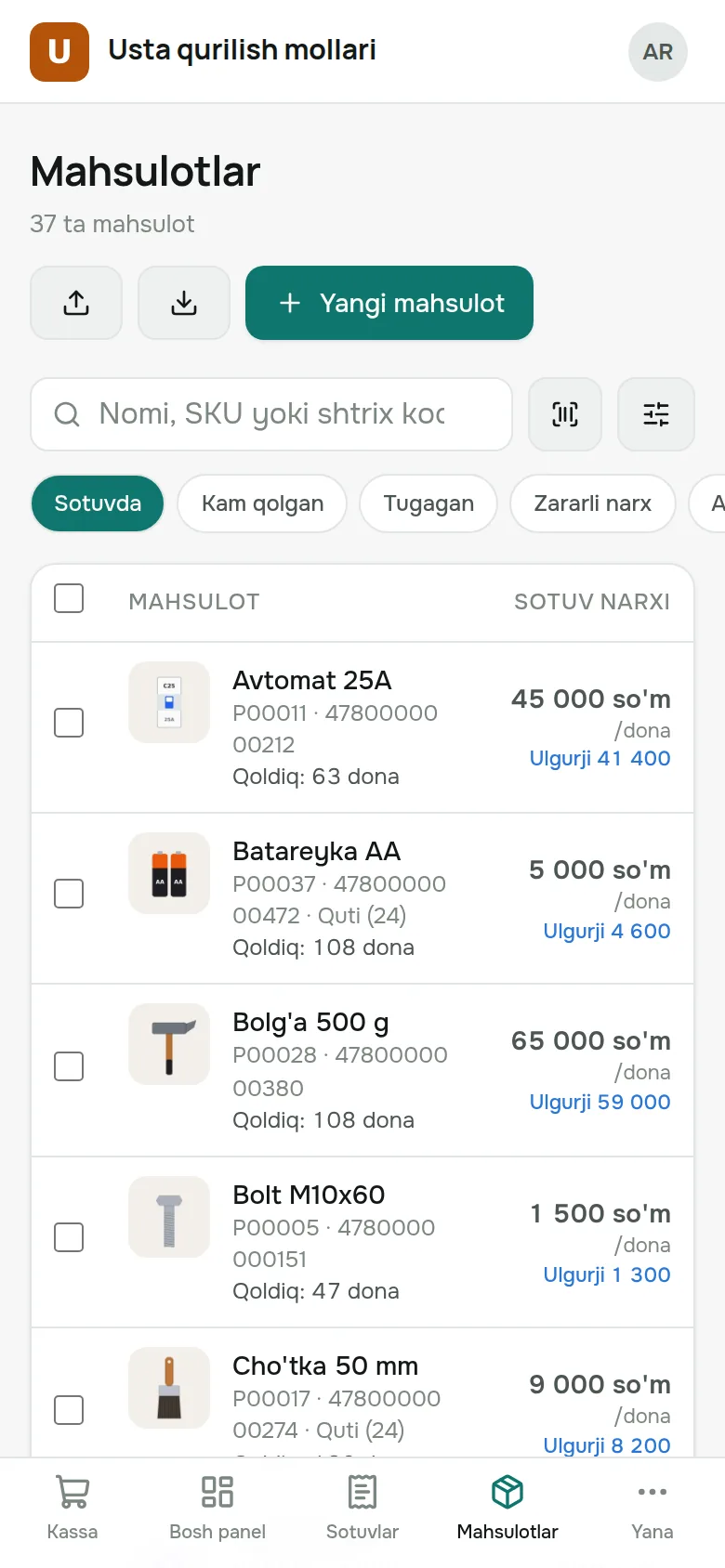
On a phone there are fewer columns: stock is written under the product name. Red: none left; yellow: running low.
The list keeps its place
Section titled “The list keeps its place”Search, filters and the page number are kept. Open a product, save it and come back: the list is as it was, with the last opened product highlighted, so the next one is easy to find. The Mahsulotlar menu link opens a clean list.
Ticking several products
Section titled “Ticking several products”When Yorliq (Labels) or supplier features are switched on, each row starts with a checkbox.
-
Tick the products you need. The box in the header ticks the whole page. Ticking a model ticks all its sizes and colours.
-
Buttons appear at the top:
-
× clears the ticks.
Ticks stay when you search or change page: you can collect products from several searches and print them in one go.
Import and export
Section titled “Import and export”- Import: load many products from a CSV file (owner and manager). See Adding a product.
- CSV yuklab olish (Download CSV): every product on sale downloads as a file that opens in Excel (owner only).
Archiving
Section titled “Archiving”When a product is no longer sold, do not delete it: archive it. An archived product disappears from the till and the stock list, but stays in sales, receipts and reports.
-
Open the product.
-
Tap Arxivga (Archive) at the top.
-
To Mahsulotni arxivga olasizmi? (Archive this product?), tap Arxivga again.
The owner and the manager archive products. Archiving a model takes all its sizes and colours off the till.
An archived product's barcode and PLU can pass to a new product: add a new product with that code and the archived one gives it up by itself.
Bringing a product back
Section titled “Bringing a product back”-
Tap the Arxiv button in the list and open the product.
-
Open Qo'shimcha sozlamalar and switch Sotuvda (On sale) on.
-
Saqlash (Save).
If another product took its barcode in the meantime, saving fails: remove the code or give it another one.
Questions
Section titled “Questions”Can a product be deleted completely? No. Goods that were sold or received must stay in the history, so they are only archived. An archived product gets in nobody's way.
One product was added twice. Move the extra one's stock to the right one (lower one, raise the other, Stock), then archive the extra one.
The cashier does not see the Products page. A cashier sees it only if the owner gives Mahsulotlar bilan ishlash (Work with products) (Roles).
There is no cost column. Cost is visible only to the owner and the manager.