Labels
A label (price tag) is stuck on the goods: it shows the name, price and barcode. Scan the label at the till and the product goes into the basket.
Set up once
Section titled “Set up once”-
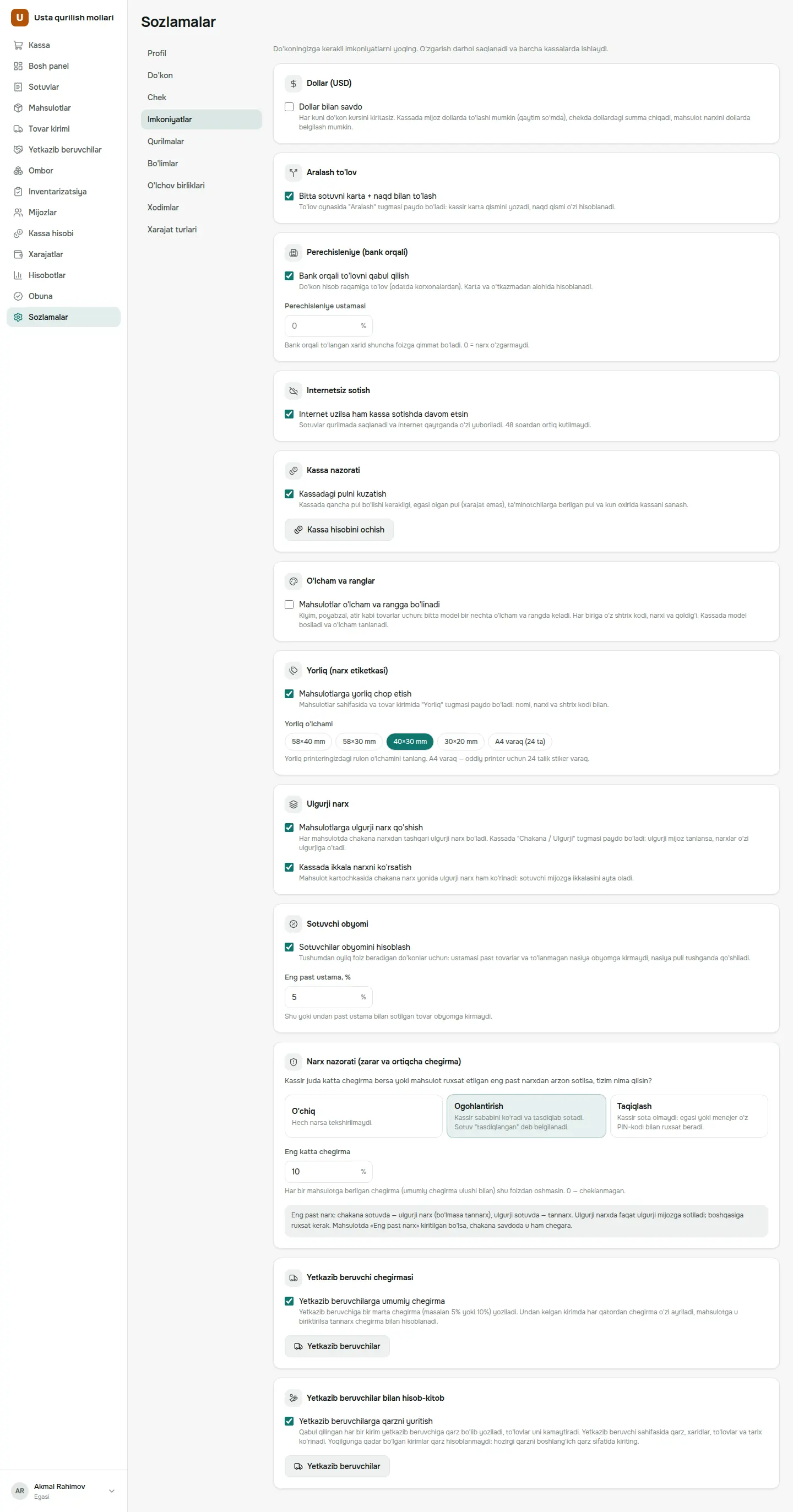
In Sozlamalar (Settings) → Imkoniyatlar (Features) → Yorliq (narx etiketkasi) (Labels, price tags), switch on Mahsulotlarga yorliq chop etish (Print labels for products).
-
Yorliq o'lchami (Label size): pick the size of the roll in your printer (40×30 mm is the default):
- 58×40 mm, 58×30 mm, 40×30 mm, 30×20 mm: for a thermal label printer;
- A4 varaq (24 ta) (A4 sheet, 24 labels): a 24-sticker sheet for an ordinary printer (3 columns, 8 rows).
-
Install the label printer on the computer (below). For an A4 sheet an ordinary printer is enough.
After that the Yorliq (Label) button appears on the product page, in the Mahsulotlar (Products) list and on a received goods receipt.
Installing a label printer
Section titled “Installing a label printer”For a thermal label printer (Xprinter XP-365B / XP-370B, TSC, Godex, Zebra...):
-
Install the printer driver (for Xprinter, the Windows driver from its disc or website).
-
In the printer settings (in the Xprinter driver Printing preferences → Page Setup; other printers may name it differently) create a new paper size: for example 58 × 40 mm, with a 2 mm gap between labels.
-
In Sozlamalar → Imkoniyatlar → Yorliq o'lchami pick exactly that size.
-
In Sozlamalar → Qurilmalar (Devices) tap Test yorliq (Test label). In the print window choose the label printer, margins: none, scale: 100%. Chrome usually remembers the last choice.
When you load a new roll, calibrate the printer as its manual says (so it finds the gap between labels), otherwise labels come out split in two.
A label for one product
Section titled “A label for one product”-
Open the product and tap Yorliq at the top.
-
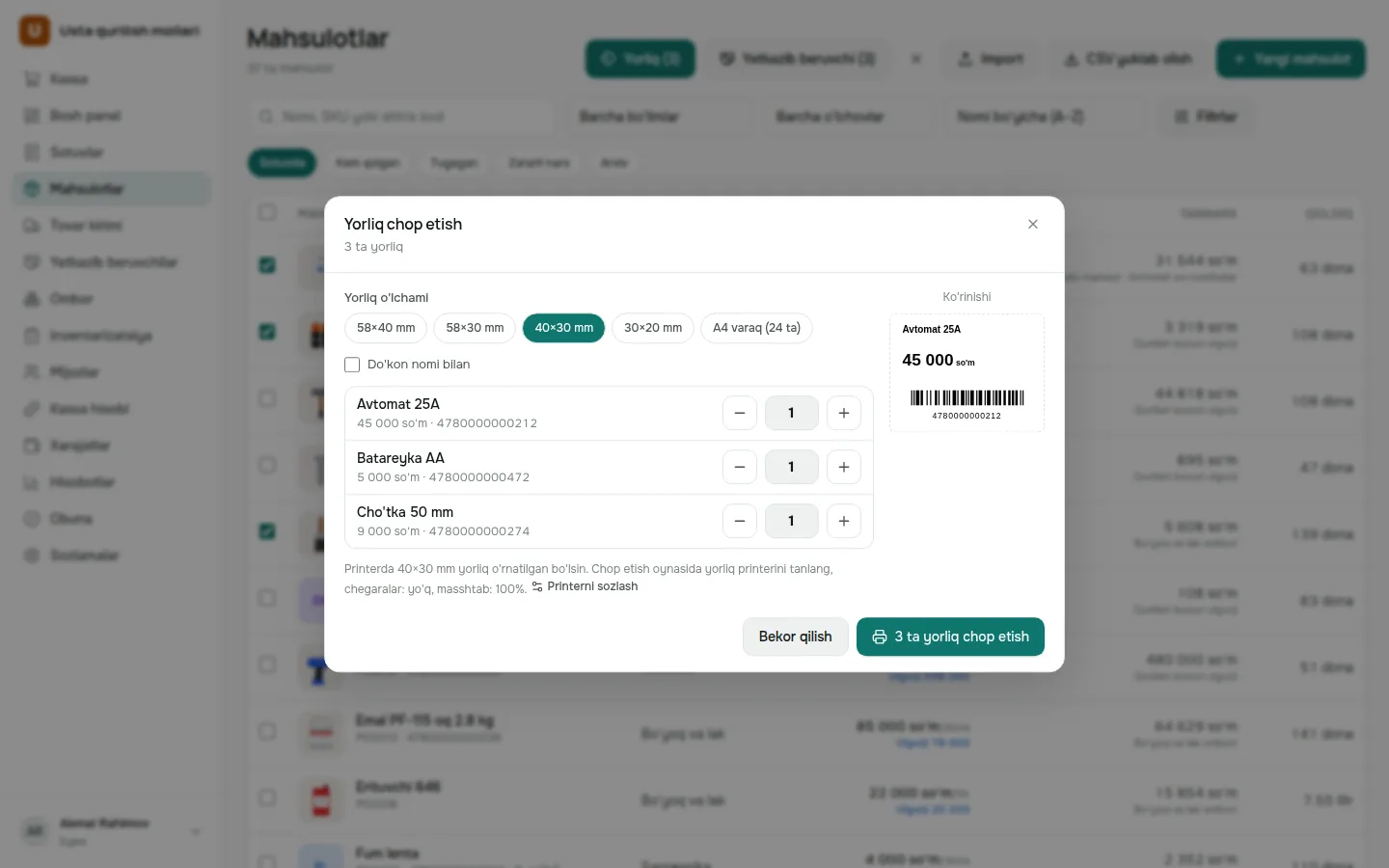
In the Yorliq chop etish (Print labels) window type how many you need, or use − / +.
-
Check the label size. To show the shop's name, tick Do'kon nomi bilan (With the shop name); on a small label it may leave no room for the product name.
-
Look at Ko'rinishi (Preview) on the right and tap N ta yorliq chop etish (Print N labels).
Many products at once
Section titled “Many products at once”-
In the Mahsulotlar list tick the products you need with the boxes on the left (Yorliq uchun tanlash, Pick for labels). The box in the header ticks the whole page. Ticks stay when you search or change page.
-
A Yorliq (N) button appears at the top. Tap it.
-
Check the number of labels for each product and print.
When prices change, do this: tick the changed products and print one new label each.
Labels for goods that just arrived
Section titled “Labels for goods that just arrived”Once a goods receipt is received, its page shows a Yorliq button. The numbers fill in by themselves: for piece goods as many as arrived (30 pieces, 30 labels), for weighed goods one each.
For sizes and colours
Section titled “For sizes and colours”Tap Yorliq on a model page and every size and colour is listed, each with as many labels as it has in stock. The label shows the model's name, the size in a black box (what the shopper looks for), the colour beside it, the price and the barcode. See Sizes and colours.
What is on a label
Section titled “What is on a label”- The product name (up to 2 lines if long);
- the price:
25 000 so'mfor piece goods,14 000 so'm / kgfor other units; - the barcode and its digits;
- the shop's name, if you choose.
A product without a barcode gets its SKU printed (P00012): the list says shtrix kod yo'q, P00012 bosiladi (no barcode, P00012 is printed). The till scans it too. For a permanent code tap Yaratish (Create) on the product page (Barcodes).
Questions
Section titled “Questions”The label prints crooked or split over two labels. The paper size in the printer settings and the Yorliq o'lchami must be the same. In the print window margins must be none and scale 100%.
The barcode does not scan. On a small label (30×20) the bars may be too thin. Choose a bigger size (40×30 or 58×40) or try raising the darkness in the printer settings.
Can I print a separate label for a box? A label is for the product itself: the piece price and the piece code. A box comes with its factory code: put it in the product's Qutining shtrix kodi (Box barcode).
There is no Label button. Mahsulotlarga yorliq chop etish is not switched on in Sozlamalar → Imkoniyatlar. The owner or the manager switches it on.