Selling at the till
On the Kassa (Till) page you gather products into the basket and take the money. There is no shift to open: you sign in and start selling. Every sale records who made it. The app's screens are in Uzbek or Russian; labels are given here as the Uzbek app shows them.
The till screen
Section titled “The till screen”- On a computer: the Savat (basket) on the left, products on the right, search on top.
- On a phone: one half at a time. Switch between them with the Mahsulotlar (Products) button and the basket button at the bottom. The basket button shows the total.
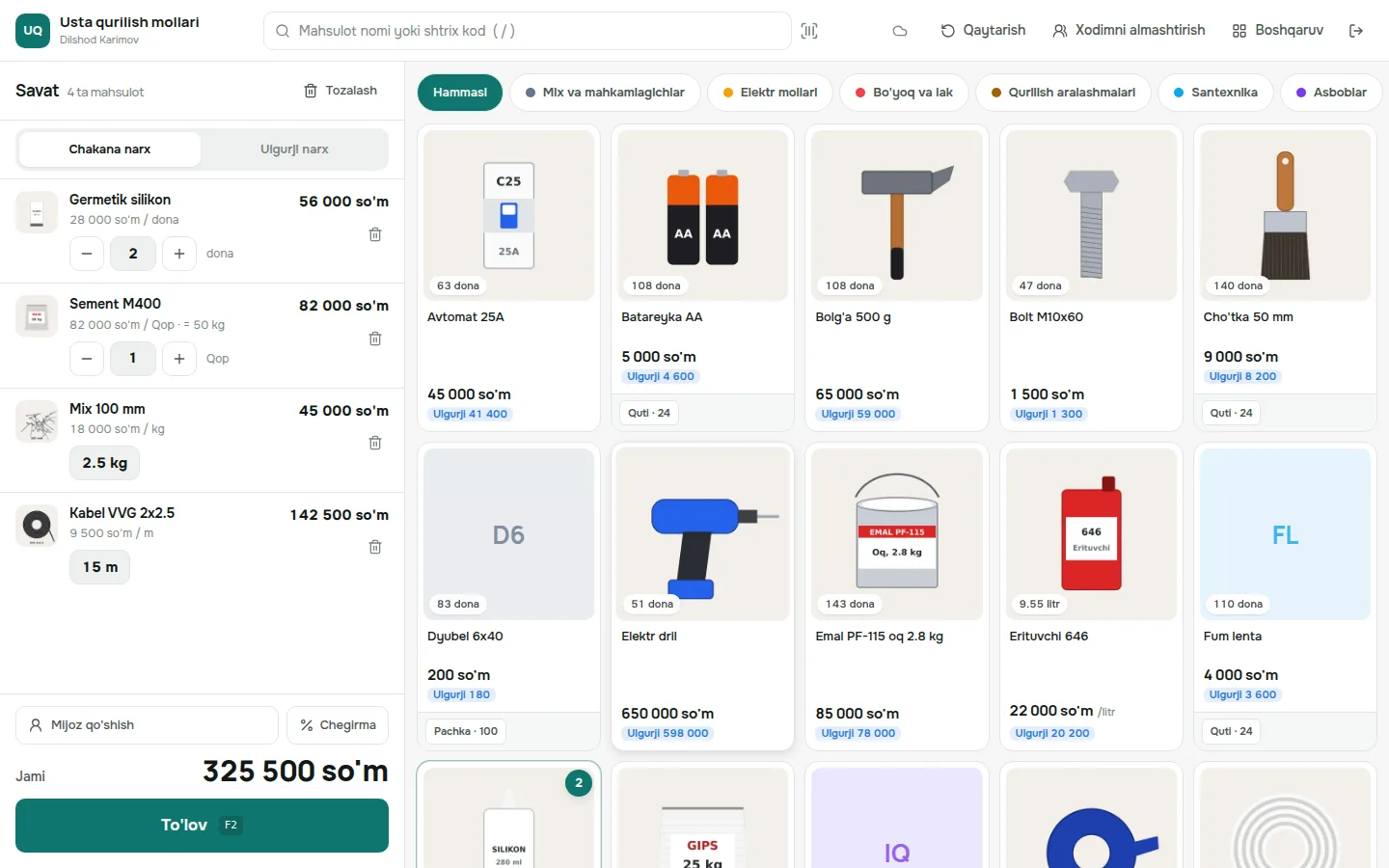
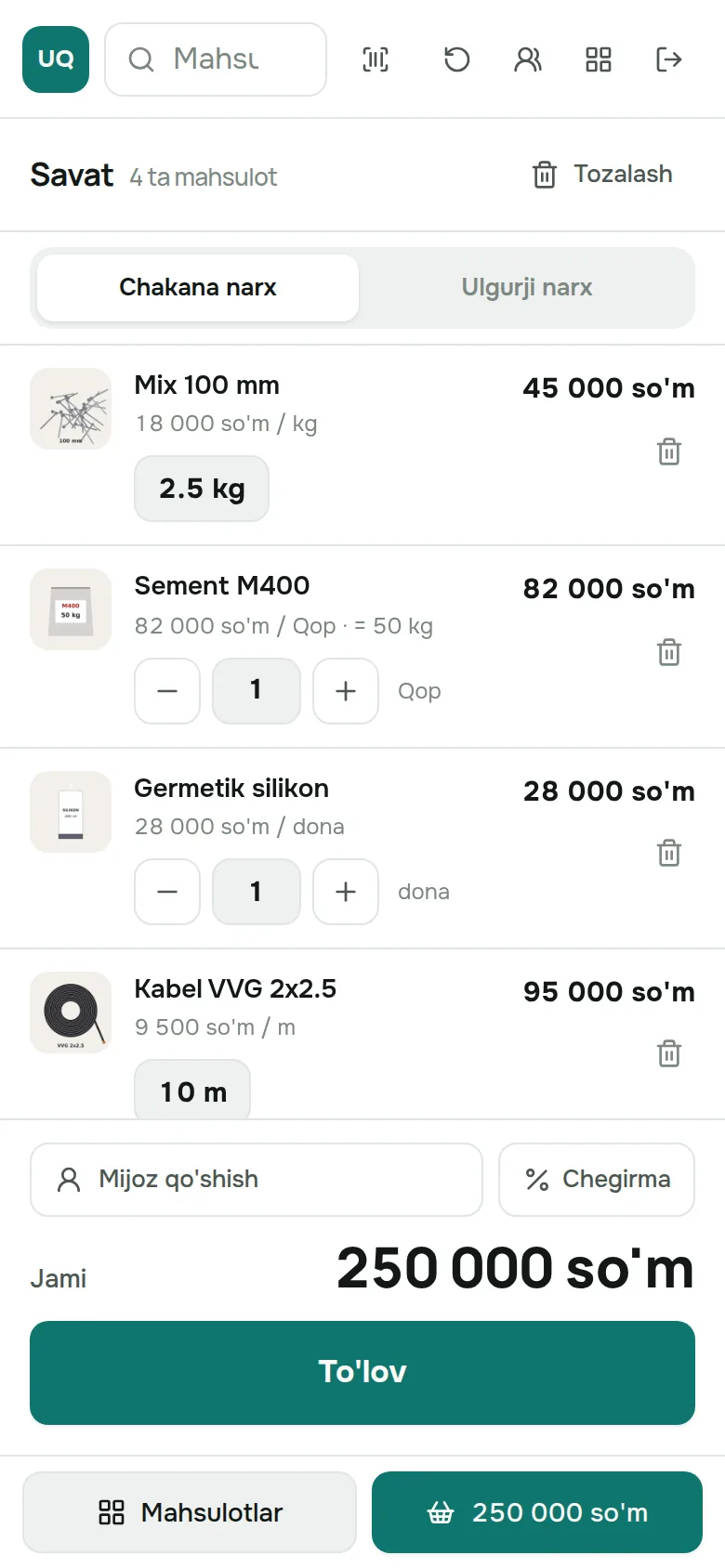
Above the products is a row of categories: Hammasi (all) and your shop's categories. Each product tile shows its price and Qoldiq (stock). A product with no stock left says Qolmagan (none left).
A simple sale
Section titled “A simple sale”-
Find the product: tap its tile, type its name into the search, or scan its barcode.
-
The product goes into the Savat. Tap or scan it again and the count goes up by one.
-
If needed, pick a customer or give a discount.
-
Tap To'lov (Payment; F2 on a computer) and take the money: Payment.
Finding a product
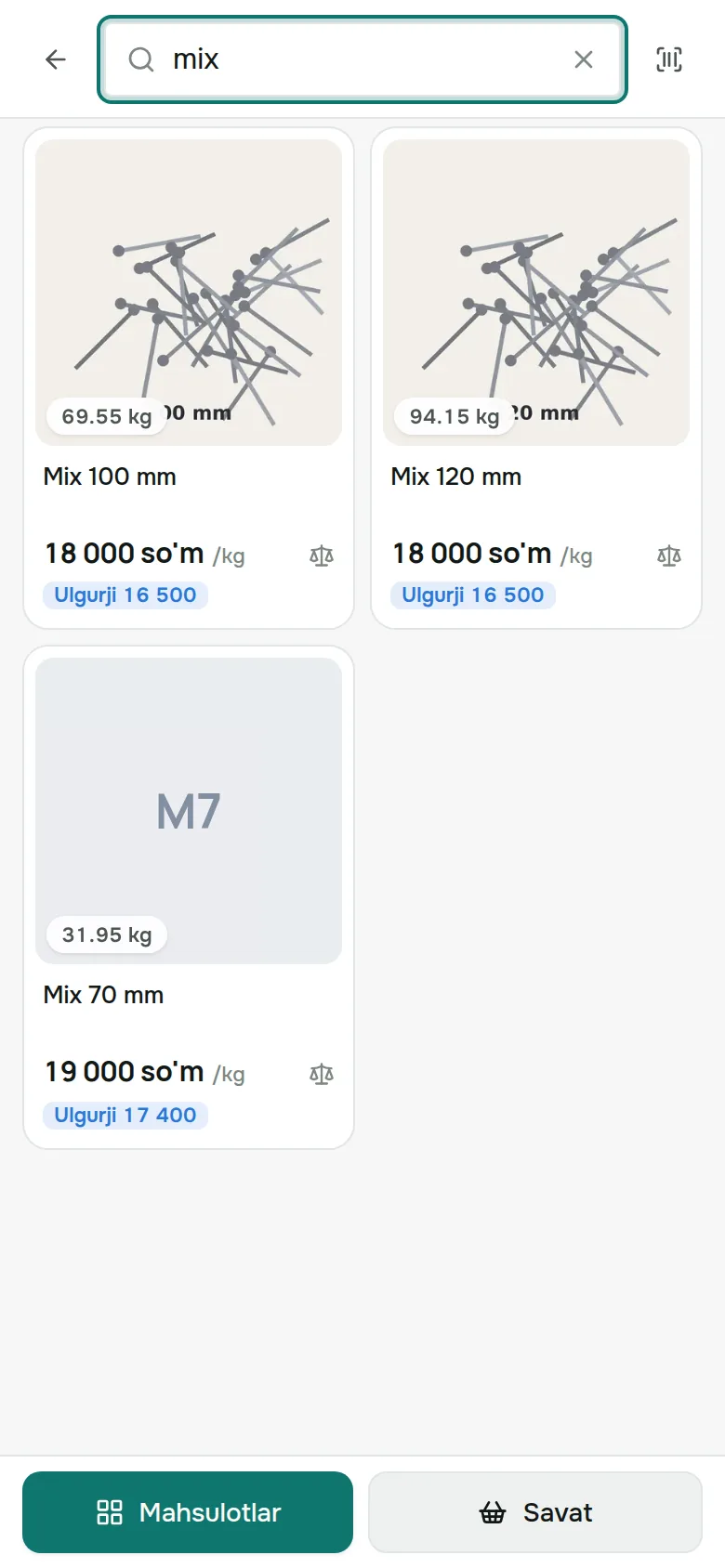
Section titled “Finding a product”Search. Type part of the product's name, its SKU or its barcode into the box at the top. Results appear as you type. On a computer press / to jump to the search and Esc to clear it.
Barcode scanner. A USB or Bluetooth scanner works like a keyboard. Scan at any time while the till is open (with no window open over it): the product goes straight into the basket. The code reads correctly even with the computer's keyboard set to Russian. Connecting one: Scanner and camera.
Phone camera. On phones and tablets there is a camera button next to the search. Tap it and line the barcode up inside the frame: as soon as the code is read, the product goes into the basket.
Quantity
Section titled “Quantity”Goods sold by the piece. The basket line has − and + buttons. For a larger number, tap the number in the middle and type it. Pieces are always whole numbers.
Kilograms, grams, litres, ml, metres. Tapping such a product opens the quantity window:
-
Type the quantity, for example
0.75(kg). Decimals are typed with a point. The total shows underneath at once:0.75 × 32 000 = 24 000. -
Or tap one of the ready buttons:
- for kilograms:
0.25,0.5,1,1.5,2; - for grams and ml (perfume, for example):
3,5,10,20,50,100.
- for kilograms:
-
Tap Tayyor (Done).
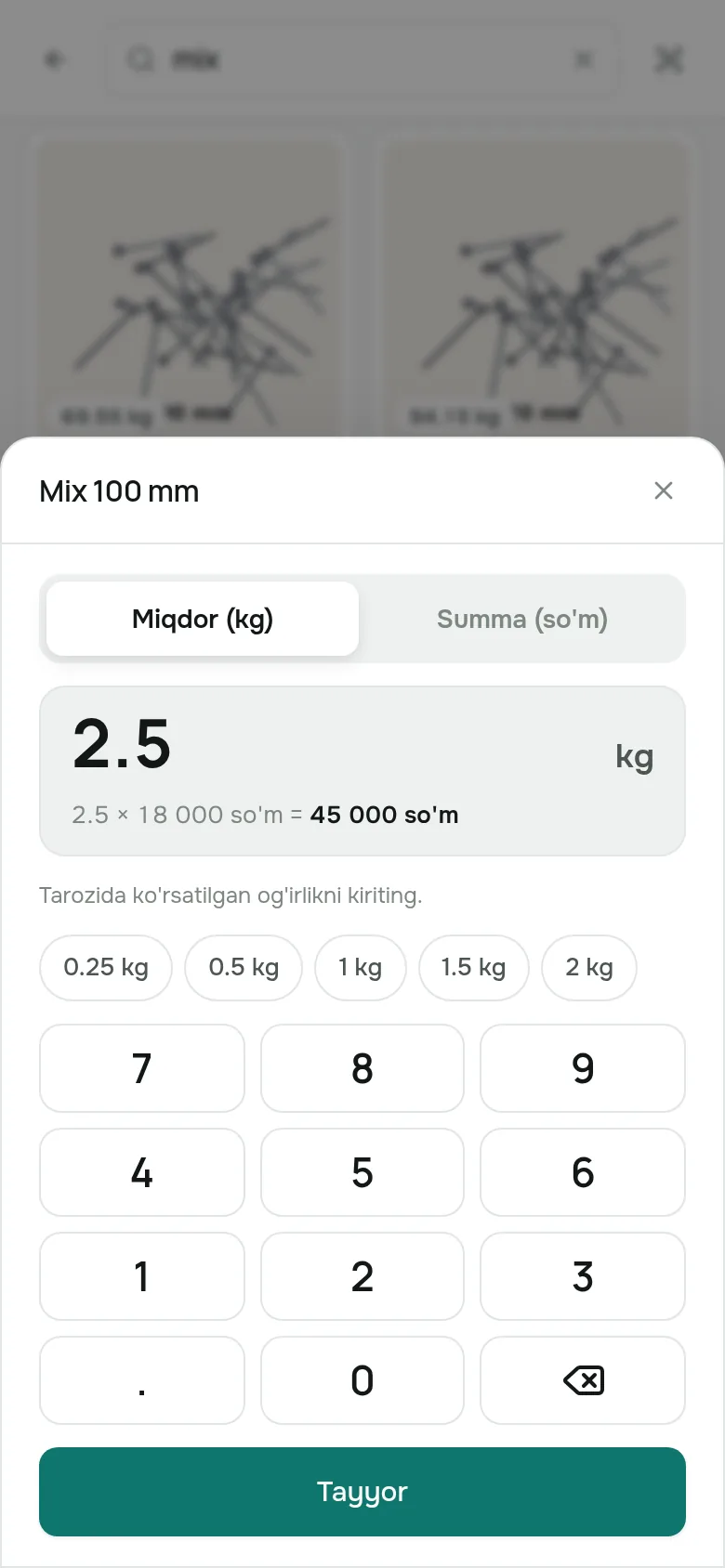
Selling by the money. When the customer says "give me 10 000 so'm worth", choose Summa (so'm) (amount) at the top of the quantity window and type the amount (or tap one of 5 000, 10 000, 20 000, 50 000). The app shows how much to weigh out: Torting: 0.313 kg (weigh out). The basket line costs exactly the amount you typed.
Scales. A product weighed on a scale has a scale icon on its tile. Type the weight the scale shows into the quantity window. If the scale prints a barcode label, scan the label: the weight comes in by itself. More: Scales.
Boxes and pieces
Section titled “Boxes and pieces”When a product has a box or pack, a small button appears at the bottom of its tile, for example Quti · 24 (a box of 24).
- Tapping the product tile adds 1 piece.
- Tapping Quti · 24 adds 1 box (24 pieces) at the box price. If the box has no price of its own, the price of 24 pieces is used.
- Scanning the box's own barcode also adds a whole box.
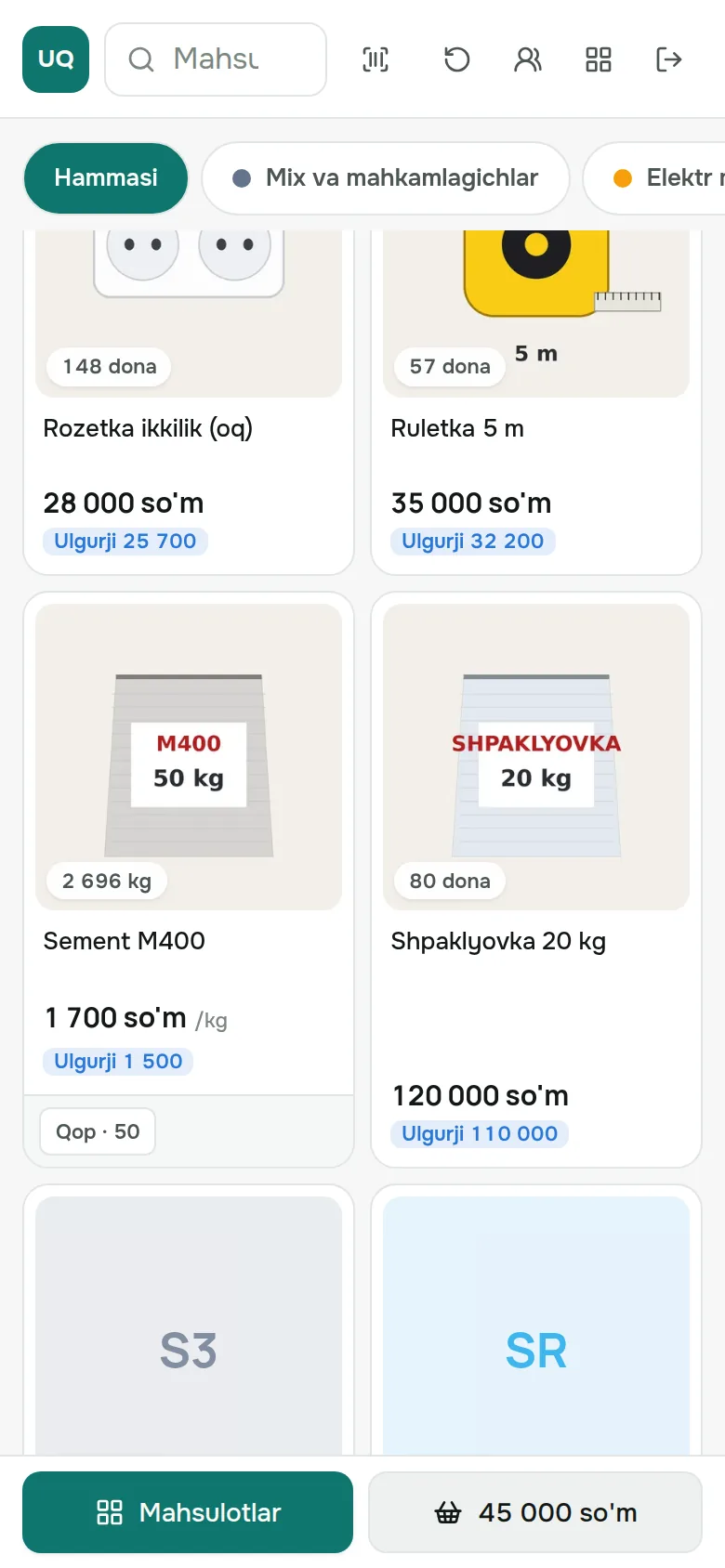
In the basket, the box line reads "= 24 dona" (= 24 pieces) after the price. 24 pieces come off the stock. More: Boxes and pieces.
Sizes and colours
Section titled “Sizes and colours”Clothing and shoe models are a single tile on the till, showing their sizes and colours. Tapping it opens O'lchamni tanlang (pick the size), with how many are left next to each size. Tap the one you need.
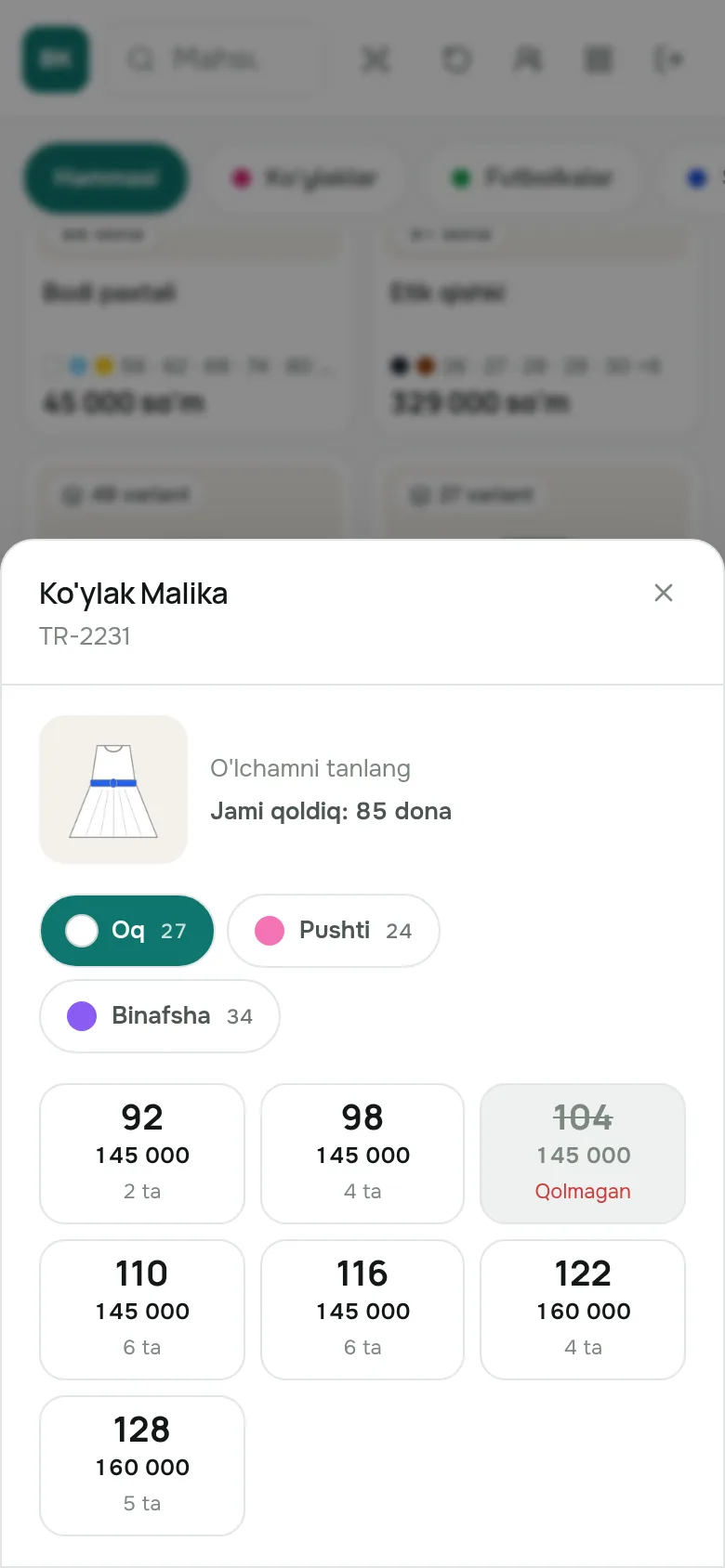
Scanning the barcode on the label puts exactly that size into the basket, with no question asked. More: Sizes and colours.
Changing a basket line
Section titled “Changing a basket line”- Tap the product name in the line: a window with the Narx (price) and Qator chegirmasi (line discount) fields opens. Only the owner or a manager can change the price. About discounts: Discounts.
- To remove a line: tap the bin icon on the right of the line, or bring the count down to zero with −.
- To empty the whole basket: the Tozalash (clear) button at the top of the basket.
The basket is kept on the device itself: if the page reloads or the phone switches off, the basket is still there.
Customer
Section titled “Customer”Tap Mijoz qo'shish (add customer) at the bottom of the basket, search for the customer by name or phone and pick them. For a new customer tap Yangi (new), type the name and phone and tap Saqlash (Save). Adding a new customer needs the internet.
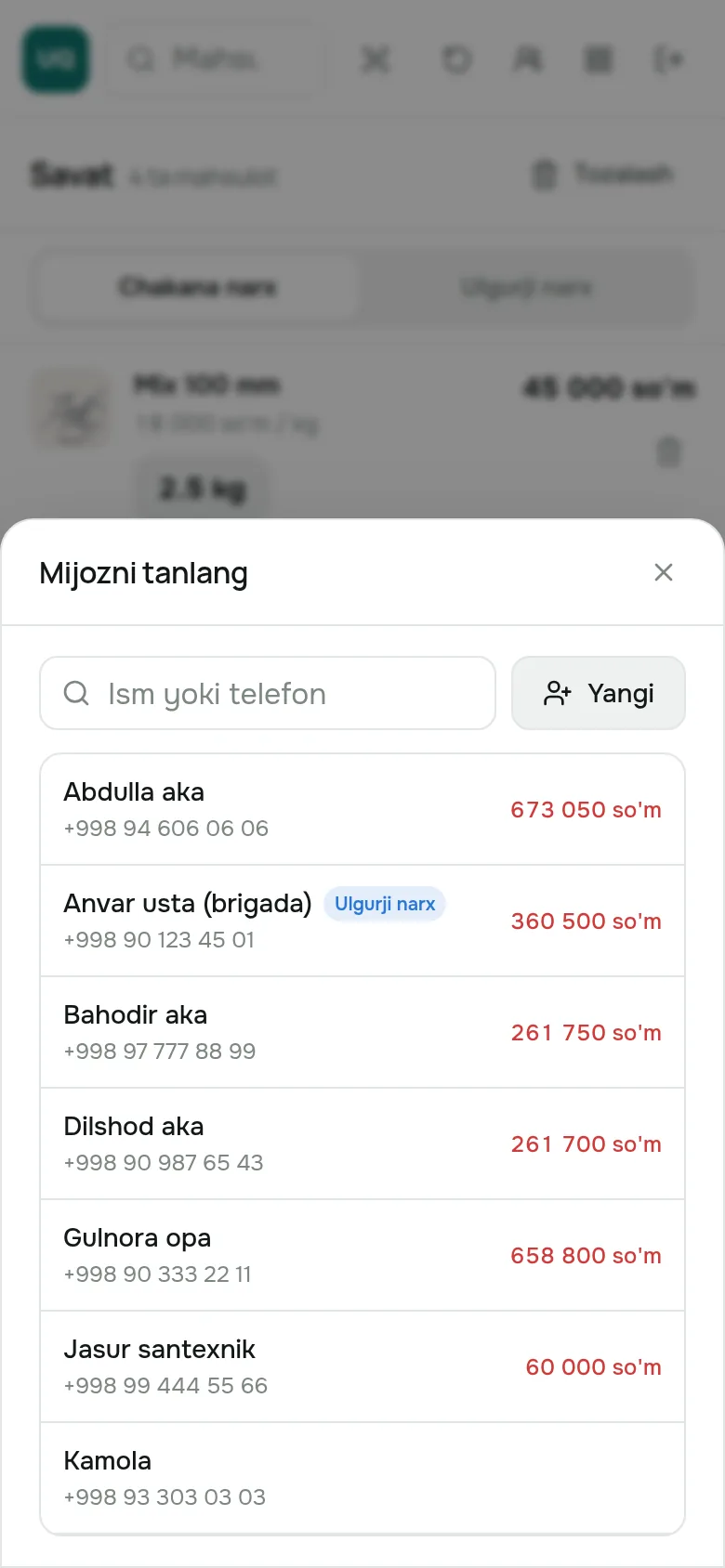
Once a customer is picked:
- the basket shows their debt (qarzi, in red) or advance (Avans, in green);
- you can sell on Nasiya (credit): Credit and advances;
- the receipt prints the customer's name and phone;
- if the customer last bought a product at a different price, that price shows on the product's tile with an amber mark.
To take the customer off the basket, tap the × next to their name.
Retail and wholesale prices
Section titled “Retail and wholesale prices”If the Ulgurji narx (wholesale price) feature is on (Sozlamalar → Imkoniyatlar, Settings → Features), the top of the basket shows Chakana narx (retail) and Ulgurji narx (wholesale) buttons. Picking a wholesale customer switches to wholesale prices by itself. Wholesale prices show in blue. A product with no wholesale price sells at retail, and the basket marks it "ulgurji narx yo'q" (no wholesale price).
More: Prices.
Keyboard keys (computer)
Section titled “Keyboard keys (computer)”| Key | What it does |
|---|---|
| / | Go to the search |
| Esc | Clear the search |
| F2 | Open the payment window |
| F4 | In the payment window: all in cash, exact amount, confirm at once |
| Digits | In the payment and quantity windows: type the amount or quantity |
| Enter | Confirm the payment; after a sale: new sale |
| P | After a sale: print the receipt |
Questions
Section titled “Questions”The product went into the basket, but payment showed an error. Most often it is the stock: the product has none left. For now the message shows in English: "Not enough stock for ...". A new shop does not sell more than it has in stock. Record a goods receipt, or let the owner (or a manager) switch on Qoldiq yetmasa ham sotishga ruxsat berish (allow selling without enough stock) in Sozlamalar → Do'kon.
A product does not show on the till. It may be archived, or another category may be selected. Try typing its name into the search. If it was just added on another device, it shows on the till by itself within a minute. Scanning its barcode finds it at once.
I have over a thousand products. Does the till show them all? The till shows up to 120 product tiles at a time: the first 120 of Hammasi or of the selected category. Find the rest with the search or the scanner: they find any product. With many products, sort them into categories.
I connected a Bluetooth scanner to my iPhone, and now the on-screen keyboard won't show. The iPhone treats the scanner as an external keyboard and hides the on-screen one. Many scanners have a way to change this: see the scanner's manual. Or read the barcode with the phone's camera.
Can a cashier change a price? Not at the till: a cashier can only give a discount. The owner or a manager changes prices. If the owner has given a cashier Mahsulotlar bilan ishlash (work with products), that cashier can change a product's price on the Mahsulotlar page: Roles and permissions.
Can one product be sold at two prices? For one sale, give a discount on the line or use the wholesale price. To change the price for good, edit the product.
The scanner types the code into the search box. That is not a fault. When the code has at least 8 digits, the till takes it as a scan when the scanner presses Enter at the end, and adds the product to the basket. With a shorter code the product shows in the search results: tap it.