Payment
After adding products to the basket, tap To'lov (Payment; F2 on a computer). The payment window shows the To'lanadi (to pay) amount at the top and the ways to pay below it. One button is one way to pay: the whole amount goes to it. Labels are given as the Uzbek app shows them.
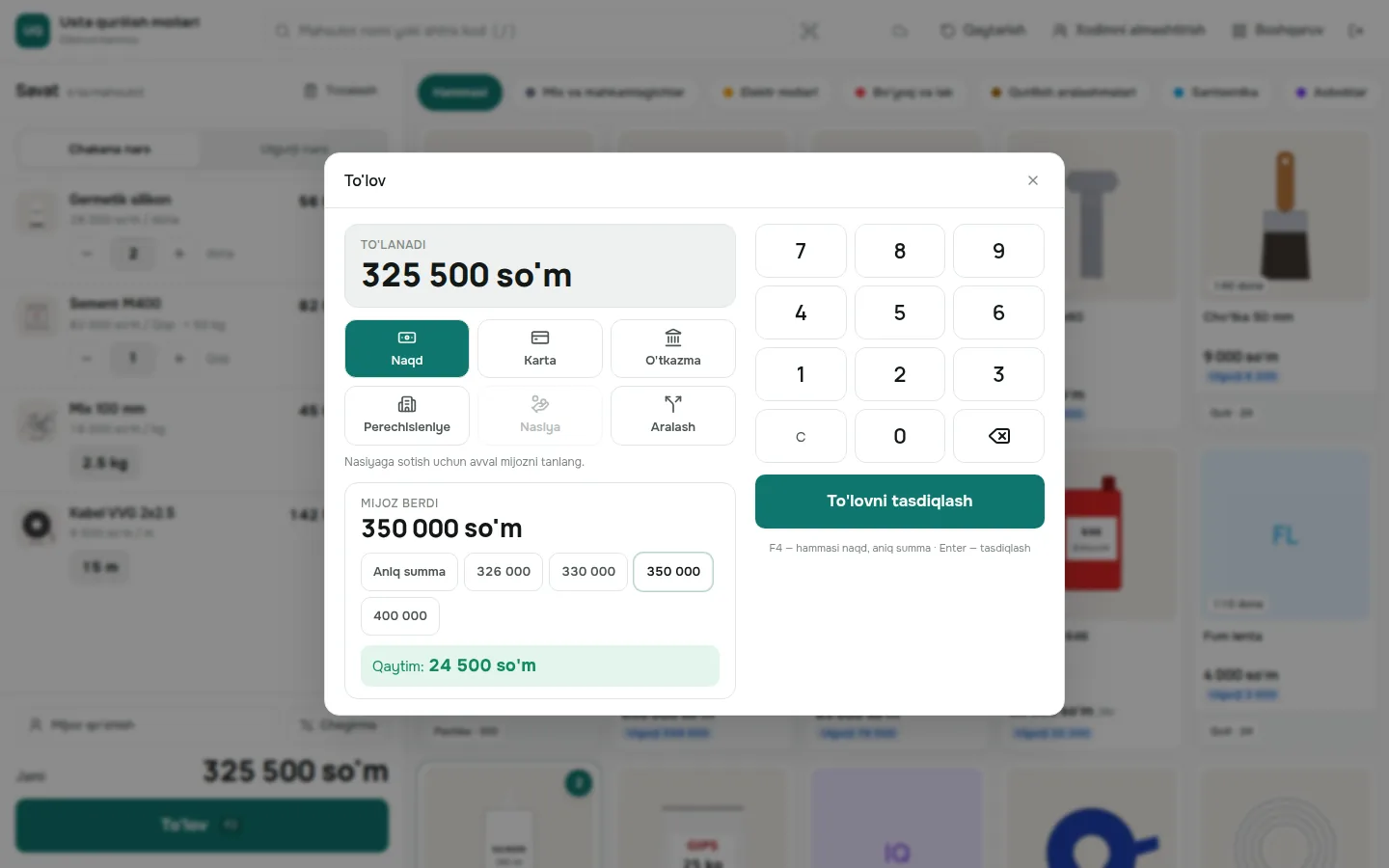
| Way to pay | When it is there |
|---|---|
| Naqd (cash) | Always |
| Karta (card) | Always |
| O'tkazma (transfer) | Always |
| Perechisleniye (bank transfer) | When the Perechisleniye (bank orqali) feature is on |
| Nasiya (credit) | Always, but it works only with a customer picked. For a customer with an advance the button reads Avansdan (from the advance) |
| Dollar | When the Dollar (USD) feature is on. It cannot be tapped until a dollar rate has been typed in |
| Aralash (mixed) | When the Aralash to'lov (mixed payment) feature is on |
The shop owner or a manager switches features on in Sozlamalar → Imkoniyatlar (Settings → Features): Features.
-
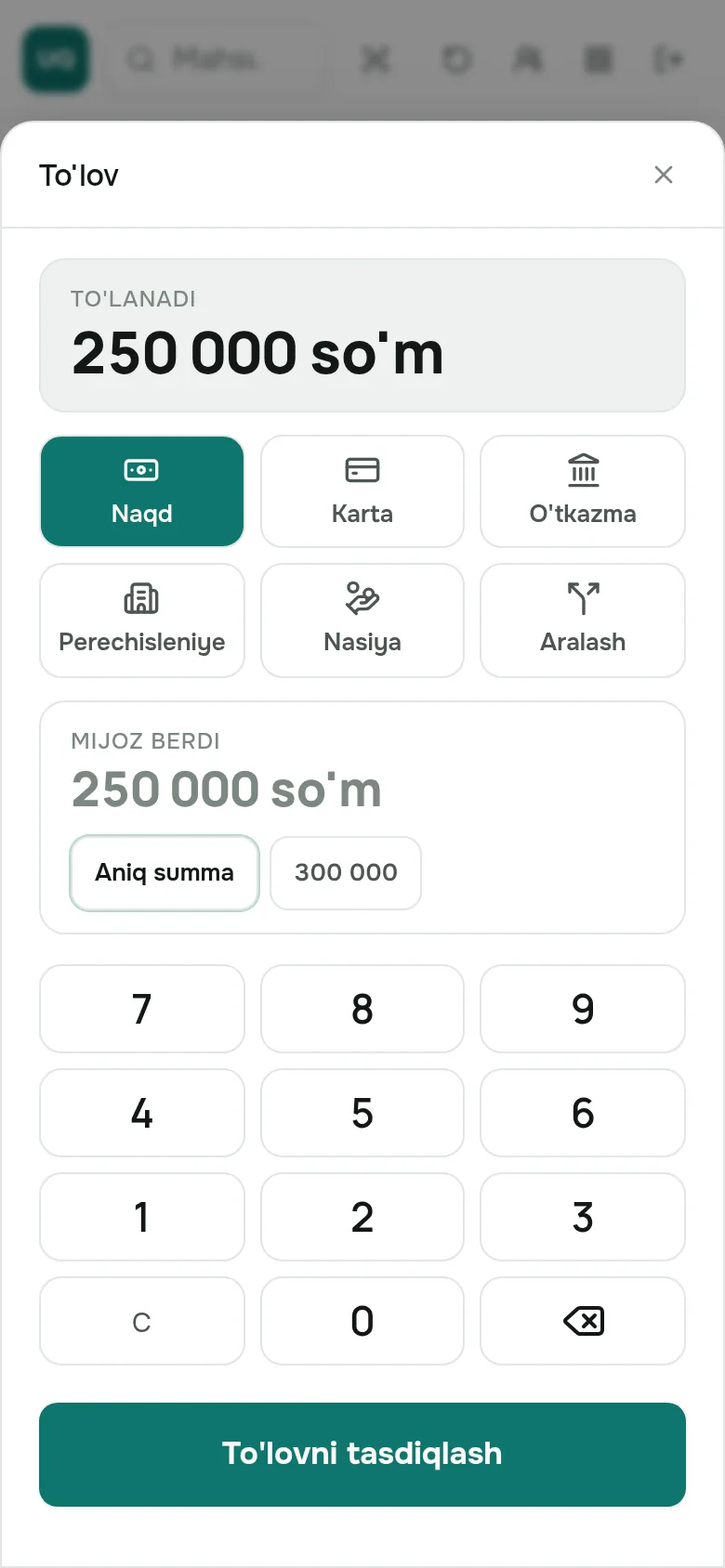
Naqd is already chosen.
-
Type the money the customer gave, or tap one of the ready buttons (for example
50 000,100 000). If the customer gives the exact amount, type nothing: Aniq summa (exact amount) stays selected. -
Qaytim (change) shows in green. Tap To'lovni tasdiqlash (Confirm payment).
If the money is short, Qoldi (still due) shows in amber and the payment cannot be confirmed.
Card and transfer
Section titled “Card and transfer”- Karta (card): put the amount into the card terminal and tap To'lovni tasdiqlash once the payment goes through.
- O'tkazma (transfer: Click, Payme, card to card): confirm once you see the money has arrived.
Card and transfer give no change: the amount is recorded exactly as To'lanadi. The app is connected neither to the terminal nor to the bank: it only records how the sale was paid.
Bank transfer (perechisleniye)
Section titled “Bank transfer (perechisleniye)”Used when a company pays into the shop's bank account. It is counted apart from card and transfer.
If a Perechisleniye ustamasi (bank transfer markup, for example 5%) is set in Imkoniyatlar, a sale paid by bank transfer costs that much more. The payment window shows the markup separately, and the receipt prints a "Perechisleniye +5%" line. With a markup, the bank transfer pays the whole amount: it cannot be mixed with another way of paying.
Credit (nasiya)
Section titled “Credit (nasiya)”First pick the customer in the basket (Mijoz qo'shish). Then tap Nasiya in the payment window. If the customer pays part now in cash, type it into Hozir naqd to'laydi (paying cash now): the rest goes on credit. More: Credit and advances.
Dollars
Section titled “Dollars”The Dollar button needs the Dollar (USD) feature on and a dollar rate typed in. The owner or a manager types the rate: they tap the 1$ = ... button at the top of the till. Keep the rate up to date every day: Dollar rate.
-
Tap Dollar.
-
Type the dollars into Mijoz berdi (dollar) (customer gave, dollars) or tap one of the ready buttons (
$10,$20,$50and so on). Its value in so'm shows underneath. -
If the dollars are not enough, Qolganini so'mda naqd oling (take the rest in so'm cash) appears: take the rest in so'm cash.
-
Tap To'lovni tasdiqlash.
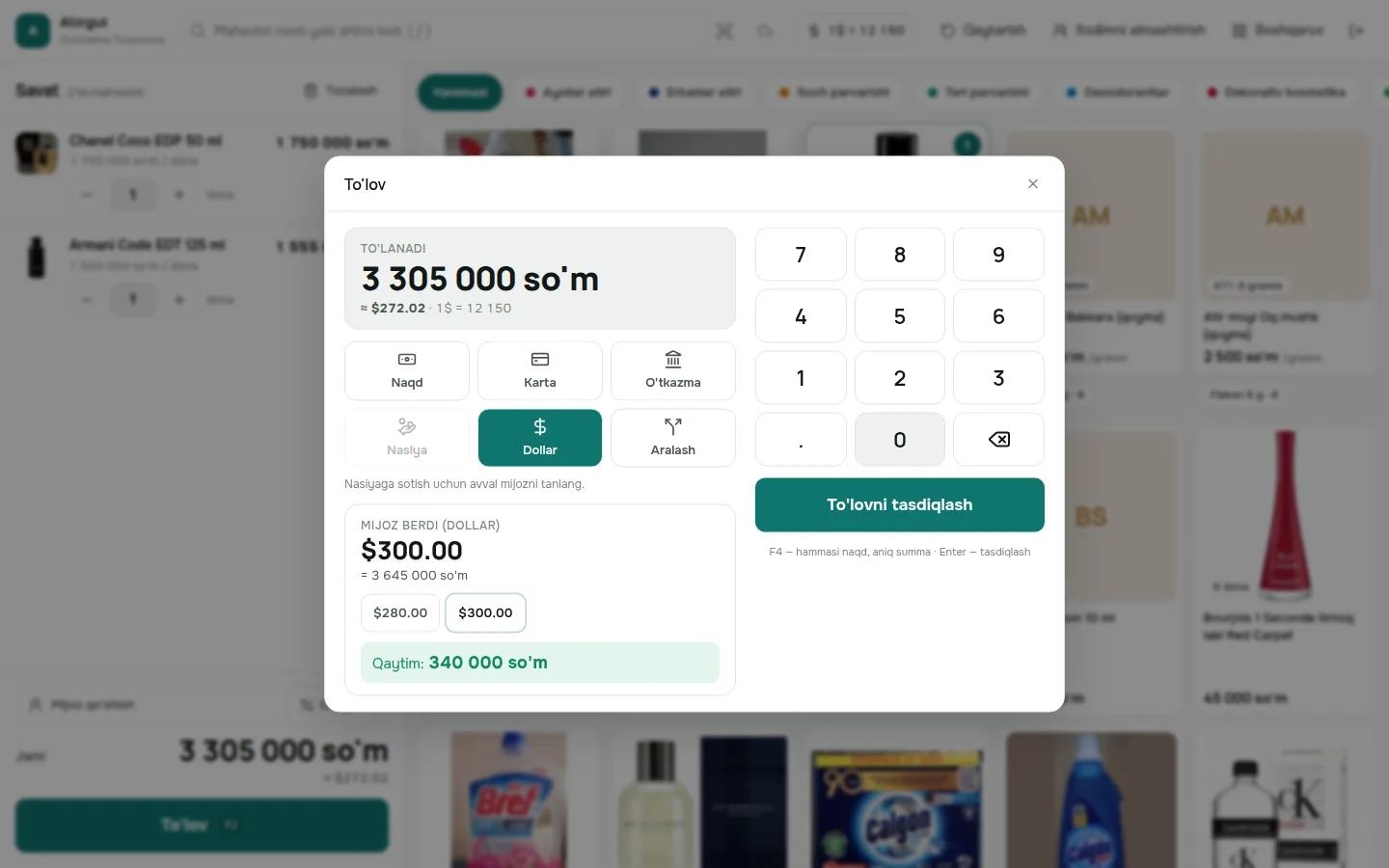
Change is always given in so'm. If the rate was not typed in today, the window shows a warning: "Kurs bugun yangilanmagan" (rate not updated today). If the rate was changed on another device while you were taking payment, the sale does not go through: check the payment at the new rate and confirm again.
Mixed payment
Section titled “Mixed payment”For example, the customer pays 200 000 so'm by card and the rest in cash.
-
Tap Aralash (mixed). Karta and Naqd rows appear.
-
Type into the Karta row how much is paid by card. The Naqd row fills itself in (it says "qolgani", the rest).
-
If the customer hands over more cash, tap the Naqd row and type what they gave: Qaytim (change) appears.
-
Tap To'lovni tasdiqlash.
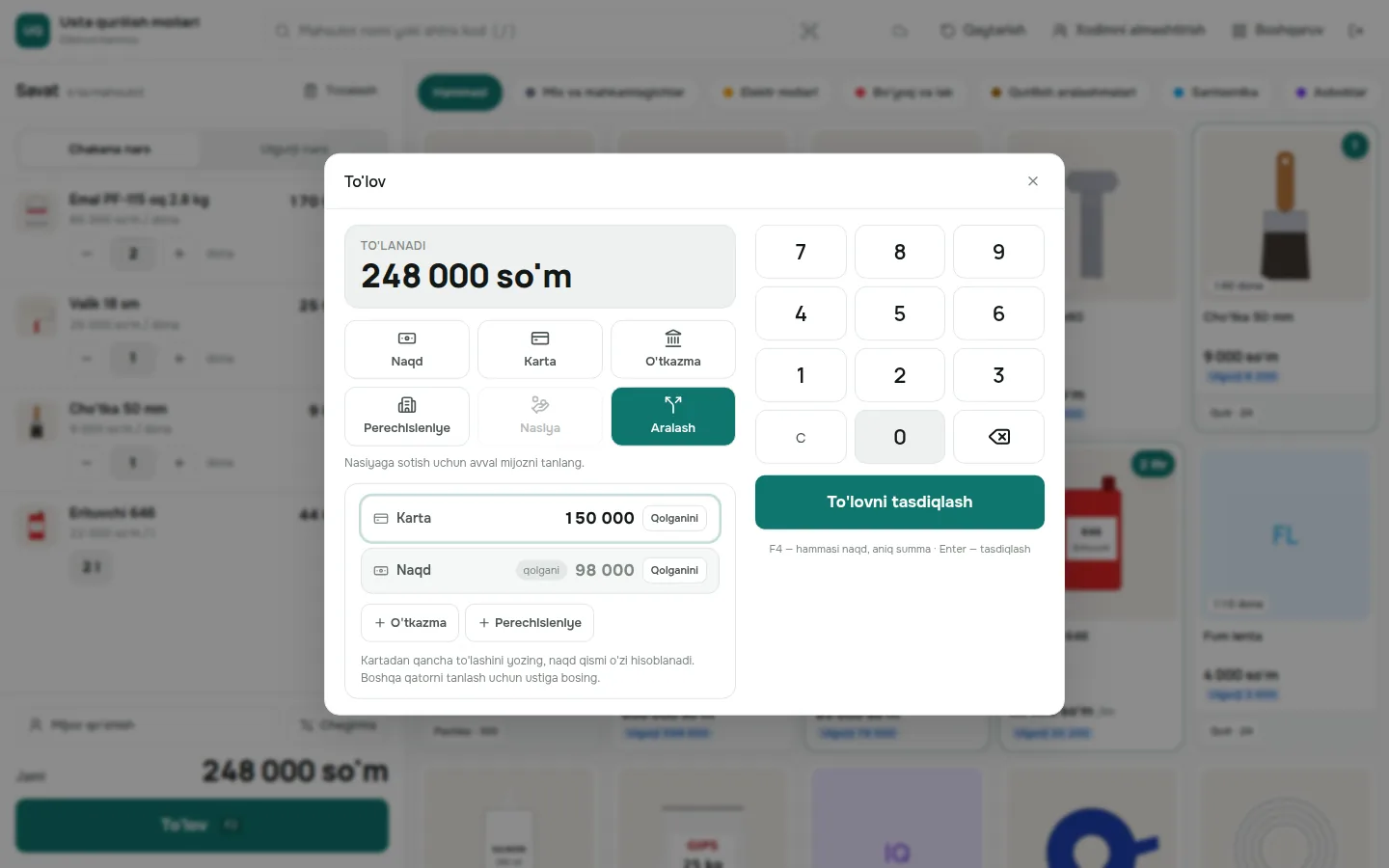
The + O'tkazma, + Dollar (once a rate is typed in), + Nasiya (with a customer picked) and + Perechisleniye (when it has no markup) buttons under the rows add more rows. Each row's Qolganini (the rest) button puts what is still unpaid into that row. Change is given only from cash: if the card or transfer part is more than the total, the payment cannot be confirmed.
After payment
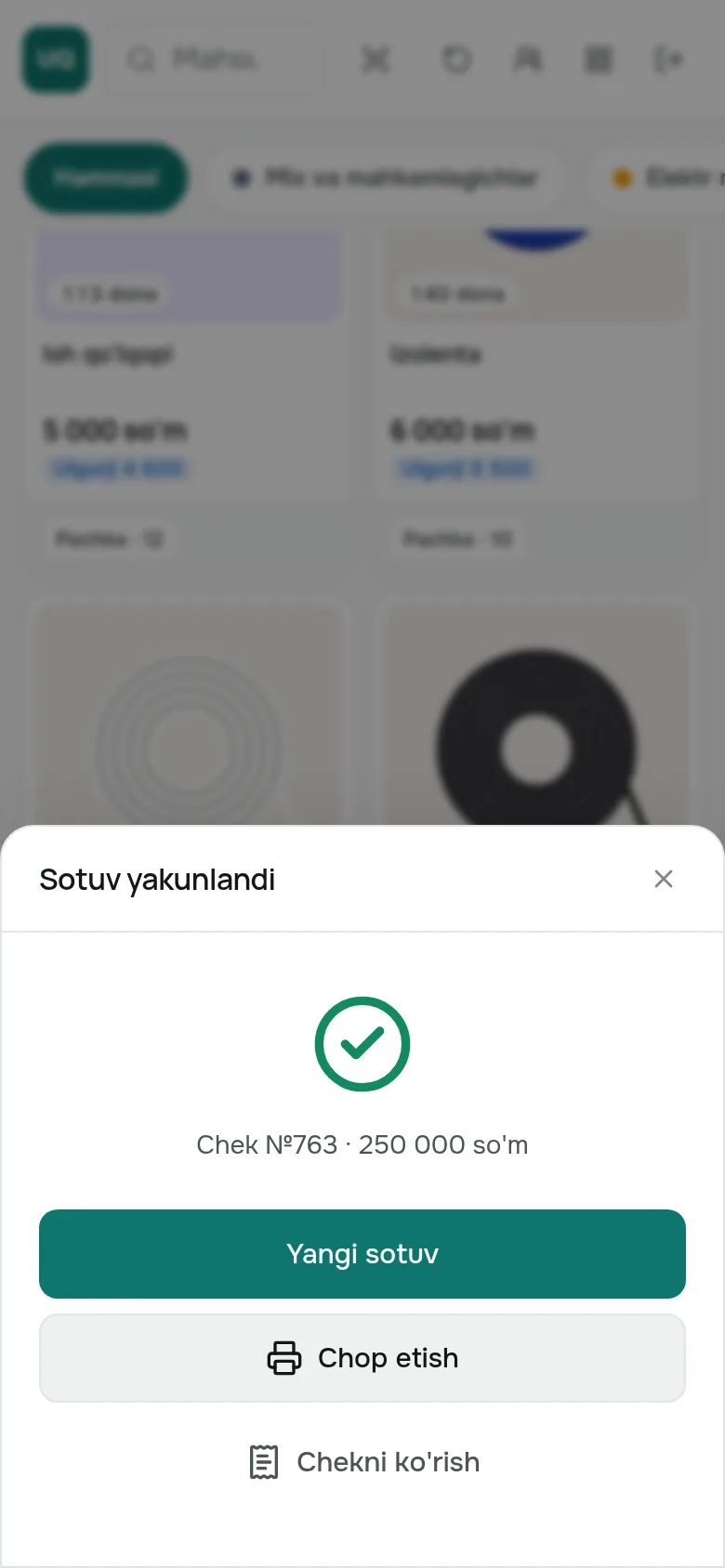
Section titled “After payment”The Sotuv yakunlandi (sale complete) window appears:
- Qaytim bering (give change): how much change to give the customer (a large green figure).
- Yangi sotuv (new sale; Enter on a computer).
- Chop etish (print; P on a computer).
- Chekni ko'rish (view receipt): opens the receipt on screen. There you can save it as a picture or share it.
If Har sotuvdan keyin chekni avtomatik chop etish (print the receipt automatically after every sale) is on for this device in Sozlamalar → Qurilmalar (Settings → Devices), the receipt prints by itself: Receipts. With a cash drawer connected, it opens by itself after a cash or dollar payment: Cash drawer.
Questions
Section titled “Questions”The customer paid cash and then wanted to pay by card. Can the payment method be changed? A finished sale's payment method cannot be changed. The owner or a manager opens that sale in Sotuvlar (Sales), taps Bekor qilish (Cancel), then makes the sale again with the right way of paying. A sale that already has a return cannot be cancelled.
The Dollar button is grey and won't tap. No dollar rate has been typed in yet. The payment window says "Dollar kursi kiritilmagan: dollar bilan to'lov o'chiq." (no dollar rate: paying in dollars is off). The owner or a manager taps the rate button at the top of the till and types the rate.
Can a cashier type in the dollar rate? No. Only the owner or a manager types in the rate.
The Nasiya button won't tap. Pick a customer first. The window says: "Nasiyaga sotish uchun avval mijozni tanlang." (pick a customer first to sell on credit).
There is no Aralash button. The Aralash to'lov feature is off. The owner or a manager switches it on in Sozlamalar → Imkoniyatlar.
Which button is for Click or Payme? O'tkazma (transfer). Confirm once you see the money in your account.