Receipts
Every sale has a receipt. You print it, save it as a picture or send it to the customer. You can sell without a printer too. Labels are given as the Uzbek app shows them.
After a sale
Section titled “After a sale”After payment the Sotuv yakunlandi (sale complete) window appears:
- Yangi sotuv (new sale; Enter on a computer): move on to the next customer.
- Chop etish (print; the P key on a computer): the receipt comes out of the printer.
- Chekni ko'rish (view receipt): the receipt opens on screen. A sale made offline has no such button, but Chop etish works.
To have the receipt print by itself after every sale: Sozlamalar → Qurilmalar (Settings → Devices) → Har sotuvdan keyin chekni avtomatik chop etish (print the receipt automatically after every sale). This is switched on for this computer or phone only. For the receipt to print at once, without the print window, set up the computer: Setting up a Windows computer.
The receipt page
Section titled “The receipt page”Tapping Chekni ko'rish opens the receipt. At the top:
- the paper: Chek 80 mm (or Chek 58 mm), A5 (A4 yarmi) (half an A4), A4 varaq (A4 sheet). Picking another one changes only this receipt, not the setting;
- Chop etish (print);
- Rasm qilib saqlash (save as a picture): the receipt is saved to the phone or computer as a PNG picture;
- Ulashish (share): send the receipt picture to the customer through Telegram or another app. This button appears when the device can share (usually a phone).
Reprinting a receipt
Section titled “Reprinting a receipt”-
Open the Sotuvlar (Sales) page and find the receipt: search by receipt number, customer name or product name.
-
Open the receipt and tap Chekni ko'rish.
-
Tap Chop etish, Rasm qilib saqlash or Ulashish.
A cashier finds receipts of their own sales only.
What the receipt shows
Section titled “What the receipt shows”From top to bottom:
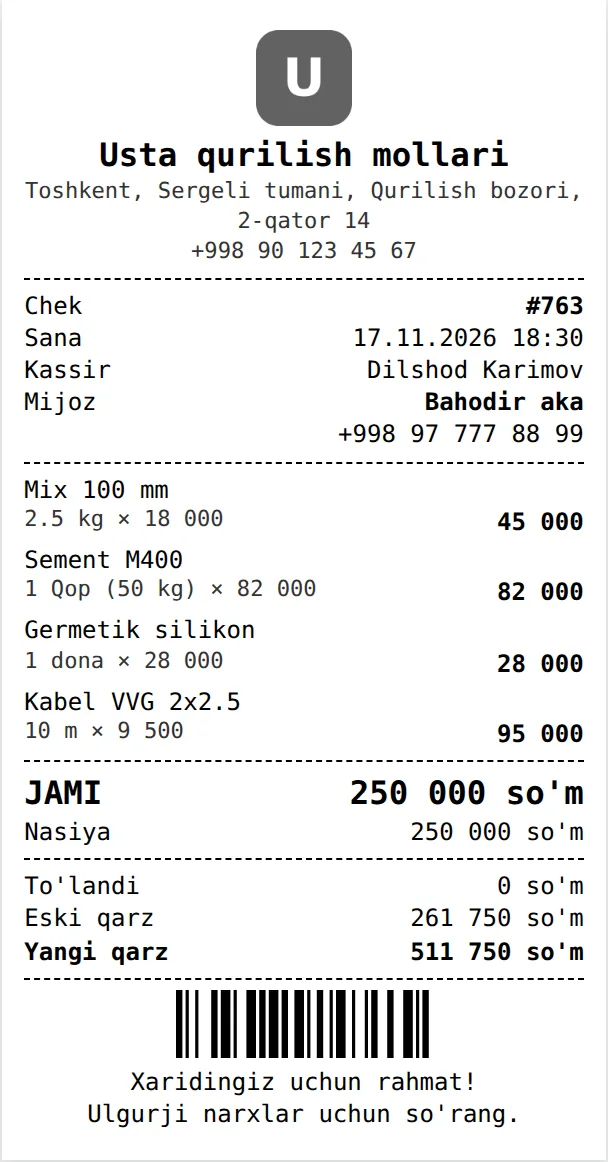
- the logo (if any), the shop's name, address, phone and Chek boshidagi matn (text at the top of the receipt);
- with Barcha xodimlar (all staff) chosen, the staff's names and phones;
- the Chek (receipt) number, Sana (date), Kassir (the seller) and their phone (if entered);
- with a customer: the Mijoz (customer) name and phone;
- the products: name, quantity × price, amount, the line's discount; for a box, for example "1 quti (24 dona)" (1 box, 24 pieces);
- Oraliq jami (subtotal), Chegirma (discount), the bank-transfer markup (if any), JAMI (total);
- how it was paid and the Qaytim (change);
- with a customer: To'landi (paid), Eski qarz (old debt), Yangi qarz (new debt) (for a customer with an advance, Oldingi avans and Qolgan avans: advance before and advance left);
- a barcode and Chek oxiridagi matn (text at the end of the receipt).
The barcode at the bottom is for returns: tap Qaytarish (Return) at the till and scan it, and the sale opens at once. More: Returns.
Receipt settings
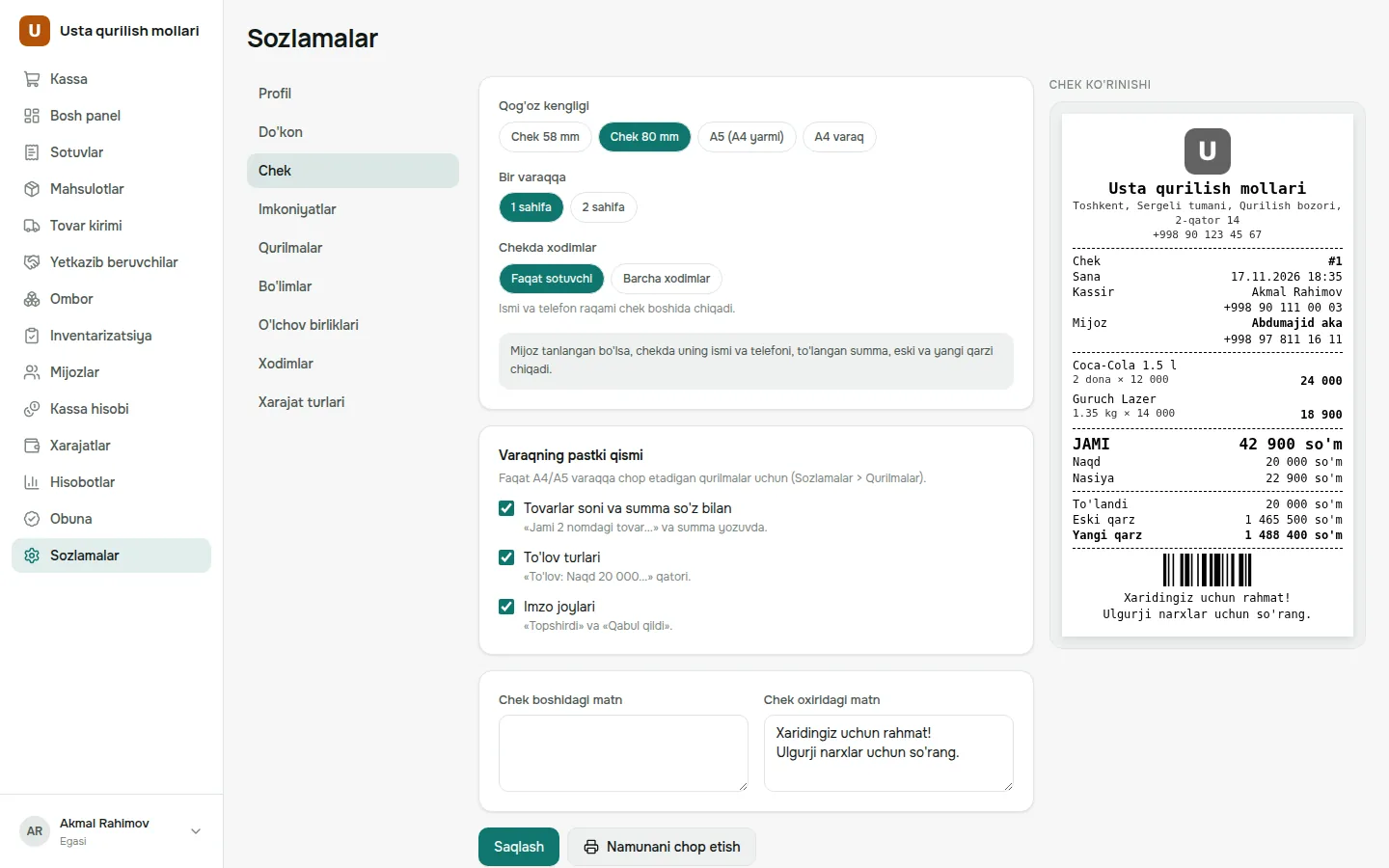
Section titled “Receipt settings”The owner or a manager sets the receipt up in Sozlamalar → Chek (Settings → Receipt). On the right (below, on a phone) is Chek ko'rinishi (receipt preview): every change shows at once.
| Setting | What it does |
|---|---|
| Qog'oz kengligi (paper width) | Receipt 58 mm, Receipt 80 mm, A5 (half an A4) or A4 sheet |
| Bir varaqqa (per sheet) | For A4: 1 sahifa (1 page) or 2 sahifa (2 pages, on the two halves of a landscape sheet) |
| Chekda xodimlar (staff on the receipt) | Faqat sotuvchi (only the seller) or Barcha xodimlar (all staff with a phone entered) |
| Jami summani dollarda ham ko'rsatish (show the total in dollars too) | Shows in a shop with dollars switched on. The total is printed in dollars, with the rate. A payment made in dollars prints anyway |
| Varaqning pastki qismi (bottom of the sheet) | For A4 and A5: item count and amount in words, ways of paying, signature lines |
| Chek boshidagi matn, Chek oxiridagi matn | Your own text, for example opening hours or "Xaridingiz uchun rahmat!" (thank you for your purchase) |
Namunani chop etish (print a sample) tests the printer. The shop's name, address, phone and logo are in Sozlamalar → Do'kon: Shop settings.
A4 and A5 sheets
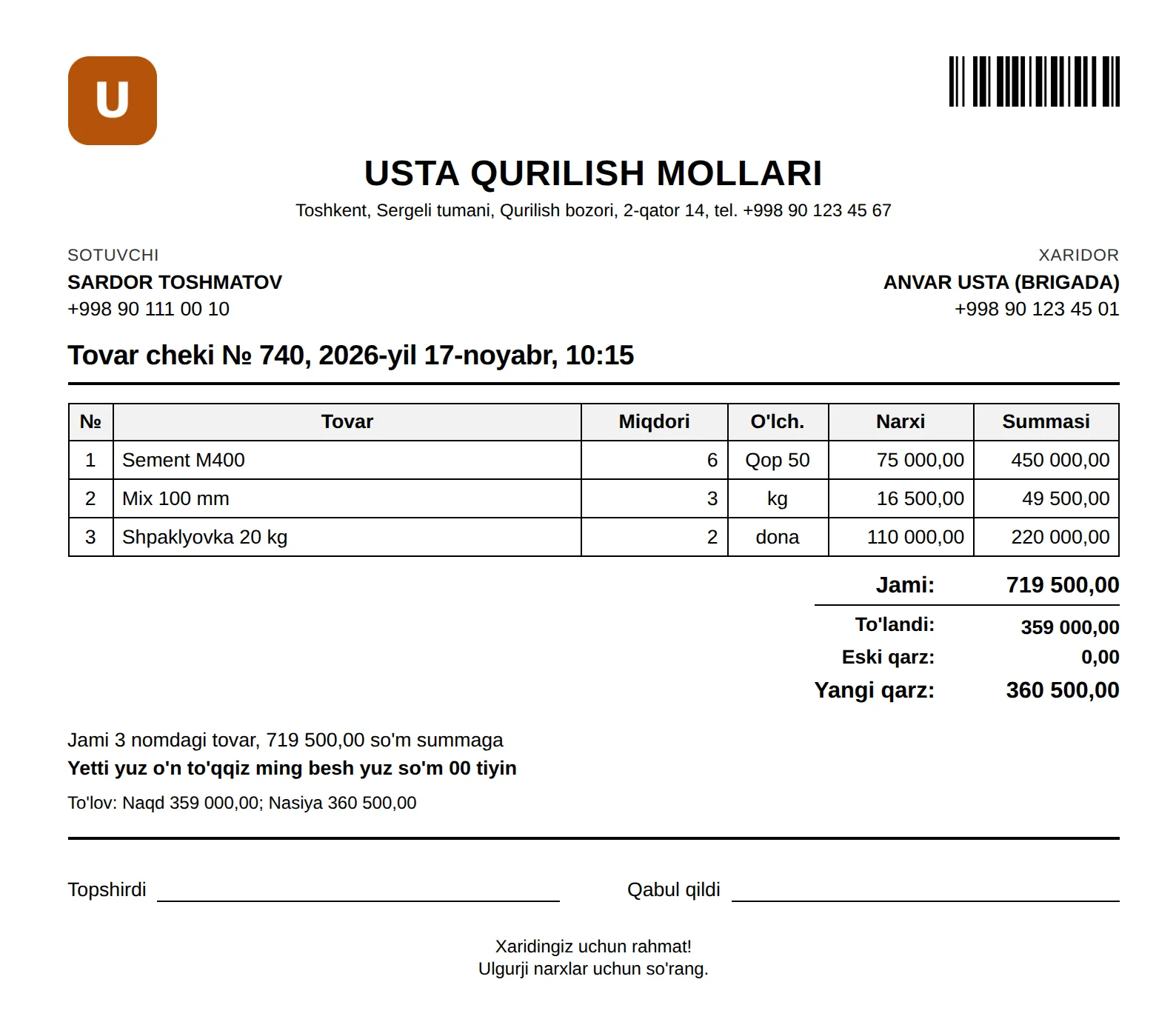
Section titled “A4 and A5 sheets”The A4 receipt is a "Tovar cheki" (sales slip) document like the one in 1C: its number, seller and buyer, a table of goods, the total, the amount in words and signature lines (Topshirdi, handed over; Qabul qildi, received). Handy for wholesale customers.
- A5 (A4 yarmi): cut an A4 sheet in half and put it in the printer upright. A long receipt continues on the next sheet.
- A4 · 2 sahifa: the receipt is A5-sized and prints on a landscape A4 sheet: first on the left half and, if it is long, on into the right half. It is not two copies. Nothing needs setting in the print window.
Each device with its own printer
Section titled “Each device with its own printer”If the till has an 80 mm printer and the office an A4 printer: on that device open Sozlamalar → Qurilmalar → Chek formati (receipt format) and choose that device's paper. This choice wins over the shop's setting. Connecting a printer: Receipt printer.
Receipts made offline
Section titled “Receipts made offline”The receipt of a sale made without the internet shows an 8-character code instead of a number, for example Chek 3F9A21C7. Once the sale reaches the server it gets an ordinary number. More: Working offline.
Questions
Section titled “Questions”The print window appears every time. That is how an ordinary browser works. To print without it, run the setup file on a Windows computer and open the till only from the shortcut it makes: Setting up a Windows computer.
The receipt is too small or its edges are cut off. Check that Qog'oz kengligi matches the roll in your printer (58 or 80 mm), and that the paper size in the printer's own settings is the same.
Can I remove the dollar total from the receipt? Yes: switch off Jami summani dollarda ham ko'rsatish. If the customer paid in dollars, the payment line still prints.
Does the receipt have the tax QR code? No. It is not a fiscal receipt.
Can I send the receipt to the customer in Telegram? Yes: Chekni ko'rish → Ulashish → Telegram. On a computer tap Rasm qilib saqlash and send the saved picture.