Adding staff
Let every staff member sign in with their own login and password. Then every sale shows who made it, and a cashier sees only what they need.
Only the shop owner (the Egasi, Owner, role) adds and changes staff.
Adding a staff member
Section titled “Adding a staff member”-
Open Sozlamalar → Xodimlar (Settings → Staff).
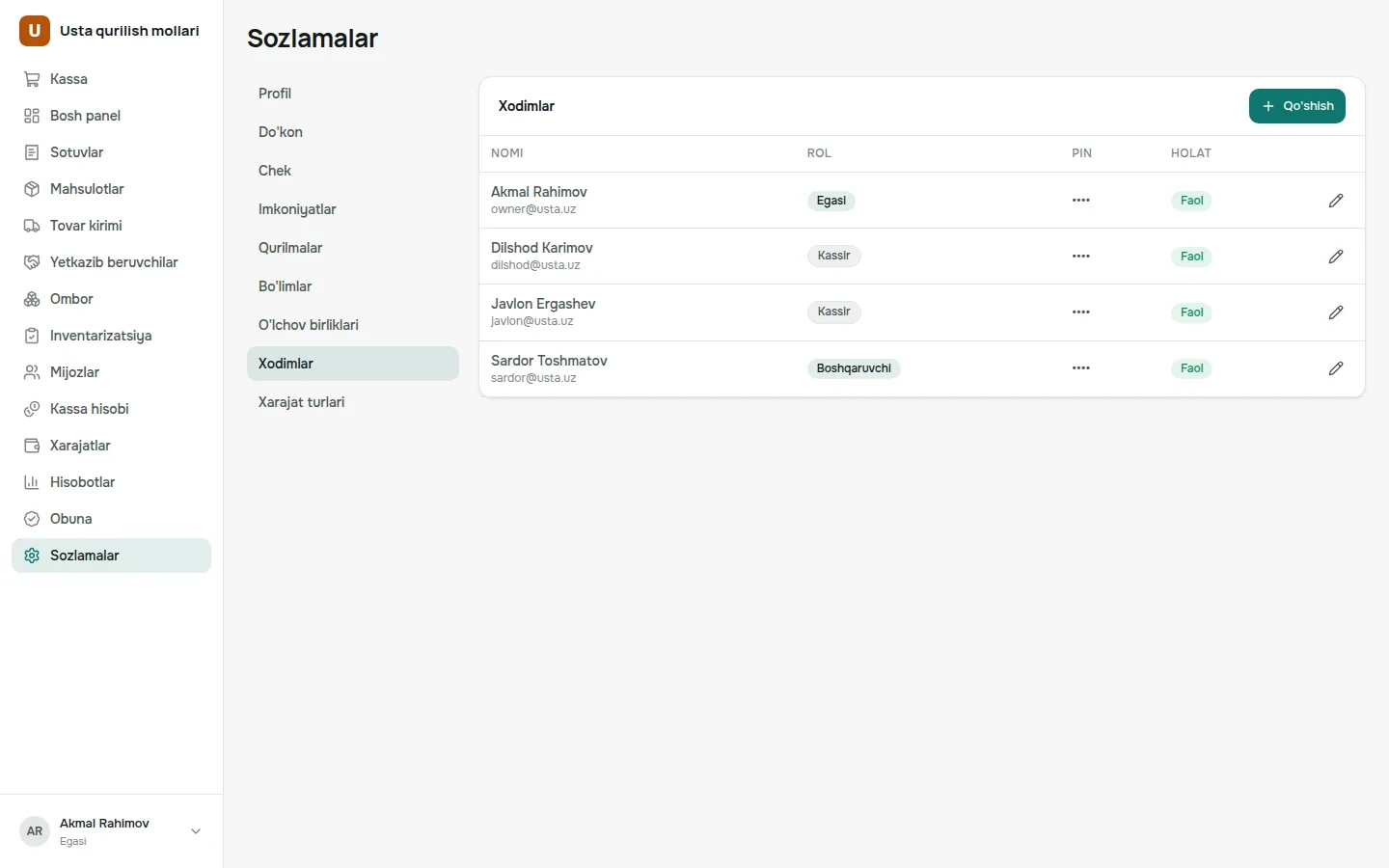
Settings → Staff -
Press Qo'shish (Add). The Yangi xodim (New staff member) window opens.
-
Nomi (Name): the person's name, for example "Dilnoza". It shows on receipts and in reports.
-
Email: the login for signing in. Required.
-
Telefon (Phone): optional. If you fill it in, the person can also sign in with their phone number instead of the e-mail. The number can also print on receipts (Sozlamalar → Chek, Settings → Receipt).
-
Pick the Rol (Role): Kassir (Cashier), Boshqaruvchi (Manager) or Egasi (Owner). What each role sees: Roles and permissions.
-
If a cashier should also add products, switch on Mahsulotlar bilan ishlash (Work with products), explained below. This switch shows only for the Kassir role.
-
Type the Parol (Password): at least 8 characters. A password of digits only, or a very common one (such as
12345678), is not accepted. -
PIN kod (PIN): 4 digits, for quick sign-in and switching seller at the till. Optional, but handy for cashiers. More: PIN.
-
Press Saqlash (Save).
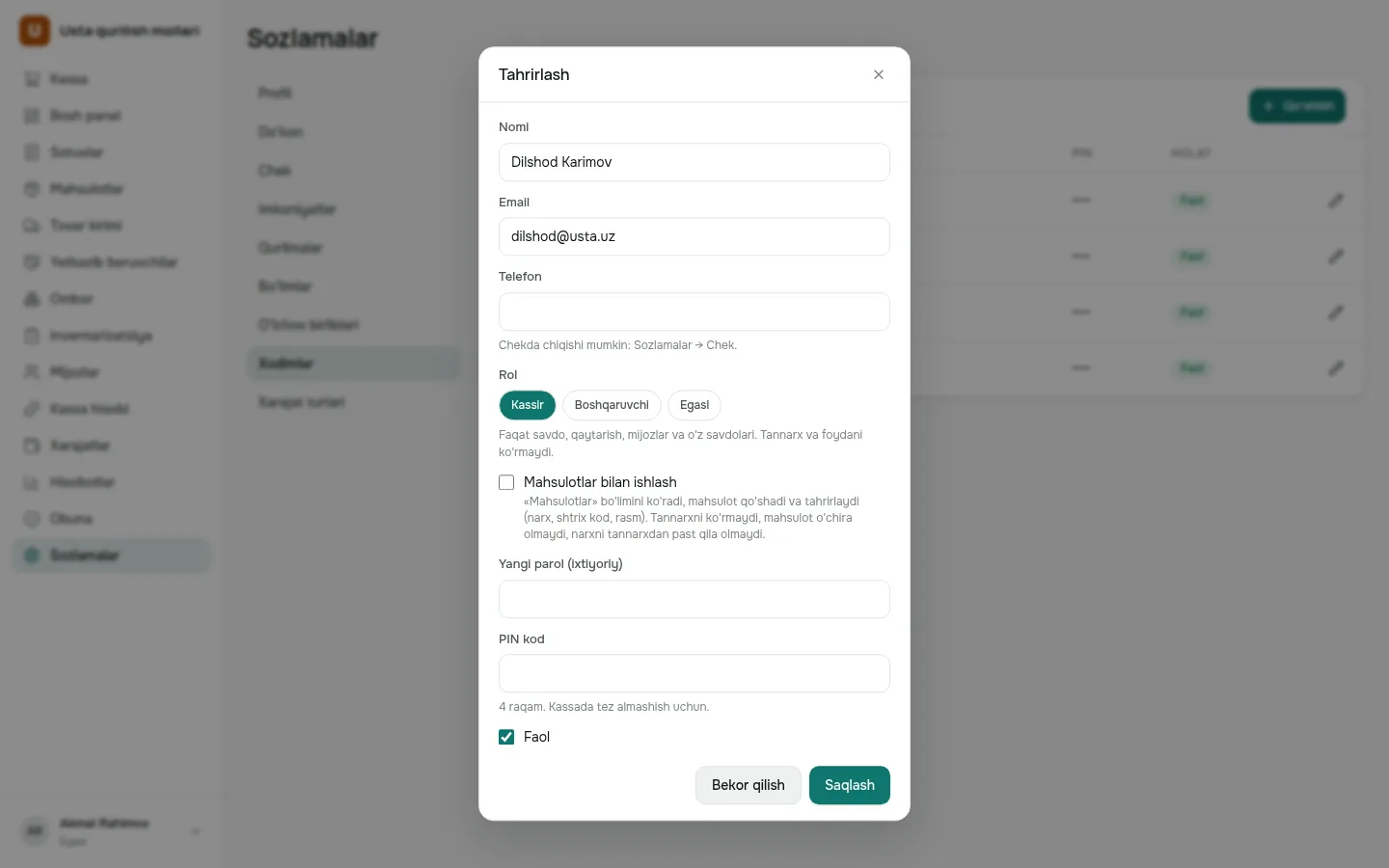
New staff member
Now give the person the shop address (for example dokoningiz.kassapos.online), their login and their password. They sign in on their own phone or on the till computer. How to sign in: Signing in.
Letting a cashier work with products
Section titled “Letting a cashier work with products”Normally a cashier does not see the Mahsulotlar (Products) page. If a cashier also enters new goods, give them this permission:
-
In Sozlamalar → Xodimlar, press the pencil icon on the cashier's row.
-
Switch on Mahsulotlar bilan ishlash.
-
Press Saqlash.
The cashier now sees the Mahsulotlar page and adds and edits products (price, barcode, photo). But they neither see nor enter the cost, and cannot delete products. With price control on, they cannot set a price below cost. In the list, "+ Mahsulotlar" shows under their role.
Changing a staff member's details
Section titled “Changing a staff member's details”-
In Sozlamalar → Xodimlar, press the pencil icon on the person's row.
-
Change what you need. To change the password, type a new one in Yangi parol (ixtiyoriy) (New password, optional). Left empty, the old password stays. The PIN works the same way: left empty, the old one stays.
-
Press Saqlash.
When someone leaves
Section titled “When someone leaves”Staff cannot be deleted, because their sales must stay in the history. Close their access instead:
-
Press the pencil icon on the person's row.
-
Switch off Faol (Active).
-
Press Saqlash.
The person can no longer sign in and no longer shows in the PIN list. Their sales and their figures in reports stay. In the list they show as Nofaol (Inactive). If they come back to work, switch Faol on again.
Changing your own password
Section titled “Changing your own password”Everyone can change their own password: Sozlamalar → Profil → Parolni o'zgartirish (Settings → Profile → Change password). Type the Joriy parol (Current password) and the Yangi parol (New password) and press Saqlash. The language (Til) and the screen look (Mavzu, theme) are chosen here too.
Questions
Section titled “Questions”How many staff can I add? The app has no limit on the number of staff.
A cashier forgot their password. What do I do? The owner opens their row in Sozlamalar → Xodimlar, types a new password in Yangi parol (ixtiyoriy) and saves.
The owner forgot their password. What now? If the shop has another owner, they set a new password for you. Otherwise contact the administrator who set up your shop.
Can I add a second owner? Yes. Pick Egasi as the role. They also see everything, manage staff and pay the subscription.
Can the manager add staff? No. Only the owner manages staff: otherwise a manager could make themselves owner.