PIN
A PIN kod (PIN) is a staff member's short 4-digit code. Typing a password takes time; a PIN is quick. It is used in three places:
- Signing in: on the sign-in page you pick your name and type the PIN.
- Switching seller: when two people take turns at one till, each sells under their own name.
- Approving: when price control stops a sale, or a cashier makes a return without a receipt, the owner or the manager approves it with their own PIN.
Setting a PIN
Section titled “Setting a PIN”The owner sets PINs.
-
Open Sozlamalar → Xodimlar (Settings → Staff).
-
Press the pencil icon on the person's row.
-
Type 4 digits in the PIN kod field, for example
4821. -
Press Saqlash (Save).
On a computer screen, the list's PIN column shows ••••: the person has a PIN.
To change a PIN, type a new one in the same field and save. Left empty, the old PIN stays.
Signing in with a PIN
Section titled “Signing in with a PIN”If at least one active staff member has a PIN, the sign-in page opens on PIN kod.
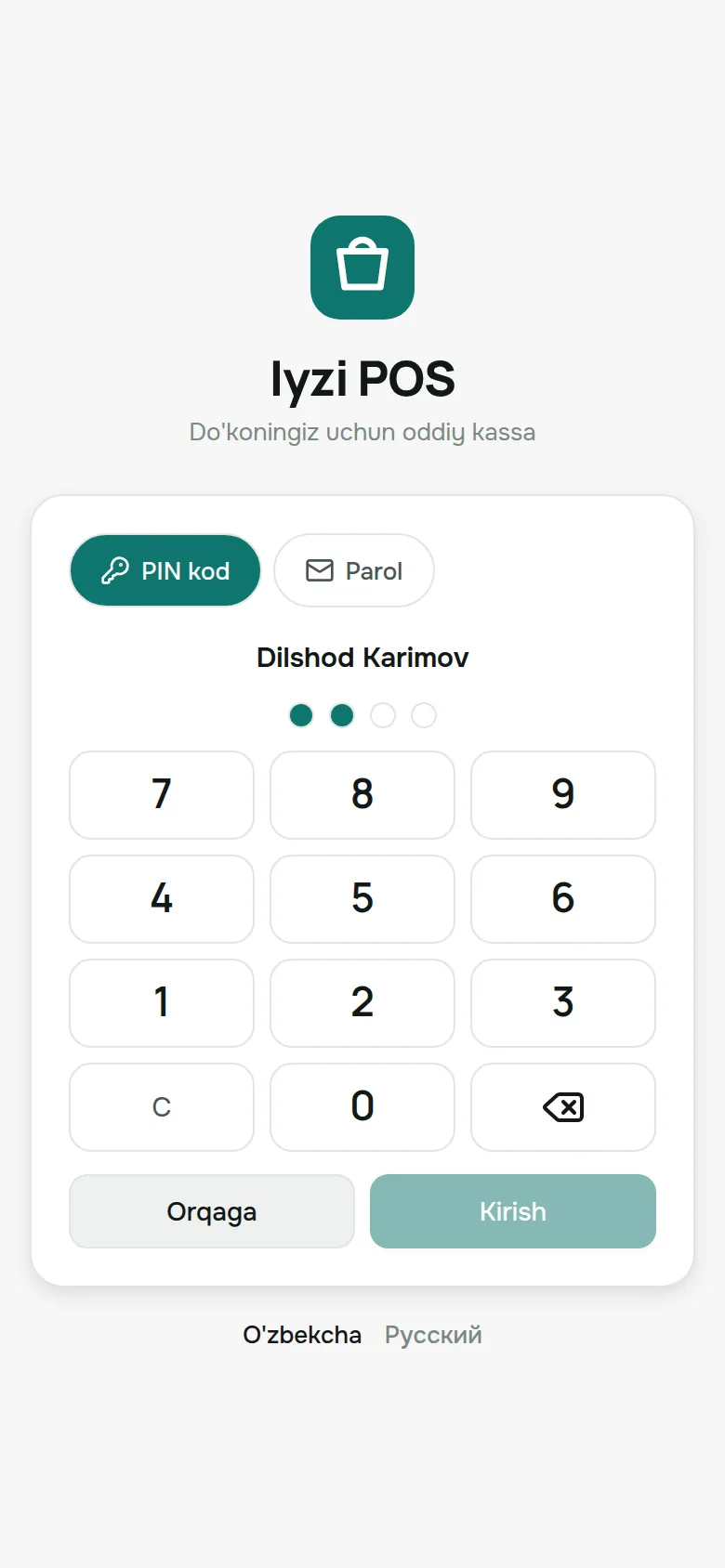
-
Tap your name in the list.
-
Type the PIN. The app signs you in as soon as you press the fourth digit.
To sign in with a password, pick Parol (Password). More: Signing in.
Switching seller at the till
Section titled “Switching seller at the till”There is no need to sign out and back in when you change over.
-
Press Xodimni almashtirish (Switch seller) at the top of the till (the people icon).
-
In the Kim ishlayapti? (Who is working?) window, tap your name.
-
Type your PIN.
From now on, sales are recorded under your name.
Approving with a PIN
Section titled “Approving with a PIN”When price control is set to Taqiqlash (Block), a cashier cannot sell with a bigger discount than allowed, or at a loss. The till opens the Narx nazorati (Price control) window and the cashier presses Ruxsat so'rash (Ask for approval). Then:
-
In the Kim ruxsat beradi? (Who approves?) window, the owner or the manager taps their own name.
-
They type their own PIN. After the fourth digit the approval is checked by itself (if needed, they press Ruxsat berish, Approve).
-
Once approved, the payment window opens and the sale finishes as usual. Who approved it is recorded on the sale.
Only owners and managers who have a PIN are listed. If the message "PIN-kodli egasi yoki menejer yo'q" (No owner or manager with a PIN) appears, give the owner or the manager a PIN. A return without a receipt is approved the same way. More: Discounts and price control, Returns.
A PIN is locked
Section titled “A PIN is locked”After 5 wrong PINs in a row, the PIN locks for a while. The screen says:
PIN kod ko'p marta noto'g'ri kiritildi. 5 daqiqadan keyin qayta urinib ko'ring. (The PIN was entered wrongly too many times. Try again in 5 minutes.)
Each next lock is longer:
| Which lock | How long |
|---|---|
| 1st lock (5 wrong) | 5 minutes |
| 2nd lock (5 more wrong) | 15 minutes |
| 3rd lock | 1 hour |
| 4th lock | 4 hours |
| 5th lock and after | 1 day |
A correct PIN starts the count of mistakes from zero. So does the passing of more than a day since the last lock ended.
This is a protection: a stranger cannot find the code by guessing. The lock works the same for signing in and for approving.
What to do:
- Wait: when the lock time is over, the PIN works again.
- If it is urgent, sign in with Parol (Password): the password does not lock.
- If you forgot the code, ask the owner for a new PIN. The new PIN also works only once the lock time is over.
Older PINs
Section titled “Older PINs”Earlier, a PIN could have 5 or 6 digits. For such a person the PIN pad starts with 4 boxes and adds more as you type. Type the whole code and press Kirish (Sign in). To make it easier, the owner can give them a new 4-digit PIN.
Questions
Section titled “Questions”Does a PIN replace the password? For signing in, yes. But the password is still needed: when the PIN is locked, you sign in with the password.
What if two staff have the same PIN? It works, because the name is picked first. But it is better to give each person a different code.
Can a cashier change their own PIN? No. Only the owner sets PINs, in Sozlamalar → Xodimlar.
Does a leaver's PIN still work? No. Once the person is made Nofaol (Inactive), they leave the PIN list and cannot sign in.