Cash drawer
A cash drawer (денежный ящик) connects to the receipt printer and opens by itself on cash sales.
How it works
Section titled “How it works”- The drawer connects not to the computer but to the receipt printer: to the DK (Cash drawer, RJ-11) port at the back of the printer, which looks like a telephone socket.
- The printer opens the drawer; the computer sends the printer an "open" command.
- A browser cannot send such a command to a printer by itself. So the Windows setup file installs a small helper program on the computer. It starts with Windows, out of sight, and accepts commands only from your shop's page.
What you need:
- a Windows computer (the helper runs only on Windows; the drawer does not open from a phone or tablet);
- a receipt printer with a DK port at the back;
- the Windows setup file.
Setting it up
Section titled “Setting it up”-
Plug the drawer cable into the DK (Cash drawer) port at the back of the receipt printer. No driver is needed.
-
Download the setup file from Sozlamalar → Qurilmalar (Settings → Devices) and run it. Run it again even if you ran it before. Type the receipt printer's number. Answer the next question (should the till open when the computer starts) as suits you.
-
To the question "Chek printeriga pul qutisi ulanganmi? (ha / yo'q)" (Is a cash drawer connected to the receipt printer? yes / no), type
1(meaning "yes") and press Enter.1works even with the keyboard in Russian. -
"Pul qutisi yordamchisi ishlayapti" (The cash drawer helper is running) appears. To "Hozir pul qutisini ochib ko'raymi?" (Shall I open the drawer now?), type
1again: the drawer should open. -
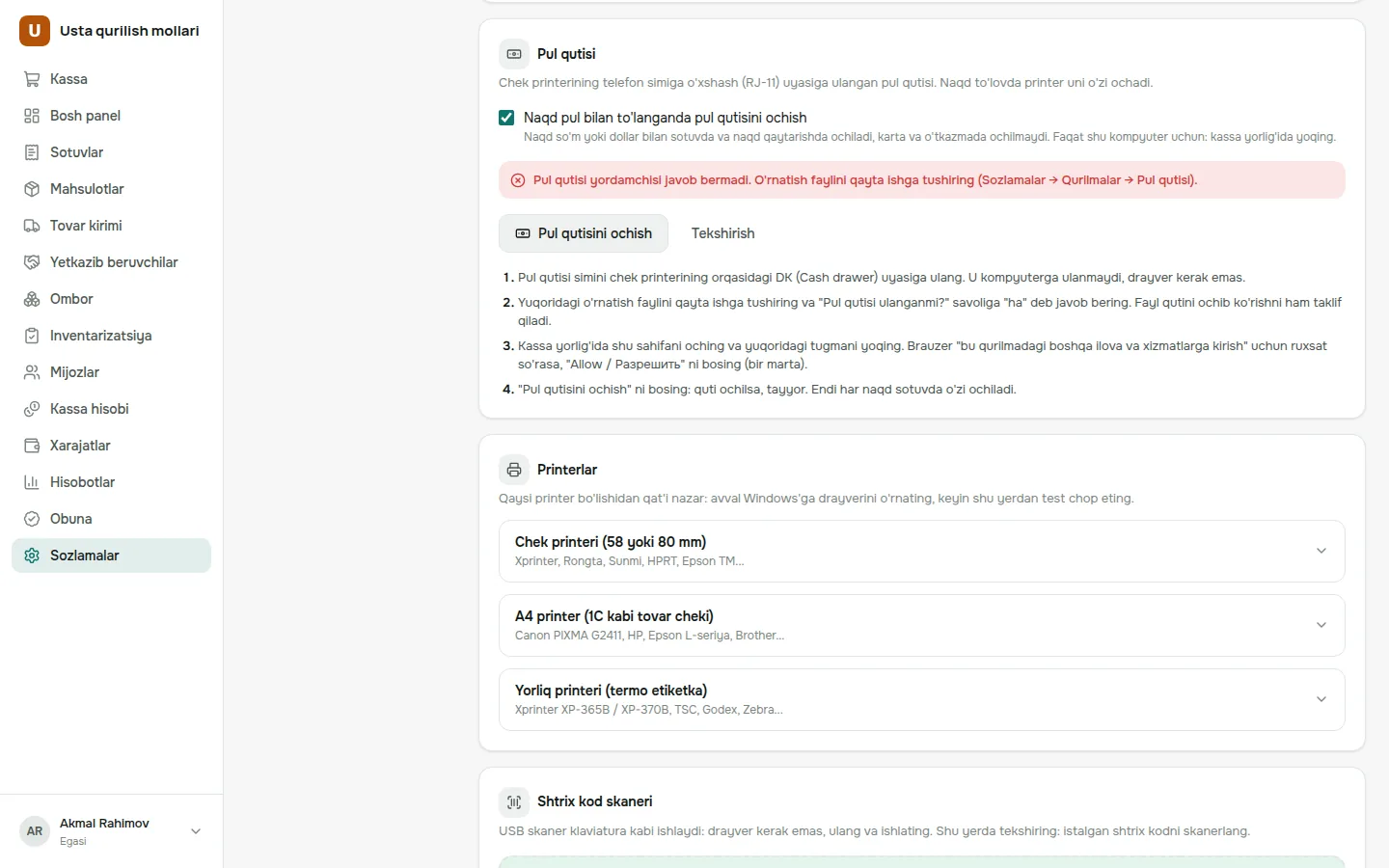
Open the app with the till shortcut and go to Sozlamalar → Qurilmalar → Pul qutisi (Cash drawer).
-
Switch on Naqd pul bilan to'langanda pul qutisini ochish (Open the cash drawer on cash payments).
-
If the browser asks for access to "apps and services on this device", press Разрешить / Allow. It asks only once.
-
Press the Pul qutisini ochish (Open the cash drawer) button. If the drawer opens, you are done.
When it opens
Section titled “When it opens”- After a sale paid in cash so'm or dollars (also when a mixed payment has a cash part).
- When a refund is handed back in cash (so'm or dollars).
- It does not open for card, transfer, bank transfer or credit.
This setting is for this computer only. Switch it on separately on each till computer.
To open the drawer by hand (for example, for small change), press the Pul qutisini ochish button in Sozlamalar → Qurilmalar. The button shows on a computer where the cash drawer is switched on.
Status messages
Section titled “Status messages”| Message | Meaning |
|---|---|
| Pul qutisi yordamchisi ishlayapti. Printer: … (The helper is running) | All good. |
| Ochish buyrug'i yuborildi (…). (The open command was sent) | The command went to the printer. If the drawer did not open, check its cable is in the printer's DK port. |
| Pul qutisi yordamchisi javob bermadi. (The helper did not answer) | The helper is not running on this computer. Run the setup file again. |
| Pul qutisi ochilmadi: … (The drawer did not open) | The printer did not carry out the command. The reason is shown too (often the printer is off or was renamed). |
The Tekshirish (Check) button checks again that the helper is running.
If the drawer does not open
Section titled “If the drawer does not open”-
Press Tekshirish. If it says the helper did not answer, run the setup file again and answer
1("yes") to the cash drawer question. -
If the setup file says "Yordamchi ishga tushmadi" (The helper did not start), an antivirus may have blocked it. Allow it in the antivirus and run the file again.
-
If the command was sent but the drawer did not open: check that the cable is fully in the printer's DK port (not the network or USB port). Also check that the drawer's key is in the normal working position: a drawer locked with its key does not open.
-
If you changed or reinstalled the printer, run the setup file again and pick the new printer's number.
-
Check that you switched the option on in the window the till shortcut opened. The till shortcut works apart from ordinary Chrome: a setting switched on in ordinary Chrome does not work in the till shortcut.
-
If Блокировать / Block was pressed when the browser asked for access, allow it again for the shop address in Chrome's site settings (Настройки сайтов / Site settings).
Questions
Section titled “Questions”If I sell on a phone, will the drawer open? No. The drawer opens only on a Windows computer, through the helper the setup file installs.
Can the drawer be plugged straight into the computer? No. The app opens only a drawer connected to the receipt printer.
What if one computer serves two shops? Download and run the setup file from each shop's page: the helper works for both shops. The drawer opens through the receipt printer chosen last.