Setting up a Windows computer
If the till computer runs Windows, you set it up with one file. You download it from the app itself and run it once. No administrator rights are needed.
What the file does
Section titled “What the file does”- Finds Google Chrome or Microsoft Edge on the computer.
- Shows the list of printers and makes the receipt printer you pick the Windows default printer. After that, Windows no longer switches the default printer to another one on its own.
- Creates a "Shop name" Kassa shortcut on the desktop. It opens the till full screen in its own window and prints receipts with no print window, straight to the default printer.
- If you want, opens the till by itself when the computer starts.
- If a cash drawer is connected, installs the helper program that opens it (Cash drawer).
The file is made for Windows 10 and 11.
Setting it up
Section titled “Setting it up”-
Connect the receipt printer by USB and install its driver. Check that Windows can print a "Test page" on it. More: Receipt printer.
-
Sign in to the app on this computer and open Sozlamalar → Qurilmalar (Settings → Devices).
-
In the Windows kompyuterga o'rnatish (Install on a Windows computer) block, press O'rnatish faylini yuklab olish (Download the setup file).
If the browser says a ".bat file may be dangerous", choose Сохранить / Keep.
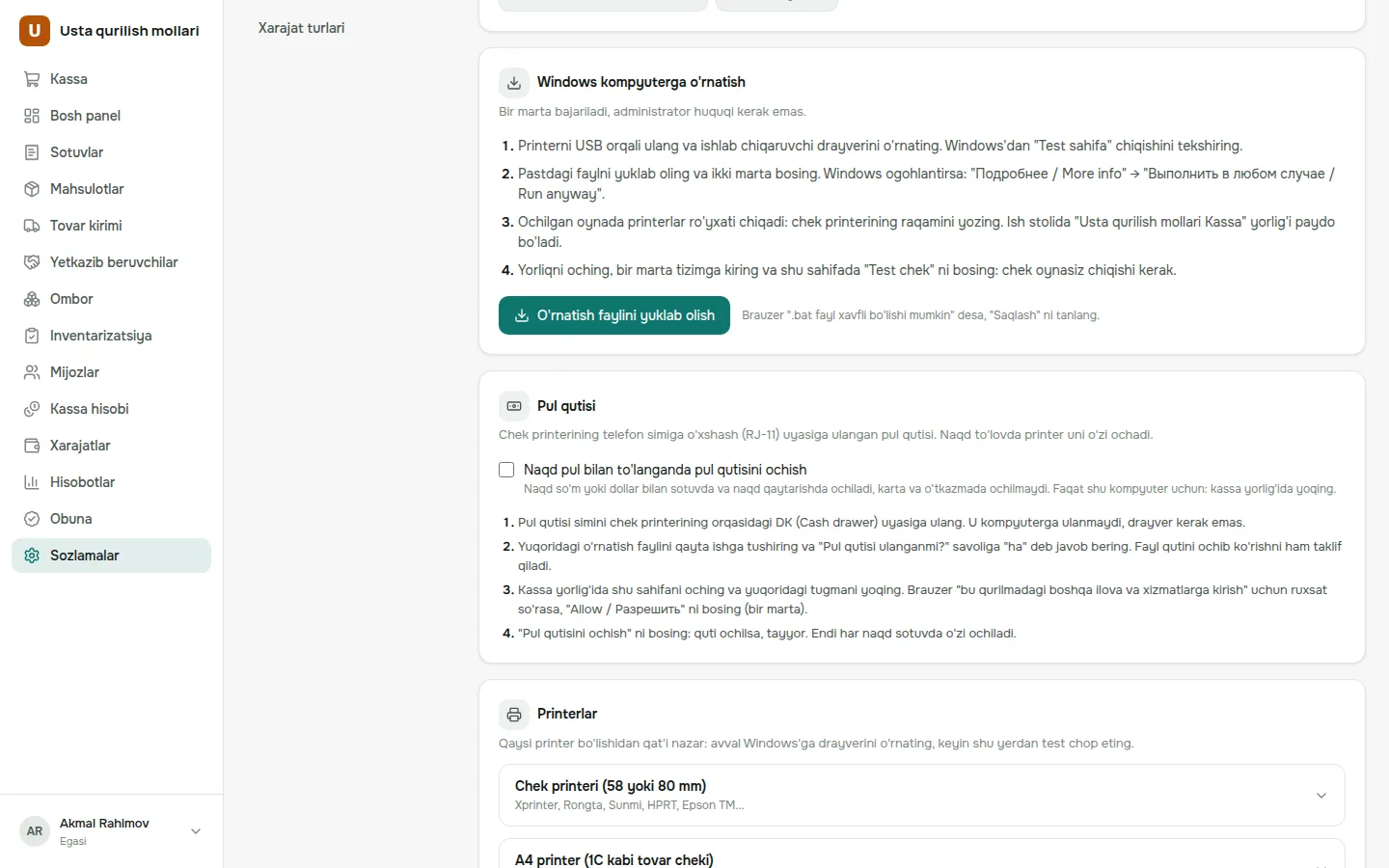
Settings → Devices → Install on a Windows computer -
Double-click the downloaded file.
If Windows shows a blue warning window, press Подробнее / More info → Выполнить в любом случае / Run anyway.
-
A black window shows the list of printers. The current default printer has
<==next to it. Type the receipt printer's number and press Enter. To keep the default printer as it is, just press Enter. -
Answer "Kompyuter yonganda kassa o'zi ochilsinmi? (ha / yo'q)" (Open the till when the computer starts? yes / no):
1for yes,0for no, then Enter. -
Answer "Chek printeriga pul qutisi ulanganmi? (ha / yo'q)" (Is a cash drawer connected to the receipt printer?). Without a drawer,
0. With one, type1: the file installs the cash drawer helper and offers to open the drawer as a test (Cash drawer). -
"Tayyor! Kassa ochilmoqda." (Done! The till is opening.) appears and the till opens full screen. Close the black window with any key.
-
Sign in once in the till that opened.
-
Press the Test chek (Test receipt) button in Sozlamalar → Qurilmalar. The receipt should print at once, with no window at all.
A "Shop name" Kassa shortcut appears on the desktop. From now on, always open the till with this shortcut.
What to know about the till shortcut
Section titled “What to know about the till shortcut”- Full screen. The till opens full screen. Press F11 for an ordinary window, Alt + F4 to close it.
- A separate browser. The shortcut works apart from ordinary Chrome. So:
- you sign in to it separately, once;
- settings in Sozlamalar → Qurilmalar (receipt format, automatic printing, cash drawer) are made in this window itself;
- it keeps printing with no window even while ordinary Chrome is open.
- Everything goes to the default printer. In the shortcut window, receipts, labels and A4 documents all print with no window, on the default printer. To print on another printer (for example a label printer), open the app in ordinary Chrome and pick the printer in the print window.
When to run the file again
Section titled “When to run the file again”Running the file again breaks nothing: it updates the shortcut, and your sign-in and Qurilmalar settings stay.
- When you change the receipt printer or reinstall its driver.
- When you connect a cash drawer later.
- When the shortcut was deleted by mistake.
- When the shop name changes. In this case download the file again from Sozlamalar → Qurilmalar: the shortcut is created with the new name; delete the old one yourself (and the one in the
shell:startupfolder, if you made the till open when the computer starts).
Removing it
Section titled “Removing it”- Delete the till shortcut from the desktop.
- To stop it opening when the computer starts: press Win + R, type
shell:startupand press Enter. Delete the till shortcut and the cash drawer helper's shortcut from the folder that opens.
Problems
Section titled “Problems”| Sign | What to do |
|---|---|
| "Google Chrome yoki Microsoft Edge topilmadi" (Chrome or Edge not found) | Install Google Chrome and run the file again. |
| "Printer topilmadi" (No printer found) | Install the printer driver first, then run the file again. |
| The file opens and closes at once | Run it again. If an antivirus is blocking it, allow it. |
| The receipt still prints with a print window | Check that you opened the till with the till shortcut on the desktop, not with ordinary Chrome. Close the till window (Alt + F4) and open the shortcut again. |
| The receipt comes out of another printer | Run the file again and pick the receipt printer's number. |
| The shortcut asks to sign in again | That is normal: the shortcut is a separate browser. Sign in once and it remembers. |
Other problems: Problems and fixes.
Questions
Section titled “Questions”Does it work on a Mac or Linux computer? The app works in the browser on any computer. The setup file and the cash drawer helper are for Windows only. On other computers, receipts print through the browser's print window (Receipt printer).
Do I need to do this on every till computer? Yes. The file sets up only the computer it was run on.
Can I trust the file? The file is downloaded from the app itself, does only the things listed above on the computer and does not ask for administrator rights. Windows always warns about an unfamiliar file.